
If you want to drive organic traffic to your Webador site and improve its visibility in search engines, you should add a blog to it. To do that, you can use Webador’s native blogging tool if you have a small blog and an infrequent publishing schedule. If your blog doesn’t fall into this category, you’ll need a professional blogging platform to manage and scale your content effectively.
In this guide, you’ll discover how to add a blog to Webador in two ways: with Webador and DropInBlog.
Table of Contents
TL;DR
Webador lets you create a simple blog using the blogging features included in all of its plans.
You can’t create a blog on Webador for free. You’ll need a paid account to publish your site and make it visible to search engines.
The website builder’s blogging features won’t suffice for content-heavy blogs or websites that rely on blogging to drive site traffic.
DropInBlog, a dedicated blogging platform, eliminates the limitations of Webador’s native blog, allowing you to create and manage a scalable, SEO-friendly blog.
Blogging on Webador: Webador’s Native Blog vs. DropInBlog
| Webador's native blog | DropInBlog | |
|---|---|---|
| Easy to use | ✓ Yes | ✓ Yes |
| SEO features | Basic | Advanced |
| User roles | ✓ Yes | ✓ Yes |
| Customizable URLs | ✗ No | ✓ Yes |
| Easy to scale | ✗ No | ✓ Yes |
How to Create a Blog on Webador with DropInBlog
Prerequisites
To add a blog to your Webador site, you’ll need to do the following first:
Create a Webador account with an active subscription to the Pro plan or higher.
Create a DropInBlog account (available via the free trial).
Once that’s out of the way, you can move on to Step 1.
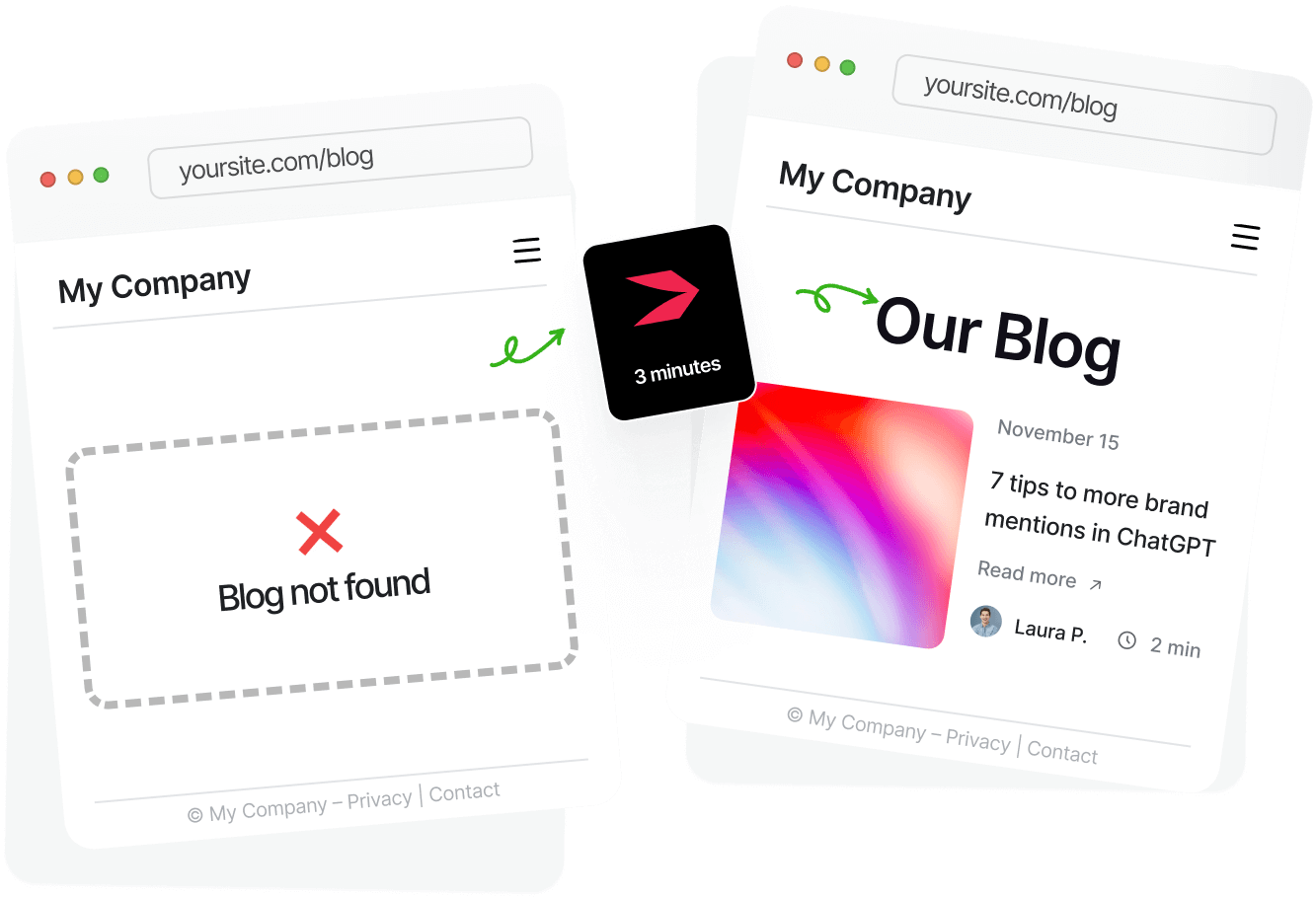
Step 1: Create a New Blog Page in Webador
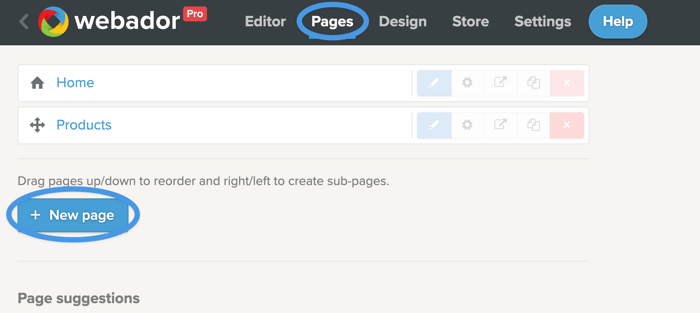
Log in to your Webador account and open the site editor. Once in the editor, create a new page by selecting the Pages tab from the menu at the top, then clicking on New page.
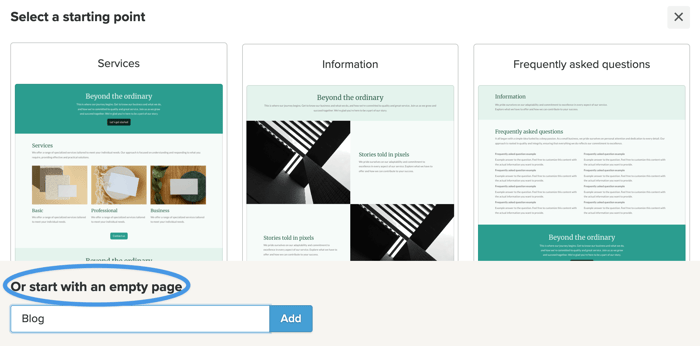
On the following page, instead of selecting a pre-made section, select the option to start with a blank page. Name your page, then click on the Add button.
Doing so will take you back to the Pages tab, where you’ll see your new blog page. Click on the pencil icon next to it to edit it, then proceed to the next step.
Step 2: Add the Embed Code Element
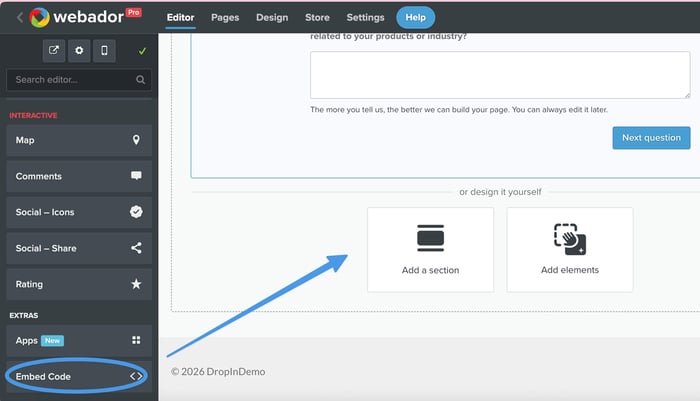
In the editor’s left-hand side menu, find the Embed Code element under Extras, then drag and drop it onto your new blog page.
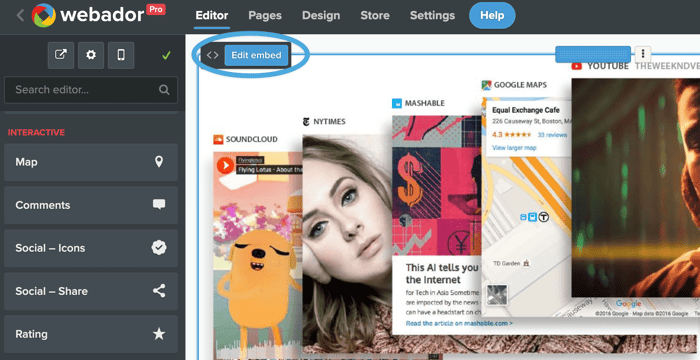
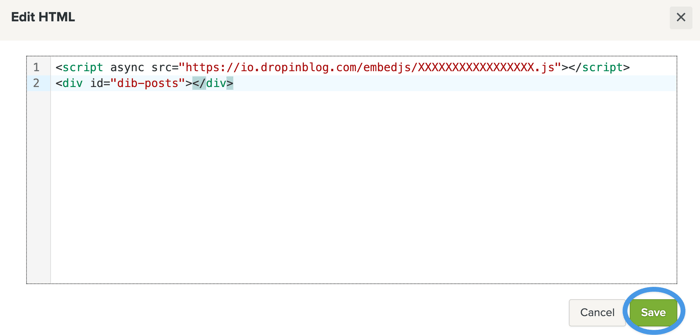
Next, you’ll need to set your embed code. Click on the Edit embed button to open the HTML editor, which is where you’ll add two code snippets from your DropInBlog account.
Step 3: Add Your DropInBlog Code
At this point, you need to log in to your DropInBlog account. Using the top navigation menu, open the Code & Layout page. Here, you’ll find your code snippets under Step 1 and Step 2.
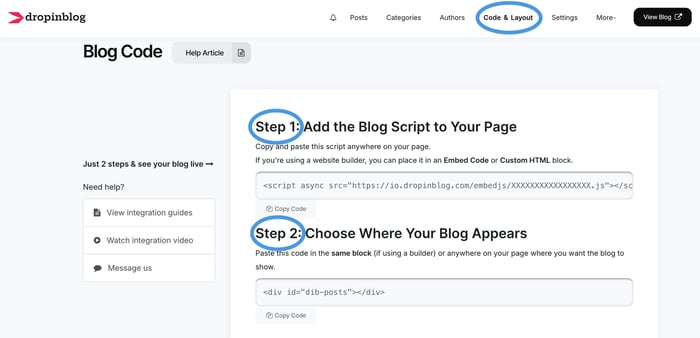
Copy the first line of code, then go back to your Webador account and paste the code inside the HTML editor.
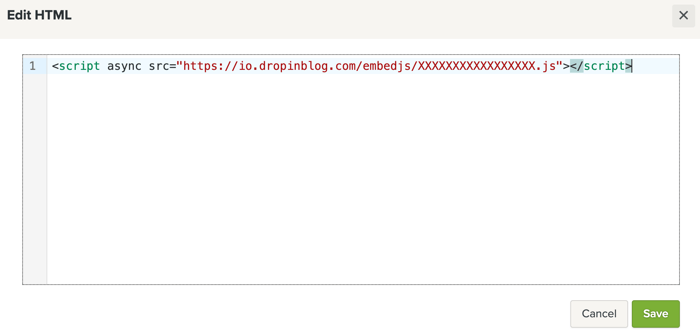
Do the same for the second line of code, and paste it under the first one.
Once you copy and paste these two lines of code, click on the Save button to close the HTML editor.
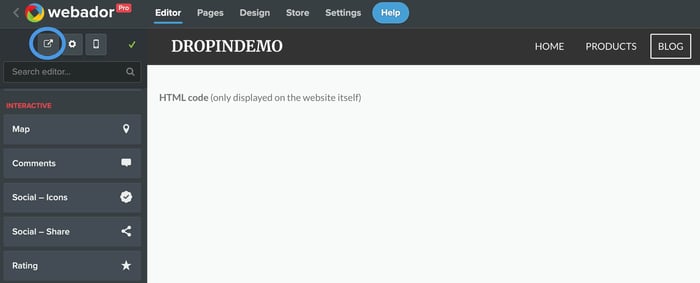
You’ll be taken to the Webador editor. Here, click on the external link icon in the upper-left to view your new blog page.
Step 4: Connect DropInBlog with Webador
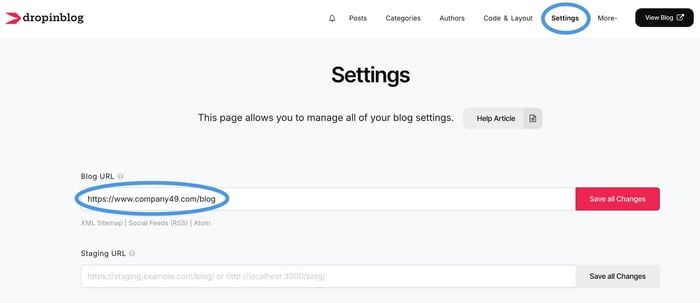
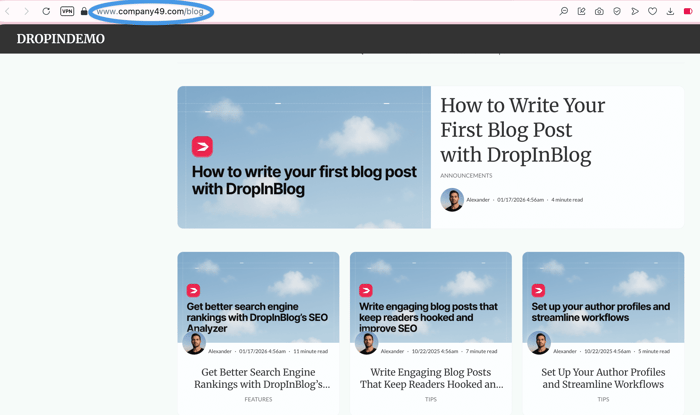
After you’ve opened your new blog page in a new tab, copy its URL and head over to the Settings page of your DropInBlog account. Paste the URL under Blog Link and save your changes.
At this point, your Webador blog is live!
Create SEO-Friendly Content for Your Webador Blog
Once your Webador blog is live, you can start creating content for it, which you’ll do from your DropInBlog account. When you publish a blog post through DropInBlog, it’ll automatically sync with Webador and show up on your Webador website.
Starting a new blog post with DropInBlog is easy – just click on the Add Post button on the Posts page to open the DropInBlog post editor.
Once in it, you’ll see the post editing area in the middle of the page, and below that, you’ll find your content’s SEO score. This score comes from the platform’s built-in SEO analysis tool, designed to increase your blog’s visibility in online searches.
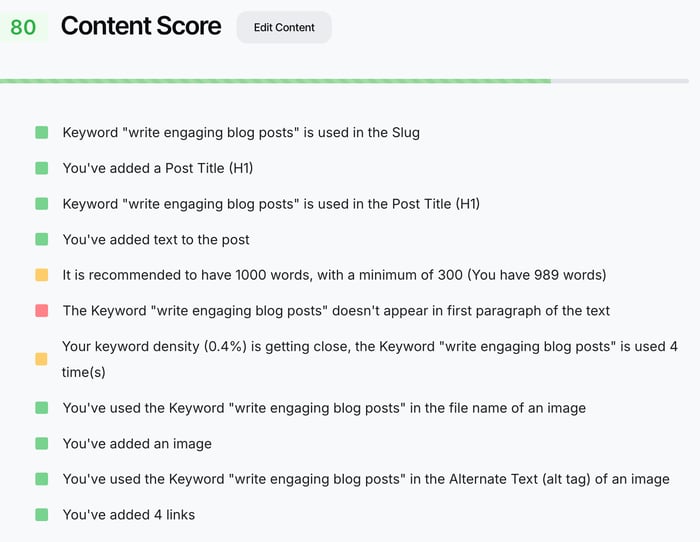
The SEO Analyzer will provide actionable on-page SEO suggestions focused on keyword usage, internal linking, and image SEO best practices.
That’s not all! DropInBlog ensures your blog’s SEO-friendliness with a few additional tools and speed-focused technologies:
It prepares your content for the GEO era with easy-to-implement suggestions to increase visibility in Google’s AI Overviews and other AI-based tools.
It automatically applies BlogPosting, VideoObject, FAQPage, and ProfilePage schema to your blog posts and author profiles. That way, search engines can easily understand and later display it in rich results.
It uses image compression tools to reduce page load times.
Using these features and tools, you can create a fast-loading blog on Webador that has high chances of ranking well in online searches.
Reusable Content Blocks for Easy Updates and Showcasing Products
With DropInBlog’s Smart Snippets™, you can create a piece of content and show it on all your blog posts. Or you can show it on only a few selected ones. And the best part is that these pieces of content can be anything you want – an image, a paragraph, or an embed code for quizzes and newsletters.
Let’s say you have a store on Webador that sells chocolate, and now you want to display some of your products in your blog posts. You can do that easily by creating a new snippet in your DropInBlog account. Then, in the content area, add the product image you want to display and link it to your product page.
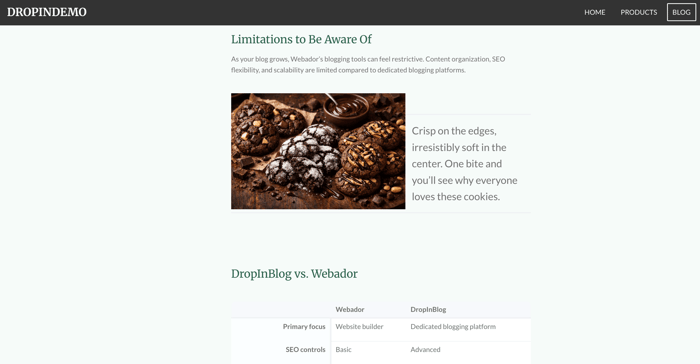
You can do the same by inserting a linked image into your post, but this way, you’d have to repeat this action for each post where you want this content to appear. With Smart Snippets™, on the other hand, you can create this content in one place and display it in one or hundreds of posts – without the repetitive work.
If you want to update the snippet content, you don’t need to do so for each of its instances. You only need to update it once, and the content will automatically update everywhere. That way, the most important content on your blog will always be up to date.
Create an Audio Version of Your Blog
Another notable feature that can help you increase your blog’s engagement rates is Blog Voice AI™. The DropInBlog text-to-speech engine allows you to transform what you’ve written into audio.
The feature supports over 20 languages and various AI voices. You can set a language, locale, and tone to make your content available to international audiences and more accessible.
Other Blogging Features
These aren’t the only features DropInBlog supports. Apart from the features mentioned above, you also get access to many more features when you create a blog on Webador with DropInBlog. Some of them are:
E-E-A-T-friendly author pages: You can easily display your blog authors’ bios, areas of expertise, and featured work. These pages also use schema data, which makes it easy for search engines to get accurate information about your blog authors.
Role-based access: The default user roles include editor, writer, and admin, but you can also create a custom role based on your preferences.
Design customizations: DropInBlog automatically matches your Webador site’s design, so you don’t need to worry about having a blog page that’s different from the rest of the site. And if you want to change your blog’s design, you can do that too from your DropInBlog account.
Now, you can also create a blog on Webador with its built-in blogging features. Let us walk you through the steps for this blog integration method.
How to Create a Blog with Webador’s Native Blog Engine
You can easily create a blog on Webador using the platform’s built-in blogging tool. Here’s how:
Start by opening the site editor and adding a new blank page from the Pages tab.
Once in the editor, find and drag and drop the blog element onto your new page.
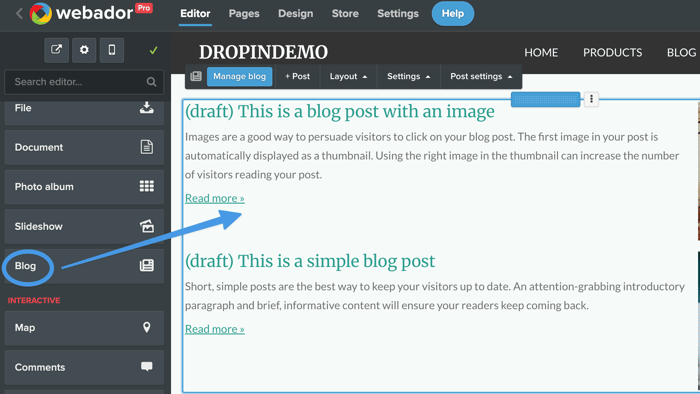
That’s it! Your Webador blog will be live as soon as you publish your site.
Then, if you want to add a new post to your blog, you just need to click on the Manage blog or +Post button that will appear when you select the blog element.
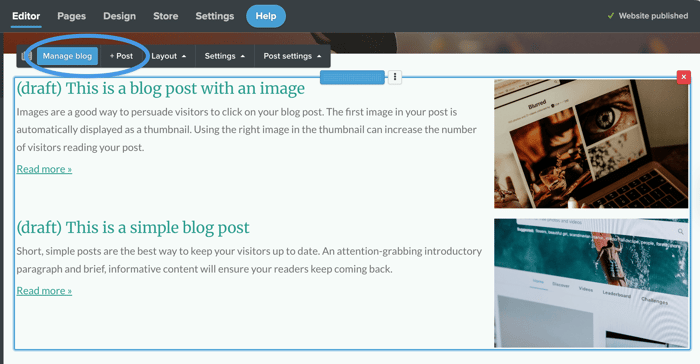
Using this blog integration method, you’ll have only basic blogging features at your disposal, and the writing experience isn’t what you’d get from a traditional CMS. Instead, you need to build blog posts like any other page on the website by dragging and dropping elements into the editing area. The problem with this approach is that there’s no easy way to manage and scale your content.
Besides these limitations of Webador blogs, you’ll also have very few options for optimizing your content for search engines. Namely, you can set the SEO title and meta description, and add a social media image, but that’s all.
Apart from this, you’ll also find that Webador is missing some common blogging features, including:
The option to display related posts below blog posts
Automatic table of contents
More versatile user roles with blog-specific permissions
Rel attribute settings for links
The option to add authors and author pages
On the other hand, all of these features are available with DropInBlog, which allows you to create a professional blog for your site.
FAQs
Is Webador actually free?
Yes, Webador offers a free plan that lets you test the platform’s features. However, without a paid subscription, you can’t publish your site.
Is Webador good for blogging?
Webador can be a solid option for blogging if you post occasionally and don’t have a lot of content. On the other hand, if you have a content-heavy blog and need greater SEO control, you should choose a dedicated blogging platform like DropInBlog.
Is Webador good for beginners?
Absolutely yes! Webador is a user-friendly site builder that allows you to create a personal or business website. You can just as easily add a blog to it.
Does Webador do SEO?
Yes, Webador offers basic SEO options, including metadata control and redirect management. If you want some more advanced features, you’ll need to use a third-party app to improve your site’s rank in search engines.
Start a Blog for Your Webador Site Today
Starting a blog on Webador is easy, regardless of the blog integration method you choose. With Webador’s built-in blogging tool, you can easily add new content to your blog, but as your blog grows, you may need a more advanced solution.
With DropInBlog, you don’t have to worry about your blog’s scalability or search engine visibility. Everything you need to turn your blog into a content marketing engine is available out of the box.
Try DropInBlog today for free and see what it can do for your Webador site!
If you have any questions, we’re always happy to help.
Happy blogging!