
"Many hands make light work." - John Heywood
There are some things you just can't do all by yourself: moving heavy furniture... crowd-surfing... team sports... etc. Blogging is no different. Collaboration is key to creating active, dynamic content that engages readers and drives traffic.
Whether you have a team of writers or simply want to open your platform to guest posts, you need to be able to add authors to your blog and manage multiple authors efficiently.
Guess what? DropInBlog can help you do that!
Adding an Author to Your Blog
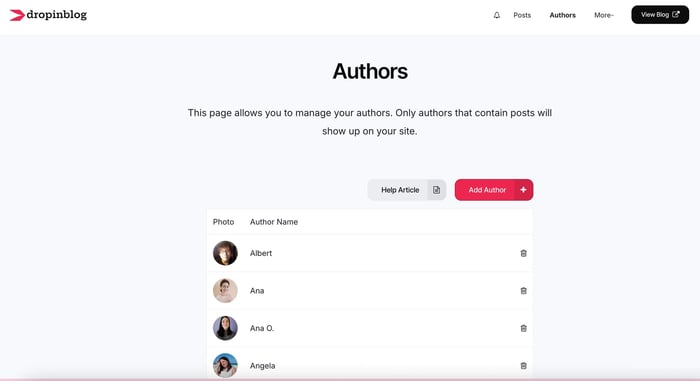
DropInBlog makes it easy to manage multiple authors through the "Authors" page. Access this page by clicking the "Authors" tab in the main navigation bar.
Here you can see, at a glance, all the authors who are currently active on your blog. To add a new author, simply click "Add Author."
On the following page, you can customize your author profile page. Input the author's name, title, expertise, and bio. A good bio is crucial – it builds trust in the author and also improves search engine optimization. DropInBlog provides a full-text editor for bios, so you can format, add links, images, etc.
We recommend keeping bios short – 250 words or less – and minimizing links to external sites. Below the editor, you also have fields for displaying your personal blog and other work, and adding links to your social profiles.
Don't forget to upload a picture for each of your authors! You can do this with the image uploader on the right-hand side of the page. We recommend keeping bio picture file sizes small – 200px x 200px is plenty. Anything too large is unnecessary and will start to slow down your page's load time.
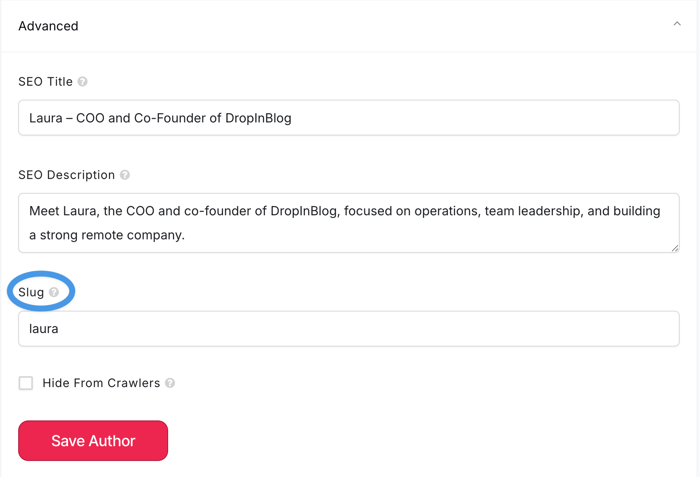
What is a "Slug"?
A slug is a simple string that's used in URLs and tags, or to identify part of a webpage. The author "slug" field defaults to the author's name and is used for URLs. For example, a page showing all the posts by me (Laura) can be found at dropinblog.com/blog/author/laura/.
Adding an Author to a Post
Once you have a list of active authors, it's very easy to associate an author with a post.
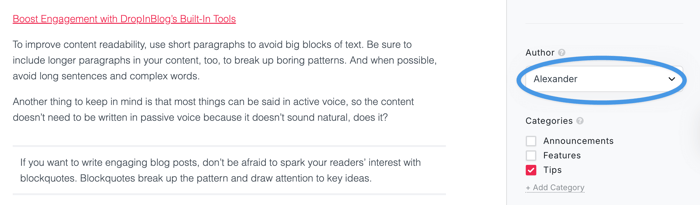
In the post editor, click the "Select Author" dropdown to the right of the main text editor. The list will be populated with the names of any authors you have added on the Authors page. Simply select the name of the author who wrote the content: their name will then automatically show up at the top of the published post.
That's It!
That was easy! You're about to start reaping the rewards of collaboration! You now know how to:
- add authors to your main blog account
- upload images for your authors
- add a single author to a blog post
Questions? Concerns? Just want to chat? Whatever you need, just reach out to our support team.