
FreshLearn is an all-in-one platform that lets you sell courses and build an online community around your products. Still, FreshLearn is a learning management system first, so it doesn’t offer advanced blogging features with its native blog. Instead, it caters to small blogs that don’t post often.
In this guide, we’ll show you two ways to create a blog on FreshLearn, including a more advanced setup using DropInBlog to turn your blog into a growth engine.
TL;DR
You can use FreshLearn to create a basic blog without any external apps.
However, if you want to use blogging as a sales tool to attract new signups for your online courses, DropInBlog is a better option.
Integrating DropInBlog with FreshLearn is easy and takes just a few steps.
Table of Contents
- TL;DR
- Can You Create a Blog with FreshLearn?
- What's New in FreshLearn (2026)
- Create a Blog on FreshLearn with DropInBlog (Recommended)
- Create a Blog on FreshLearn with Its Native Blogging Tool
- DropInBlog vs. Freshlearn Native Blog
- Add New Content to Your FreshLearn Blog
- DropInBlog’s Notable Features
- How Your Online School Benefits from a Blog
- Start Blogging on FreshLearn Today
- FAQs
Can You Create a Blog with FreshLearn?
Yes, the native blog handles publishing but wasn't built for enrollment-driven content marketing. Common gaps course creators run into:
No live SEO scoring: you have to guess whether a post will rank for course-related queries before publishing
Limited layout flexibility: the WYSIWYG editor doesn't support multi-column layouts, so posts that mix text with embedded course previews, testimonials, or enrollment CTAs get awkward
Limited direct third-party integrations: most connections to external tools go through Zapier, which adds cost and complexity
For creators publishing 1–2 posts a month for existing students, the native tool works. For creators using blog content as the discovery layer of an enrollment funnel and ranking for prospects who haven't heard of you yet, DropInBlog fills those specific gaps. Here's the 5-minute setup.
What's New in FreshLearn (2026)
FreshLearn's 2026 updates focused on the course side of the product, not blogging. Some of the additions are the following.
AI Studio: outline generator, quiz generator, Course AI, captions, summaries, and an AI Coach, all built into the course creation flow
- Page Builder improvements: more flexible layout controls, improved spacing, image handling, and enhanced FAQ, testimonial, gallery, CTA, and team blocks.
- Sitemap & SEO improvements: enhancements to search engine indexing across websites.
- Refreshed platform interface: updated members, products, reports, and filtering experiences throughout the admin dashboard.
What FreshLearn's 2026 update didn't touch: the blog editor. If you were hoping AI Studio would extend to blog content generation with SEO tooling, it doesn't. The AI focuses on courses, not blog posts.
For creators using blog content as an enrollment channel, DropInBlog fills that gap: SEO scoring built for blog content, automatic schema markup that helps Google identify your posts, and Blog Pilot™ for topic research at the top of your enrollment funnel.
Create a Blog on FreshLearn with DropInBlog (Recommended)
An active subscription to FreshLearn’s Pro plan
An active DropInBlog account (available with a free trial)
Let us walk you through the integration step by step.
Step 1: Add a New Page to Your FreshLearn Website
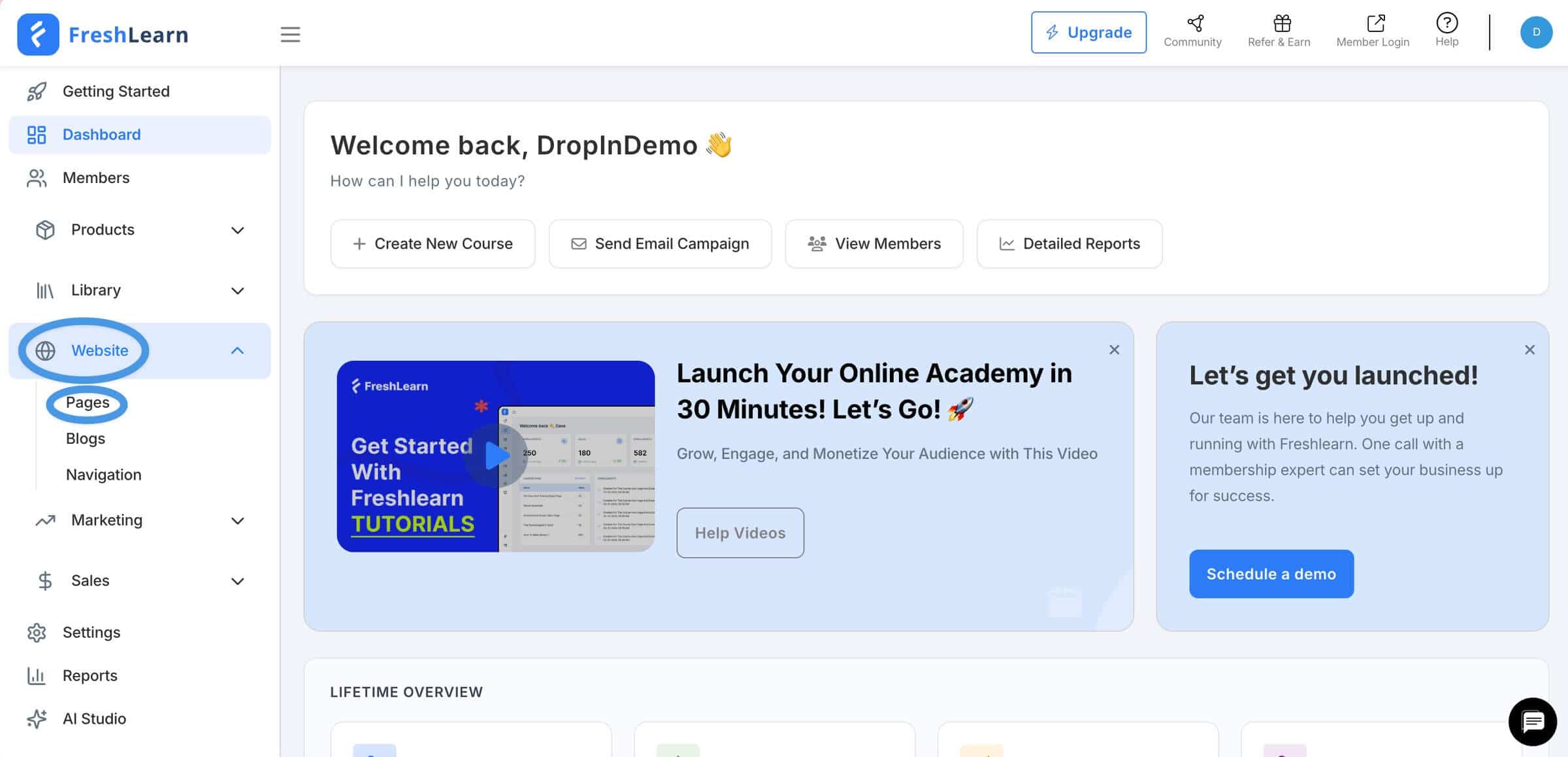
From your FreshLearn dashboard, open Pages from under the Website tab in the left-hand side menu.
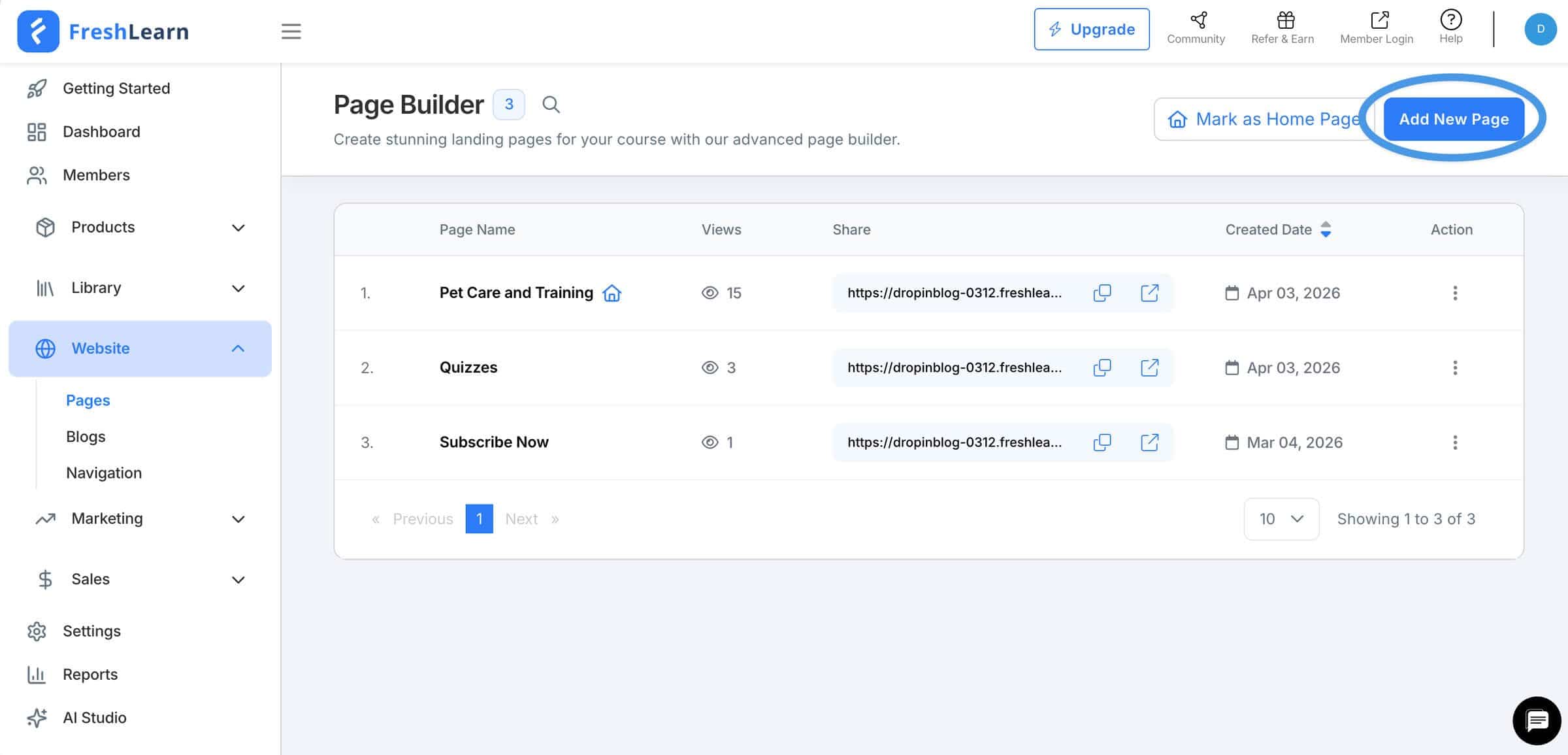
Create a new page by clicking on the Create New Page, and on the following screen, select Blank Page.
Step 2: Add a Custom Code Block to Your New Page
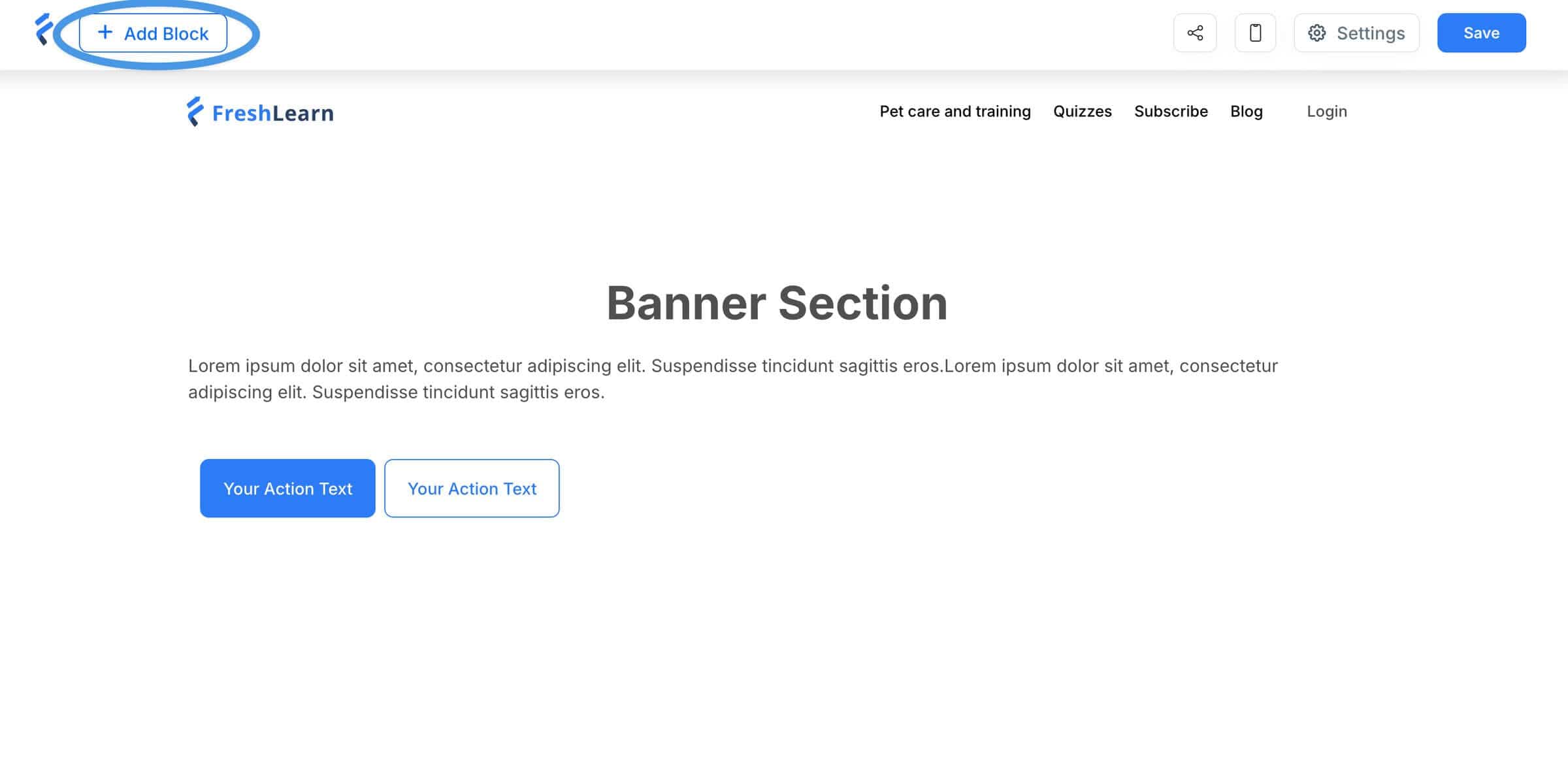
Selecting the Blank Page option will take you to the page editor. If you want, remove the banner element, then click on the Add Block button at the top left to add a new section to your page where your new blog will reside.
Next, find and click on Custom Code, then to confirm your choice, click on the selected block again.
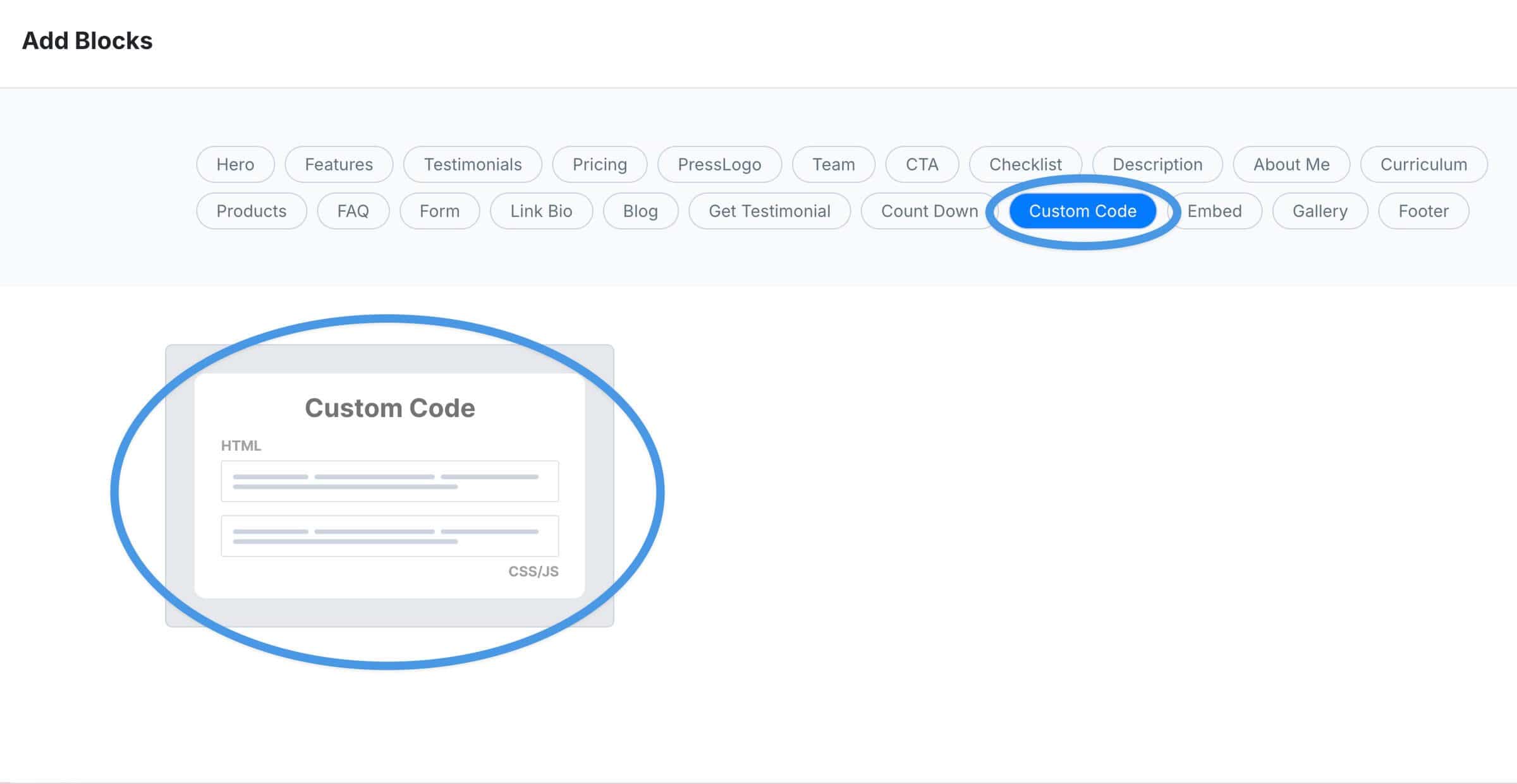
A custom code element will be added to your new blog page, and on the right side of the screen, you’ll see a slide-out menu. This is where you’ll add the code that you’ll get from your DropInBlog account.
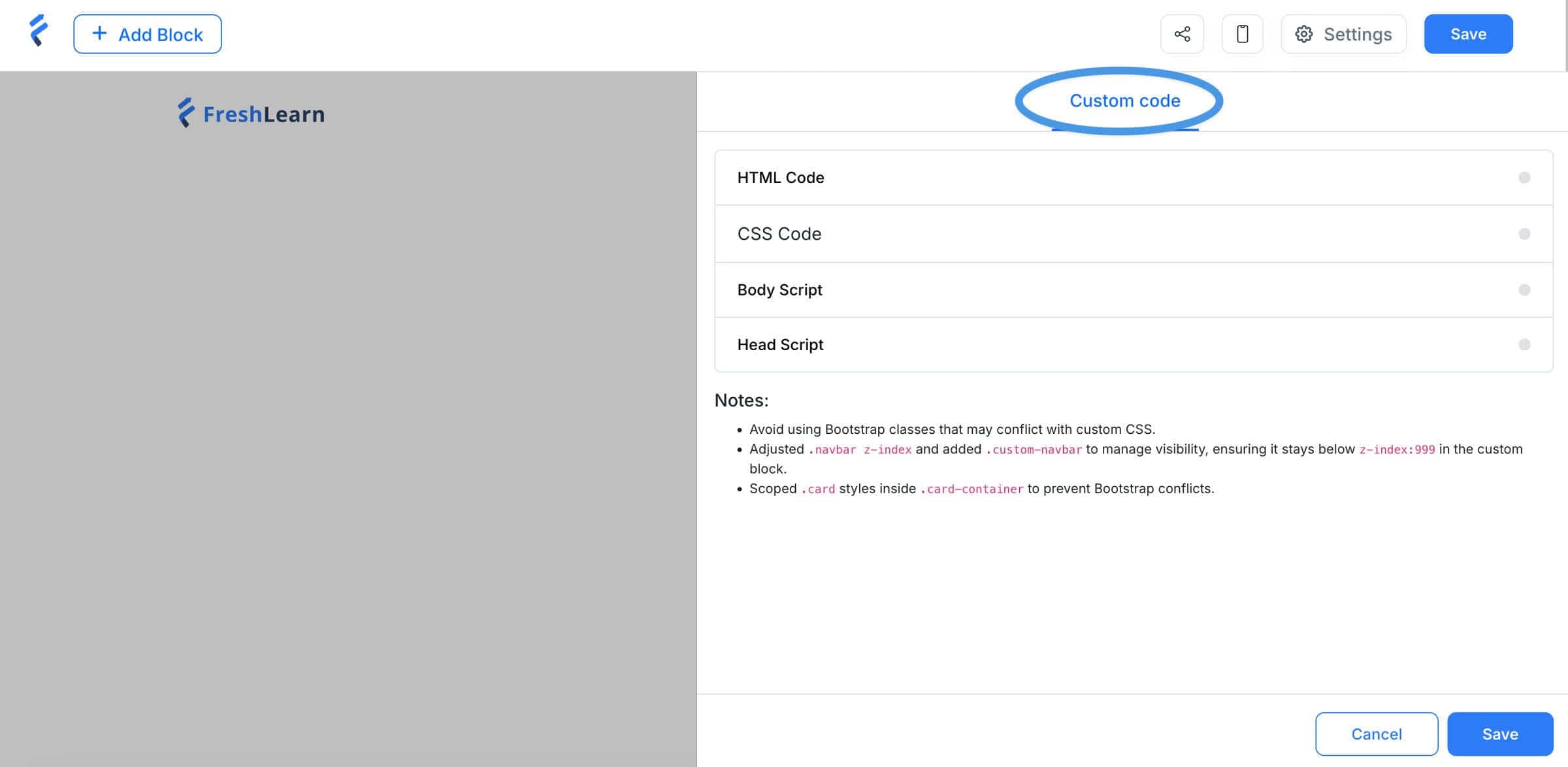
Step 3: Add Your Blog Code
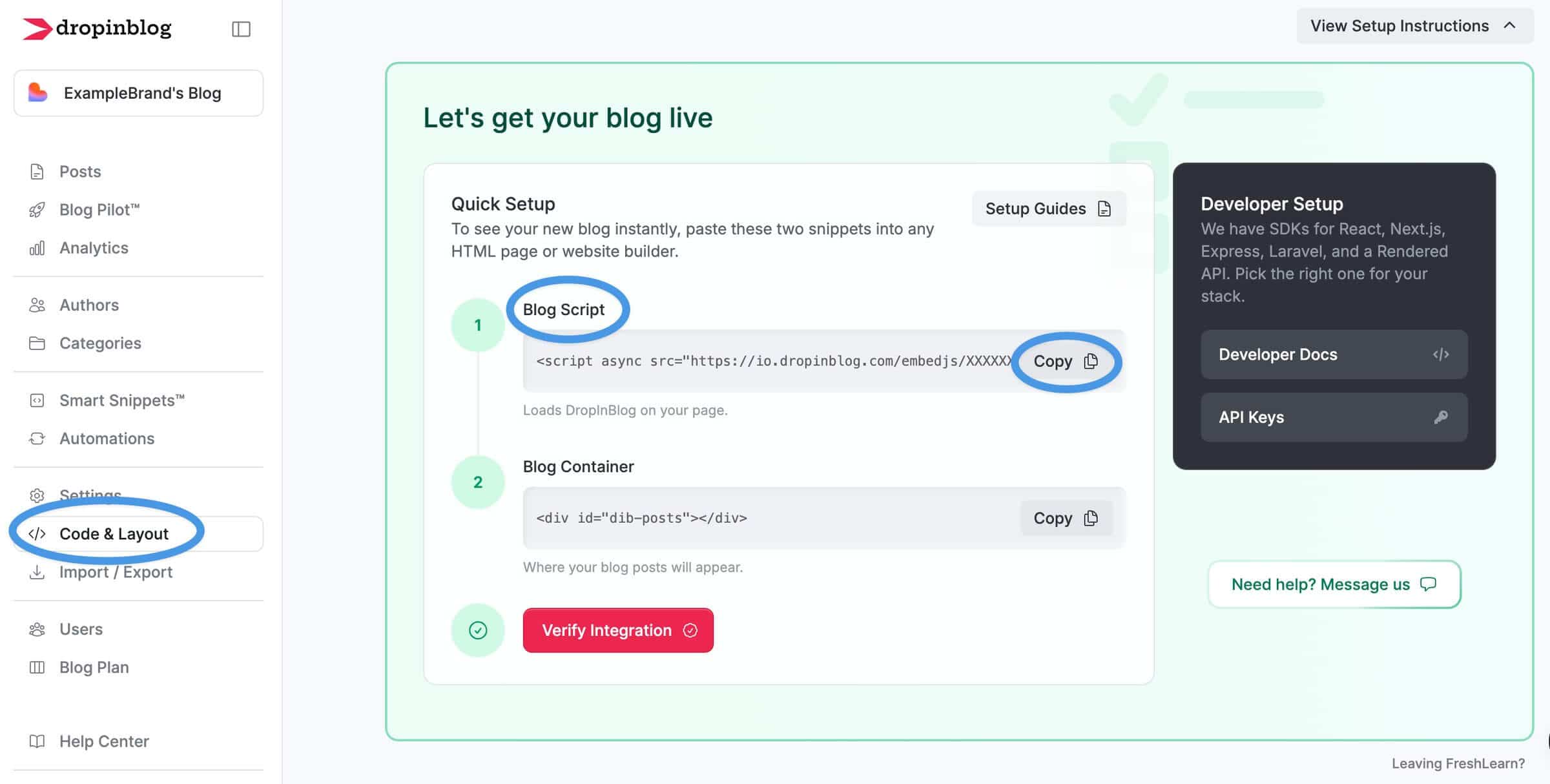
Go to your DropInBlog account, navigate to the Code & Layout page, and copy the code under Blog Script.
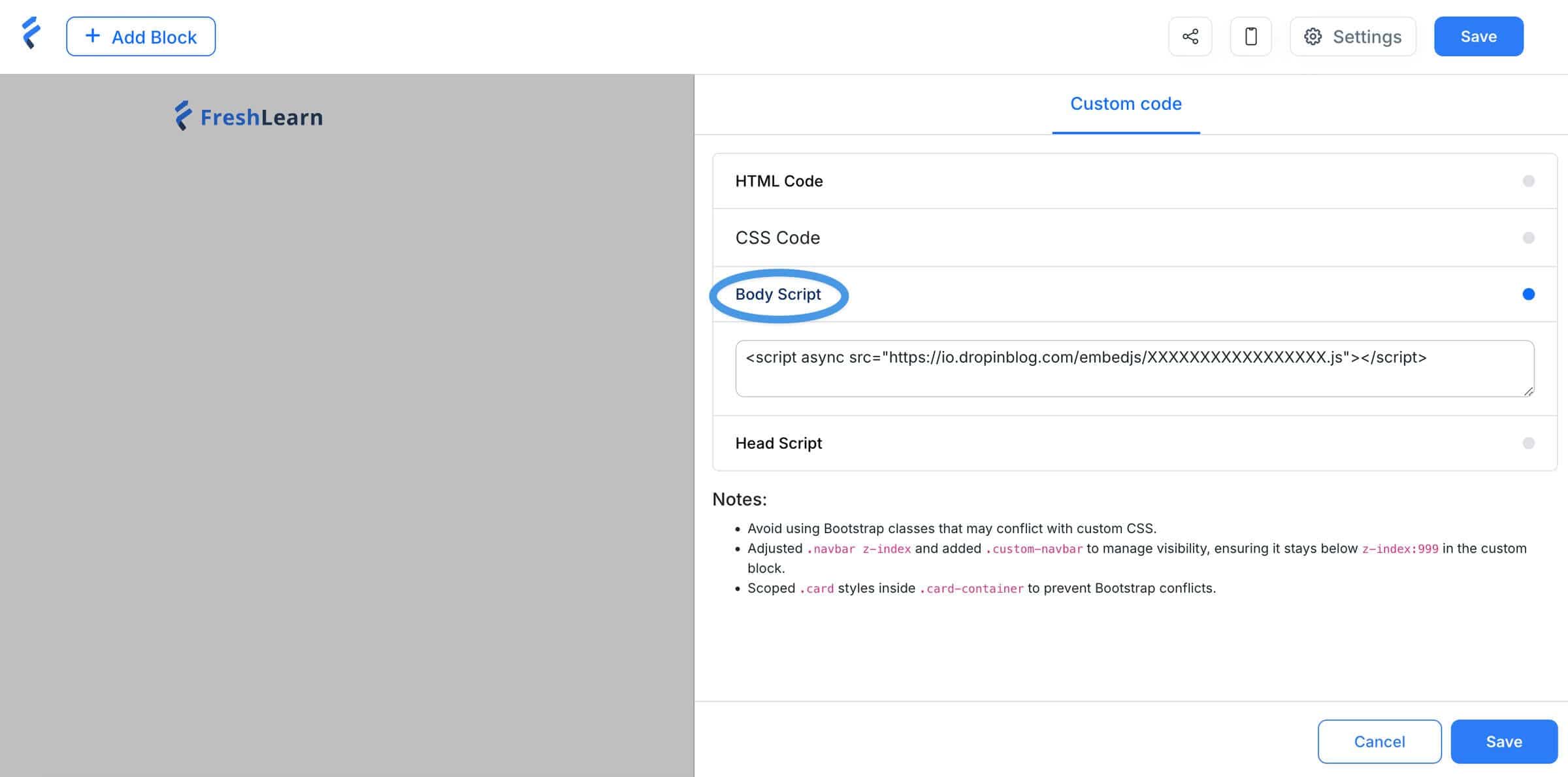
Then, return to FreshLearn and paste that code inside the custom code block under Body Script.
Next, return to your DropInBlog’s Code & Layout page and copy the code under Blog Container.
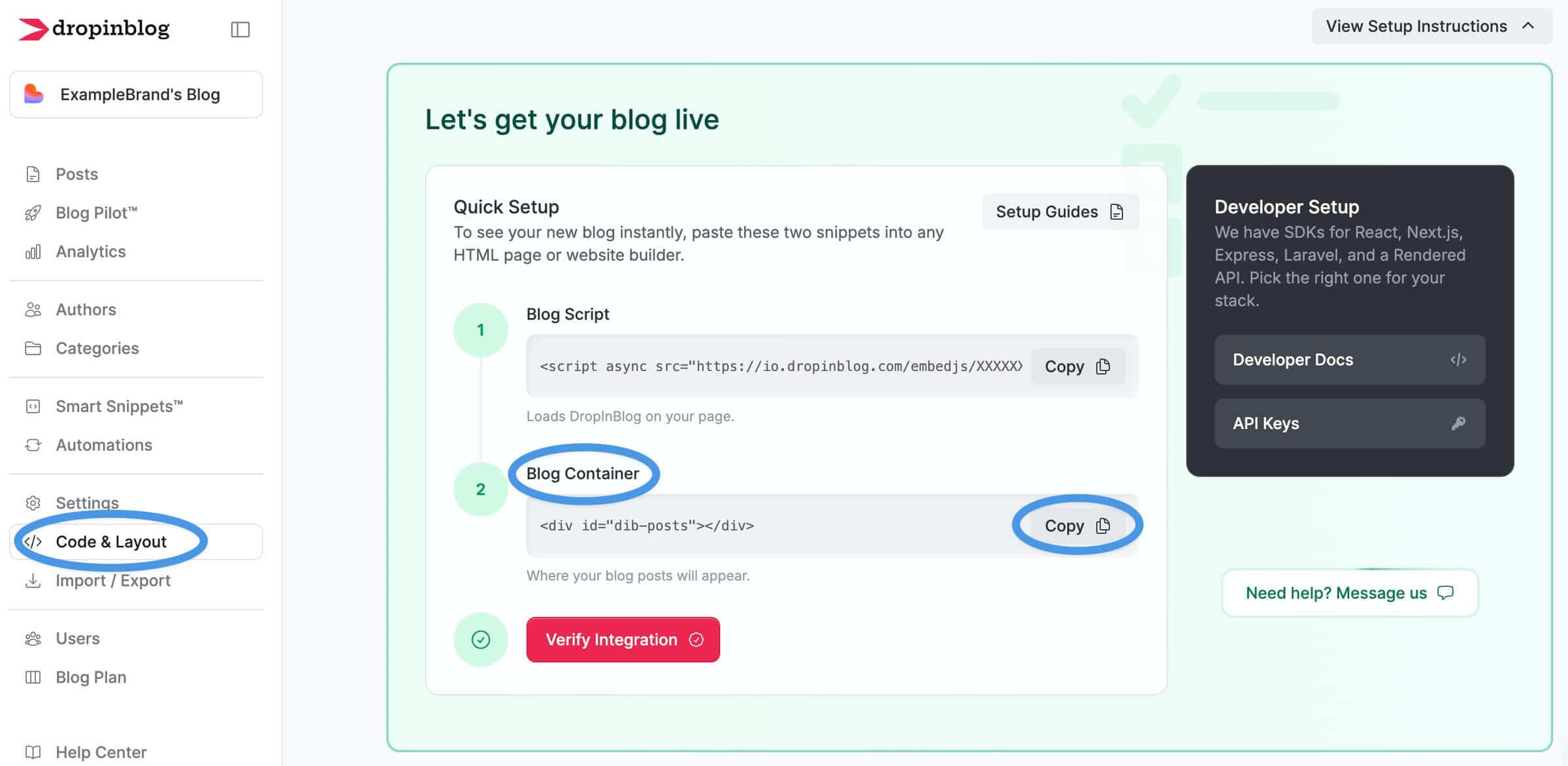
Go back to FreshLearn and paste that code in the box under HTML Code.
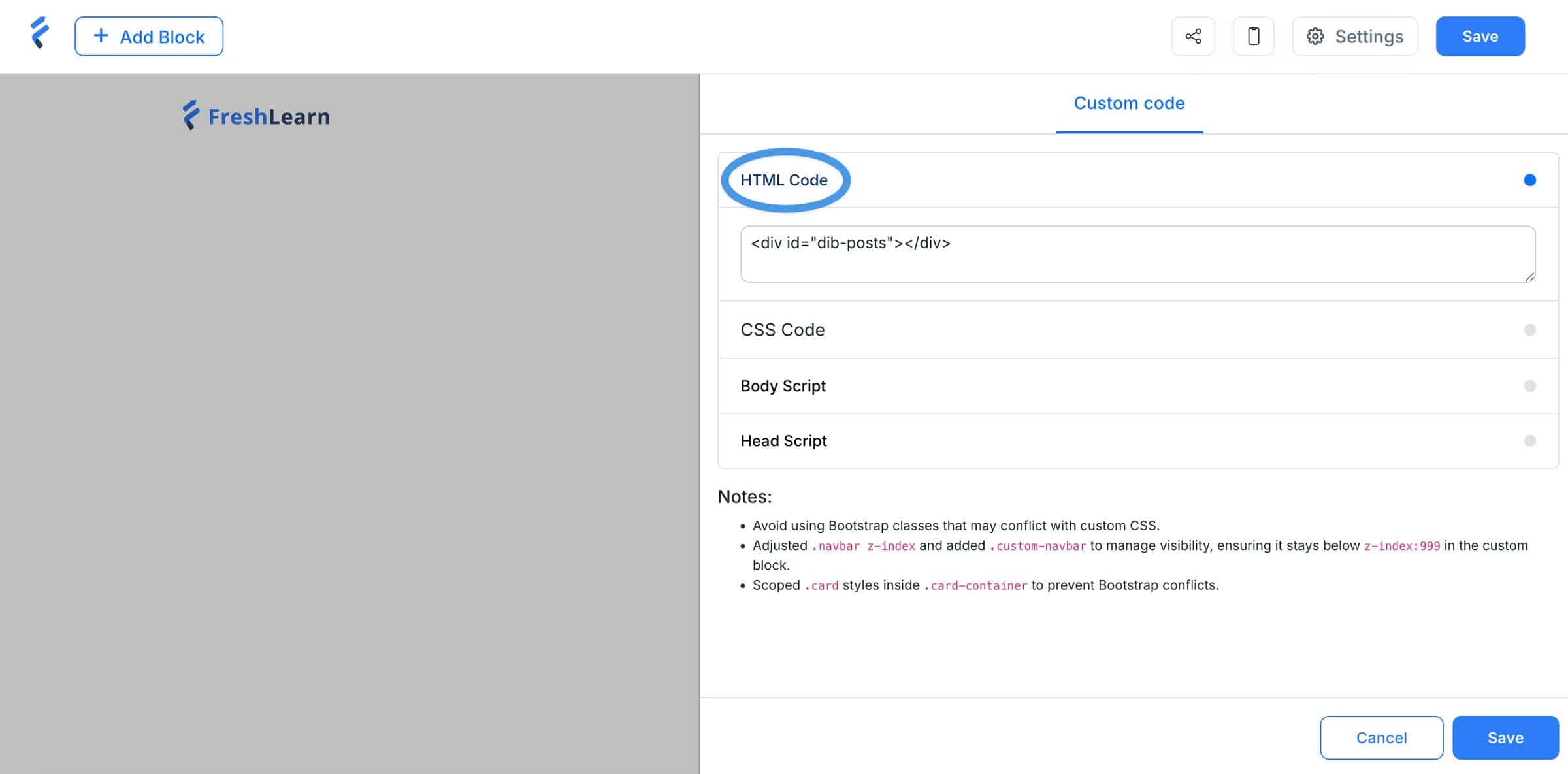
Save your changes and move on to the next step.
Step 4: Customize Your Blog URL
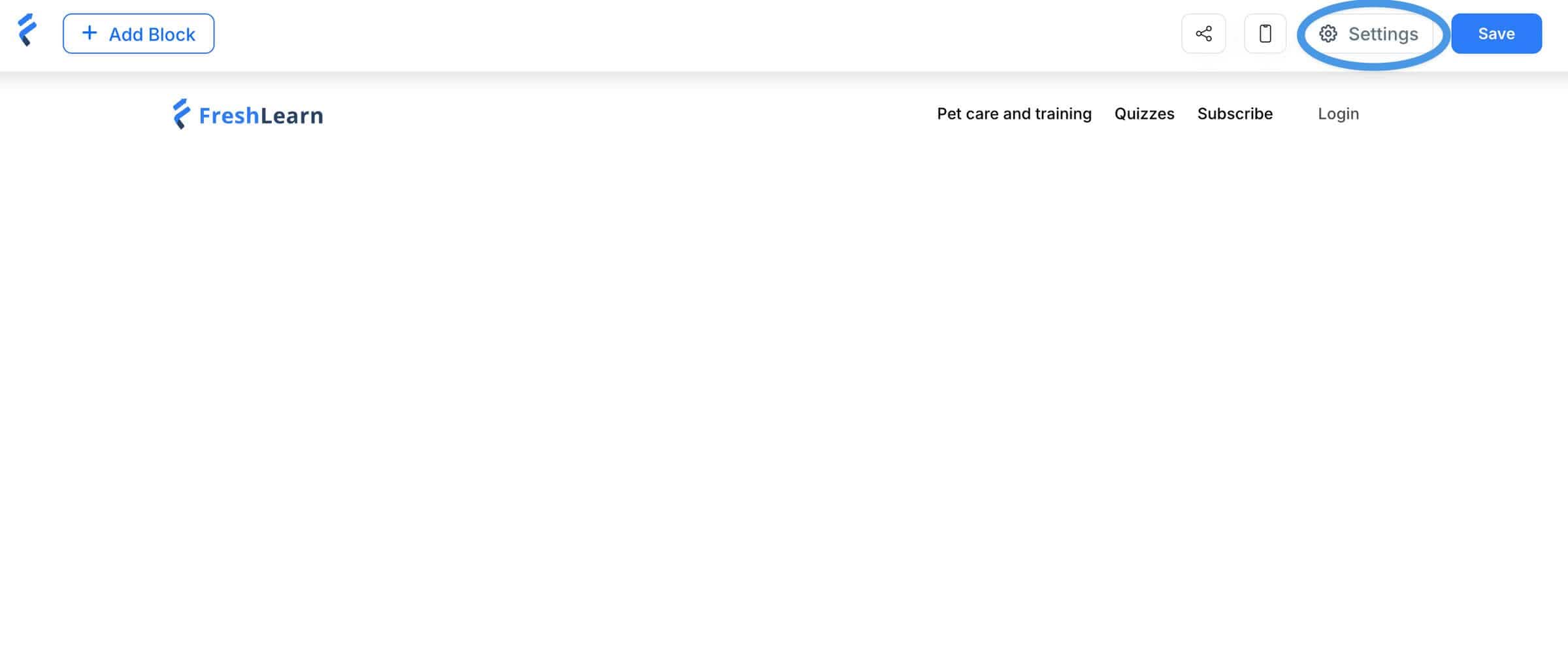
Before moving forward, you need to change the default URL of your new blog page, which is a random sequence of numbers. To do that, click on the Settings button in the top-right corner of the FreshLearn editor.
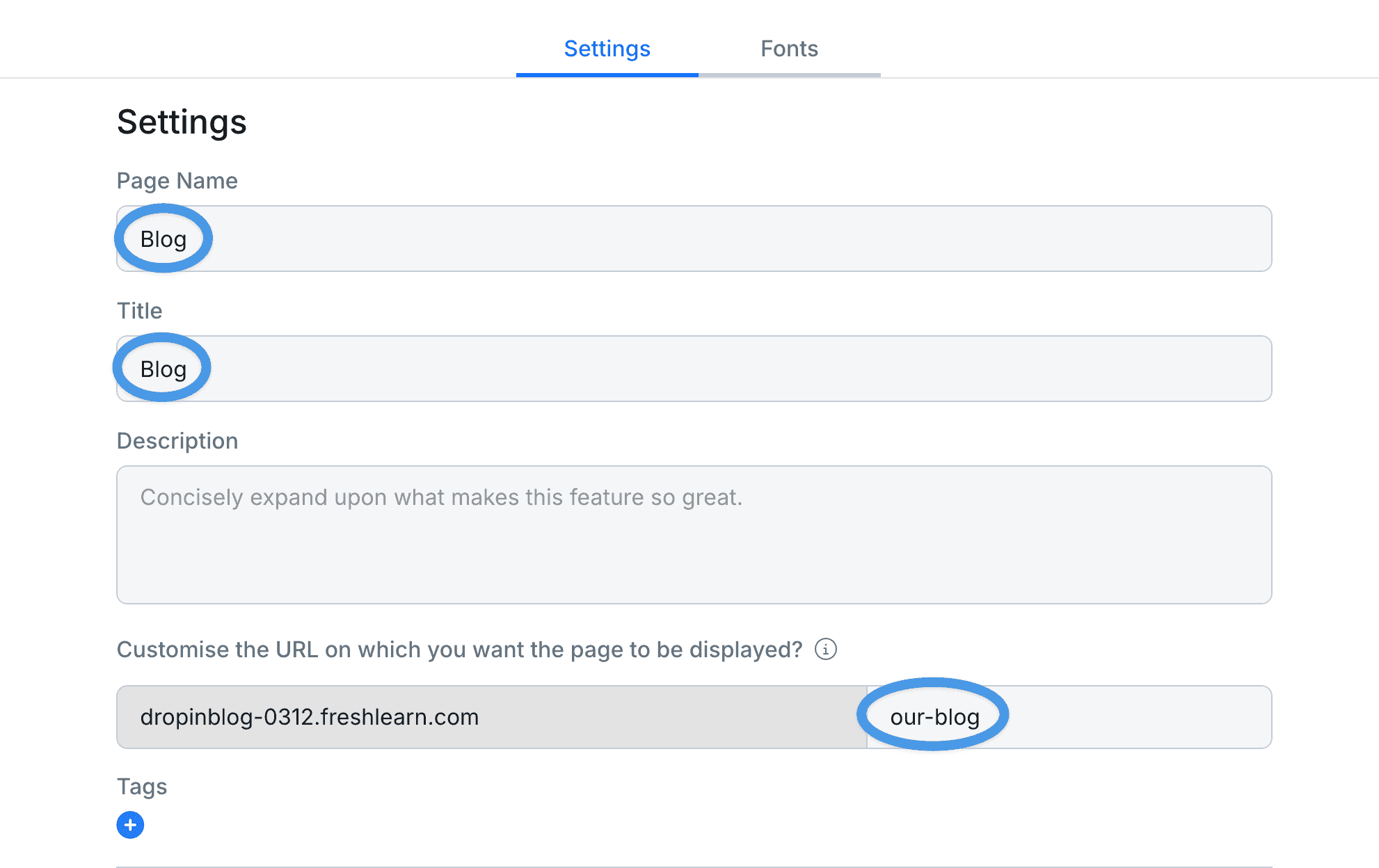
Selecting this option will open a pop-up screen, where you can change the page name and title, and edit the URL. We’ll change the name of our page to “blog,” and set the slug to “our-blog.”
Save your changes, and click on the share icon to view your FreshLearn blog.
Step 5: Connect FreshLearn and DropInBlog
The final step is to copy the URL of your new blog page, then head to the Settings page of your DropInBlog account. Paste the URL under Blog URL.
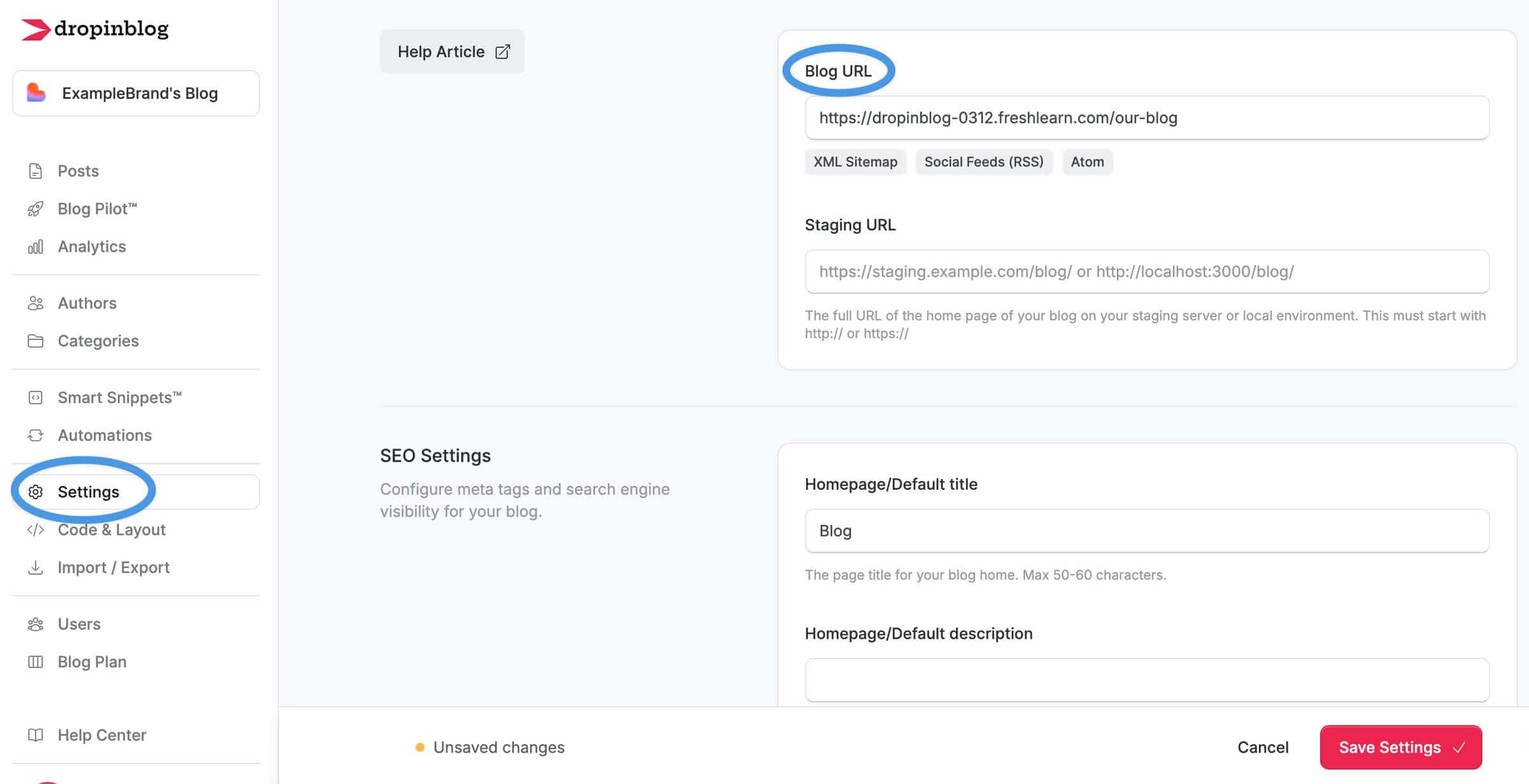
Lastly, save your changes to finish the integration.
Step 6: Add Your Blog to Your Site Navigation
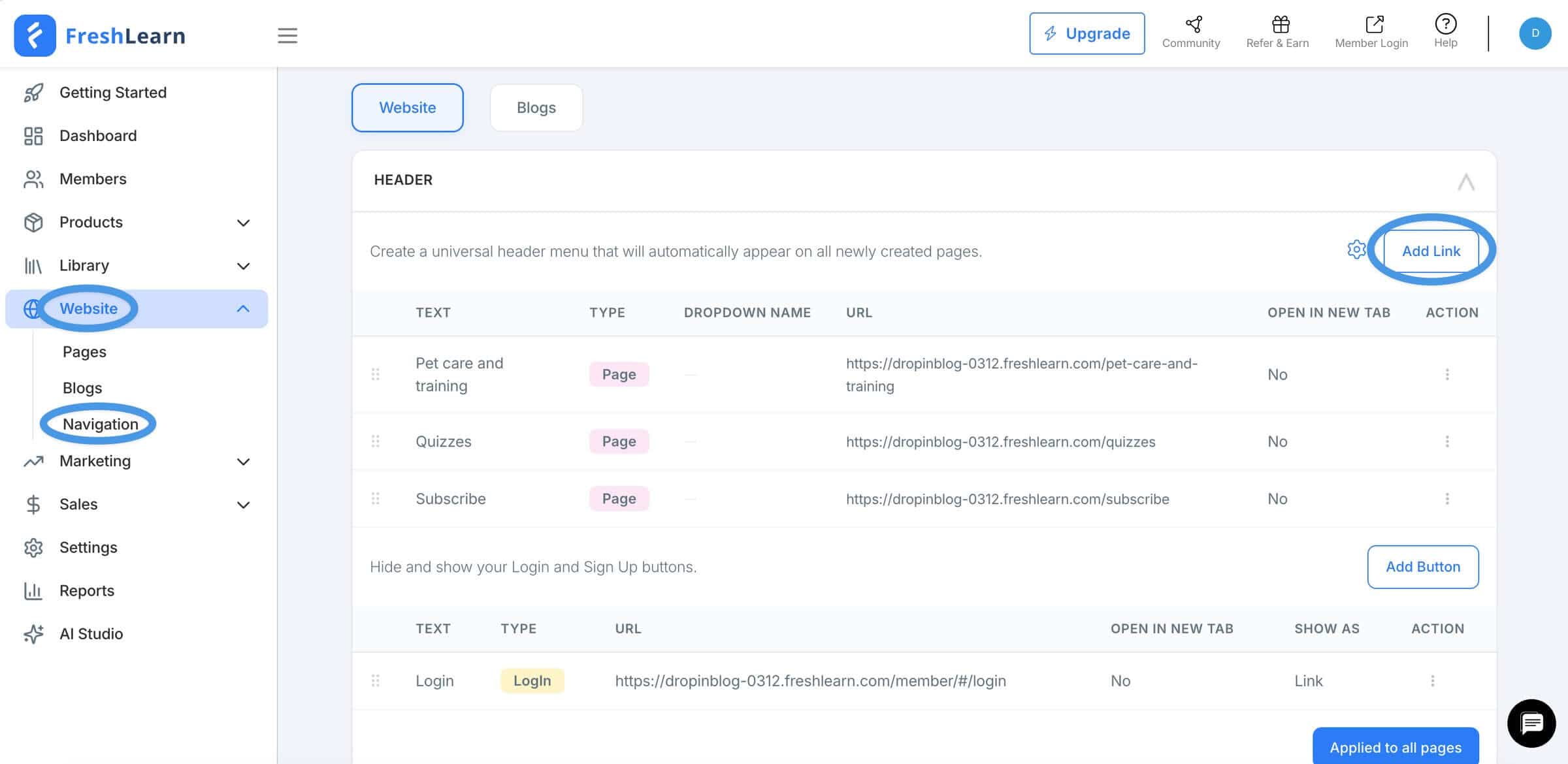
Now that your FreshLearn blog is live, you should make it accessible in your site’s navigation. To add a blog link to your top menu, select Navigation from under the Website tab. Once you’re on the Navigation page, select Add Link in the Header section.
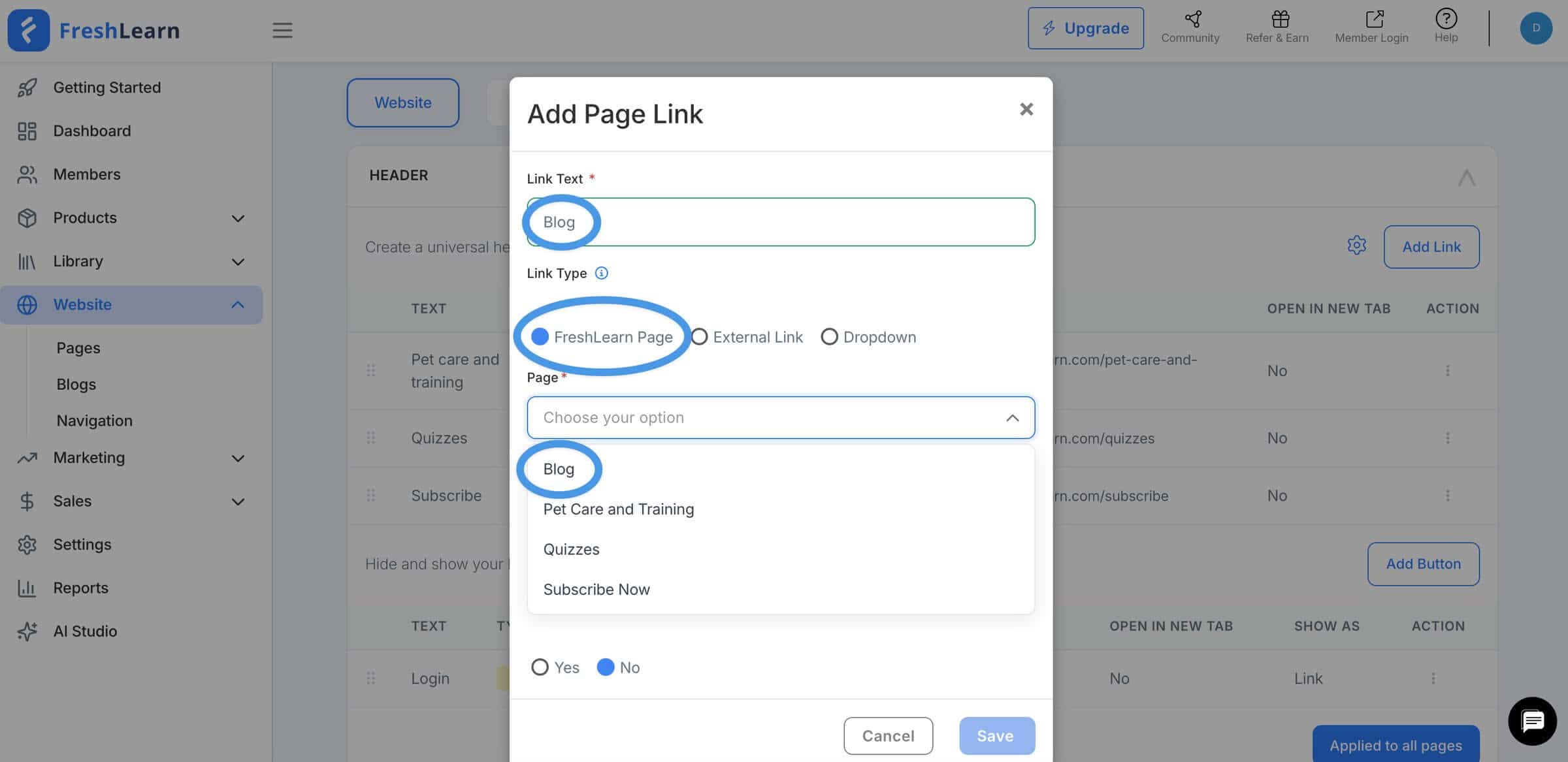
Doing so will open a pop-up window. Here, you should name the link, select FreshLearn Page for the link type, and find your new blog page in the Page dropdown.
Create a Blog on FreshLearn with Its Native Blogging Tool
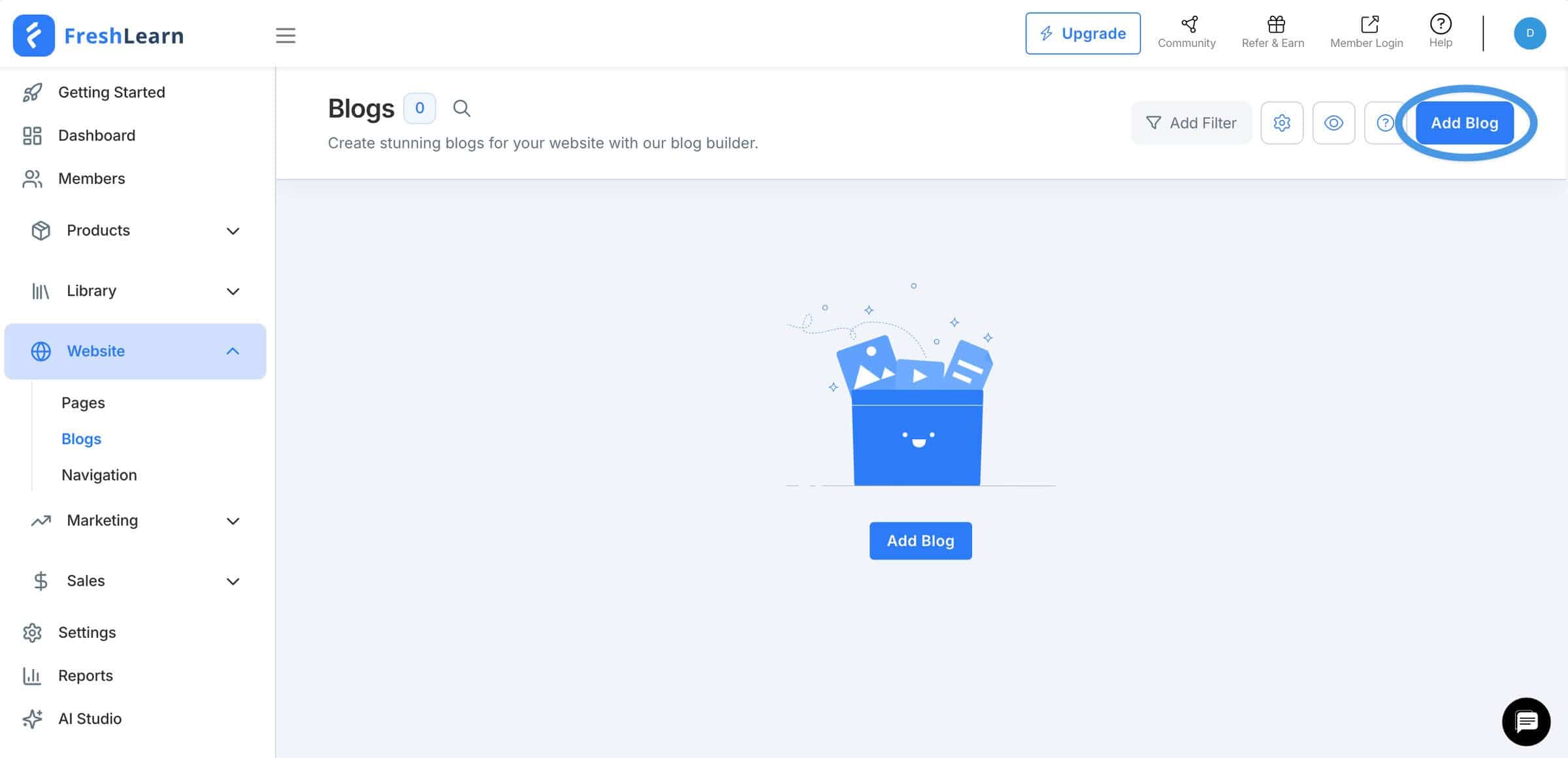
To launch a blog on FreshLearn using the platform’s built-in blog, navigate to the Website tab, then click on Blogs.
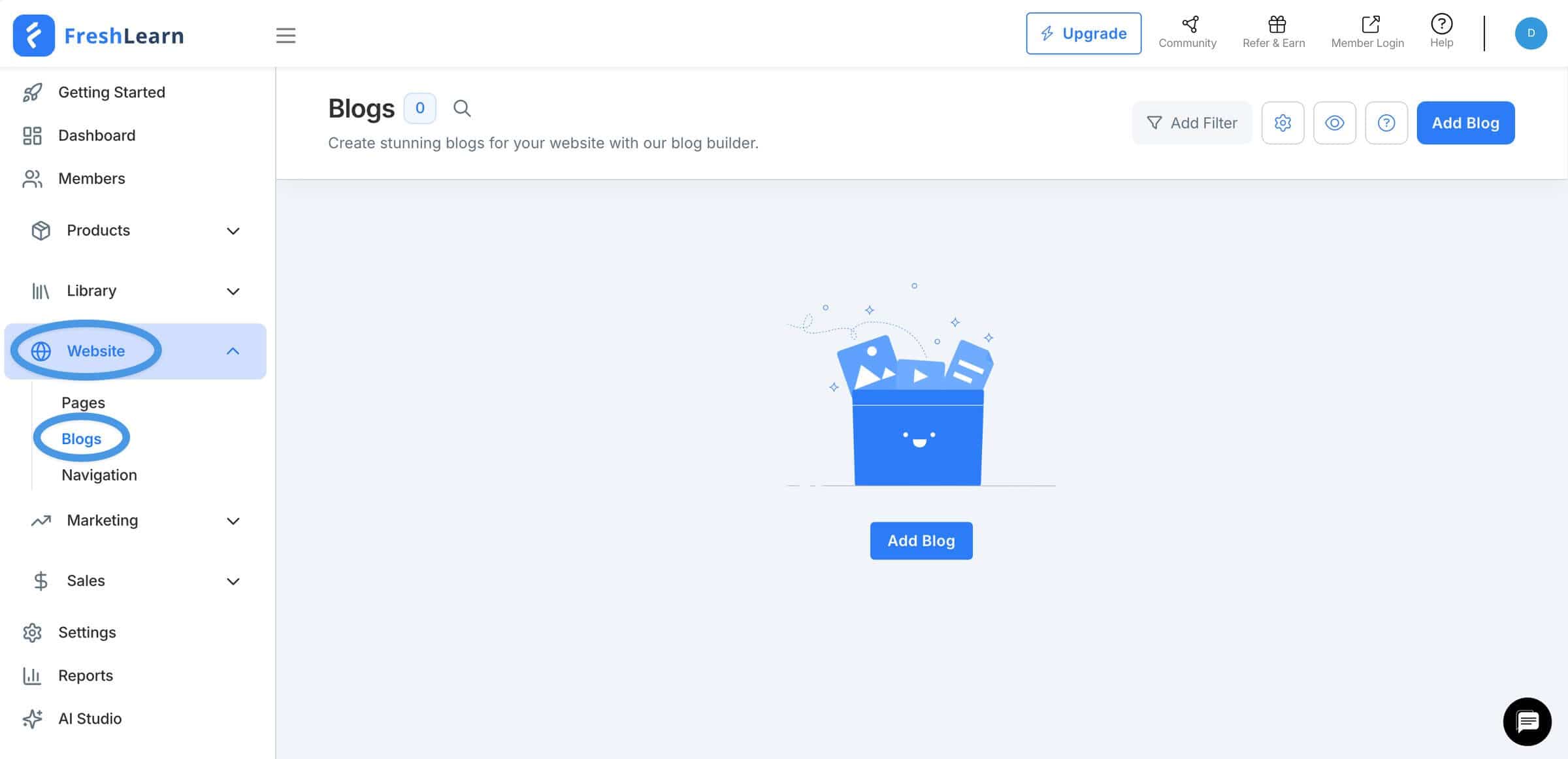
To create a new blog post, simply click on the Add Blog button at the top right.
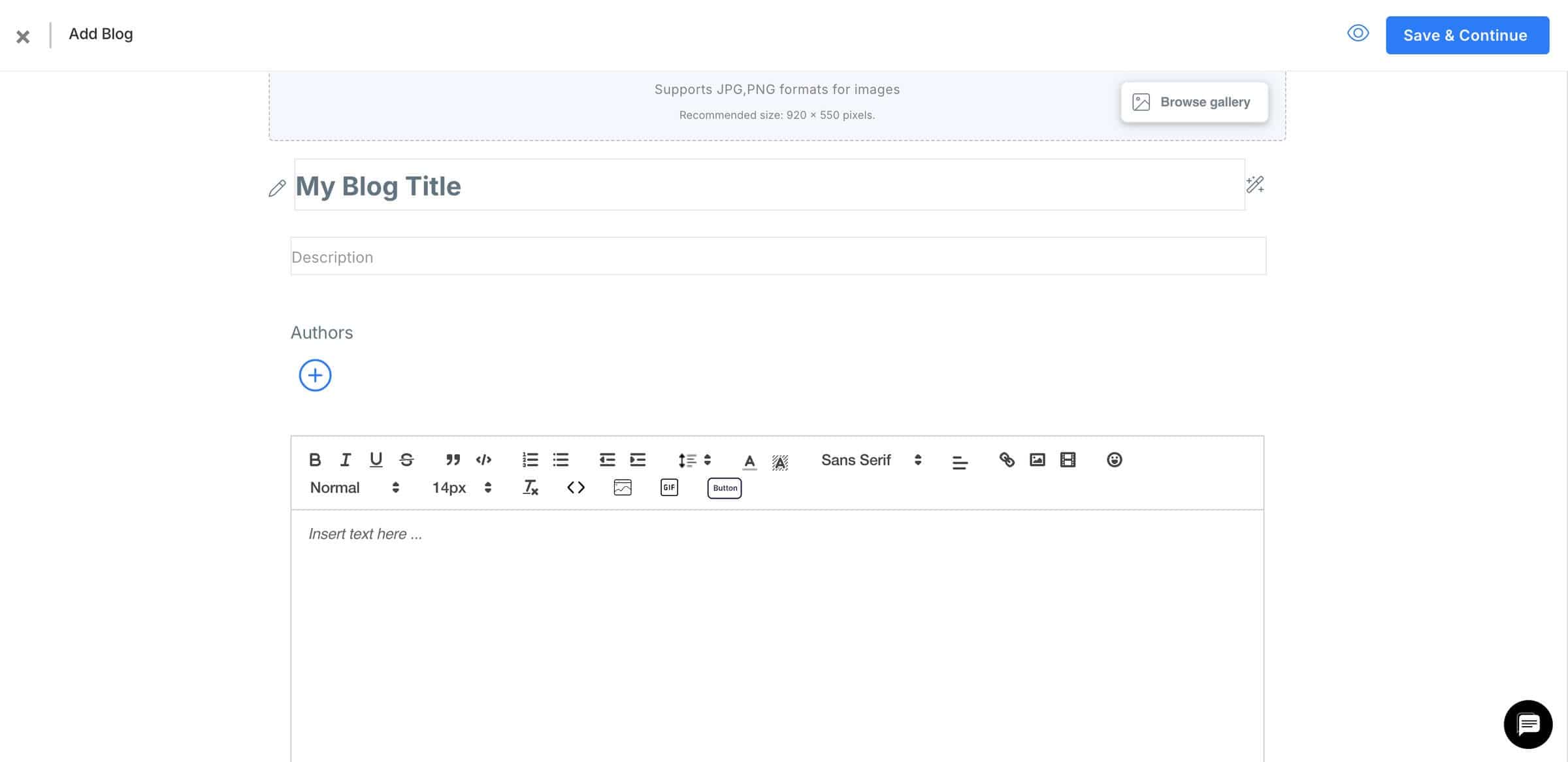
When you do that, you’ll be taken to FreshLearn’s content editor. Here, you add a post title, meta description, featured image, and organize your content using the WYSIWYG editor.
DropInBlog vs. Freshlearn Native Blog
Feature | FreshLearn Native Blog | DropInBlog |
|---|---|---|
SEO scoring | No | Yes, real-time suggestions while you write |
AI content tools | AI Course Creator (builds courses, not blog posts) | Blog Pilot™ (finds course-adjacent blog topics + outlines) |
CTAs in posts | Built-in CTAs and course embeds | More flexible CTAs, embeds, and blog-specific conversion components |
Text-to-speech/audio blog | No | Yes, Blog Voice AI™ (useful for audio learners + accessibility) |
Multi-blog per account | No | Yes |
Add New Content to Your FreshLearn Blog
If you create a blog on FreshLearn using the built-in blogging tool, you can add a new blog post from the Blogs tab of your FreshLearn account.
If you use the recommended blog integration method, DropInBlog, you’ll be adding all your blog content from your DropInBlog account. To start a post, navigate to the Posts tab. From here, you can easily find new topics and generate outlines for your content using Blog Pilot™, an AI-powered content planning tool, or you can click on the Add Blog Post button to go straight to the DropInBlog editor.
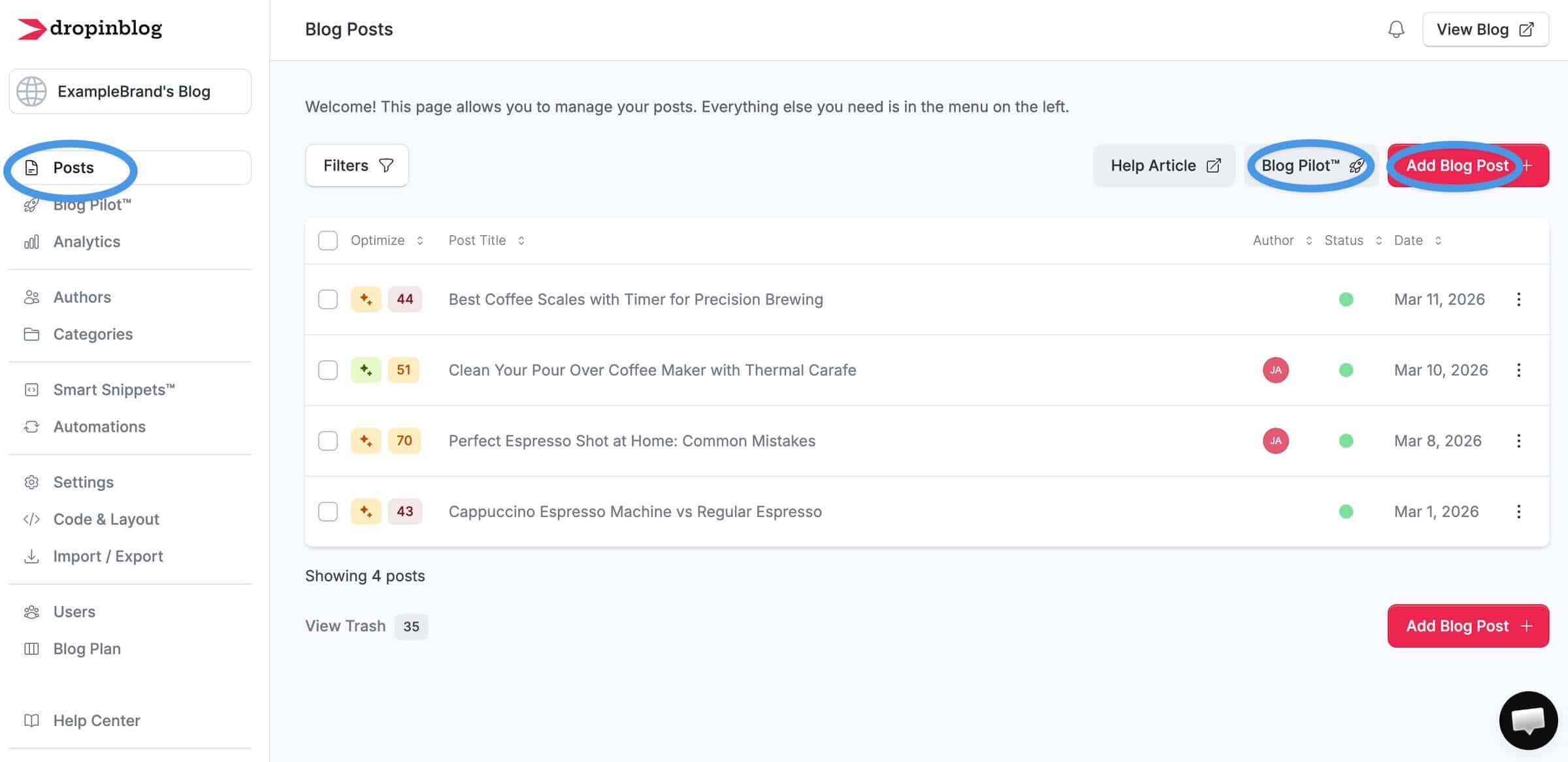
Whichever option you select, you’ll have new content on your blog in no time. All the content created in your DropInBlog account will automatically sync with your FreshLearn site.
DropInBlog’s Notable Features
DropInBlog offers a host of features that aren’t available with FreshLearn, including:
A live SEO scoring tool that offers as-you-type suggestions, helping your posts rank higher and attract organic traffic faster.
A proprietary text-to-speech engine that turns your written content into audio, boosting engagement and time on page.
Blog categories (instead of tags) that make your content easier to navigate and improve content discovery.
Comprehensive author profiles designed for E-E-A-T, helping you build credibility with both readers and search engines.
A design customizing tool so you can fine-tune your blog’s look without touching code.
In short: you’re not just publishing content, you’re building a system that brings in traffic and converts it.
How Your Online School Benefits from a Blog
A blog isn’t just a place where you share the latest updates about your online school. For that, you can use a newsletter. A blog can help you accomplish much more:
Write about the topics your ideal students are already looking for, and turn search traffic into course sales.
Break down complex lessons into bite-sized posts that build trust before someone buys.
Promote your courses naturally through helpful content instead of aggressive sales pages.
Establish your authority in your niche to make students more likely to choose you over competitors.
Luckily, with DropInBlog, everything from creating a blog to figuring out what to write about is easy.
Start Blogging on FreshLearn Today
You now know how you can create a blog on FreshLearn, and more importantly, how DropInBlog can help you grow your traffic, improve your site’s SEO, and drive more course sales. So, use it to your advantage, and if you need help with any of the integration steps, get in touch with us.
Happy blogging!
FAQs
Can I create a blog on FreshLearn?
Yes, you can create a blog on FreshLearn using the platform’s built-in blog. If you need advanced blogging features, you can integrate your FreshLearn site with a professional blogging platform, like DropInBlog.
Is blogging on FreshLearn free?
Yes, FreshLearn offers a free plan that lets you create a blog.
Is FreshLearn good for blogging?
FreshLearn is good for creating a simple blog, and there’s no setup. But if you rely on your blog to bring in traffic and increase your course sales, you might want to consider a blogging tool that supports advanced SEO features, like DropInBlog.
Is FreshLearn good for SEO?
Yes, it does offer some common SEO features, such as meta titles and descriptions, as well as customizable URLs. However, for on-page SEO guidance and schema support, you’ll have to look at alternative solutions.