
Key Takeaways
- The best way to add a blog to your Shopline site is with DropInBlog!
- The free trial and quick setup let you test it in a few minutes.
- DropInBlog has different pricing plans for individuals and teams.
If you have an online store on Shopline and a content marketing strategy that includes a blog, read on. In this guide, you’ll learn how to create a blog on Shopline in two ways.
You can create a blog on Shopline using:
Method 1: Shopline’s built-in blog feature that comes with a basic editor and limited SEO tools.
Method 2: DropInBlog – a full-featured blogging app that integrates in minutes, includes SEO tools, table of contents, and product embeds, and matches your theme automatically.
For most users, DropInBlog offers a better, SEO-optimized experience.
Table of Contents
- Key Takeaways
- What Is Shopline?
- Add a Blog to Shopline Using Shopline’s Native Blog Feature
- Five Things to Check Before You Commit to the Native Blog
- Add a Blog to Shopline Using DropInBlog
- Add a Blog Link to Your Shopline Store’s Menu
- DropInBlog’s Notable Features
- Which Shopline Blog Integration Method Should You Choose?
- FAQs
- Create a Blog on Shopline Today
What Is Shopline?
Shopline is an e-commerce platform launched in 2013, strongest across Hong Kong, Taiwan, Southeast Asia, and increasingly cross-border sellers shipping worldwide. If you've used Shopify, the admin will feel familiar: themes, an app store, a storefront editor, and a template language of its own.
It leans harder into social commerce than most Western platforms do, with live selling, in-chat ordering, and native Facebook, Instagram, and TikTok integration built in rather than bolted on. Blogging sits alongside all of that as a content feature, which is worth keeping in mind.
Add a Blog to Shopline Using Shopline’s Native Blog Feature
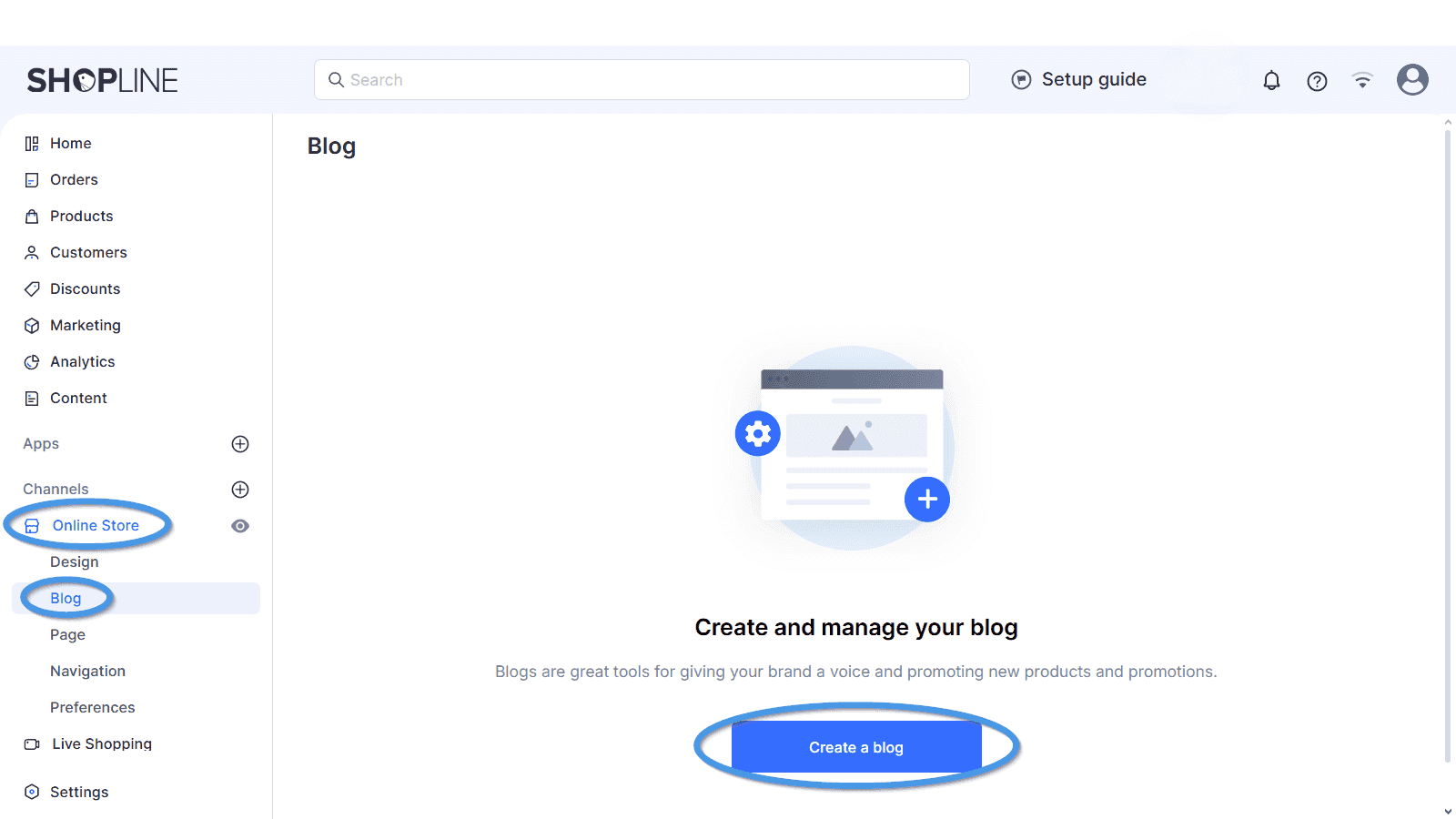
From your Shopline dashboard, navigate to Online Store, then select the Blog tab.
On the following screen, click on the Create a blog button, and you’ll be presented with Shopline’s editor.
The editor is similar to the one you get with Shopify and supports text, links, images, and videos.
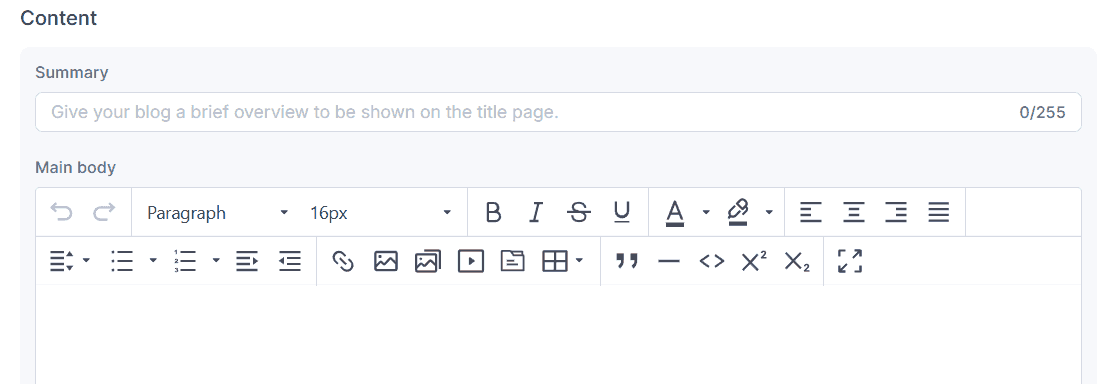
Here, you can easily add and publish your content.
And while Shopline can meet some basic blogging requirements, it still has a few areas that could be improved.
Five Things to Check Before You Commit to the Native Blog
Shopline has invested in this feature. You get categories, tags, a cover image, a per-post SEO title, description, and URL, bulk publishing, and a product picker that drops up to eight related items below each article. For a store publishing an occasional product update, that's genuinely enough.
The limitations show up once content becomes a channel rather than an afterthought.
Your URLs are locked. Posts live at /blogs/blog-name/post, which produces the doubled-up paths Shopify merchants know well.
Products go below the article, not inside it. The Select Product picker is easy to use, but it appends a block of up to eight items at the foot of the post. You can't place a product where you actually mention it.
There's a hard ceiling on post length. Shopline caps the main body at 1 MB and a rich text summary at 100 KB.
Your blog's layout is your theme's problem. Article pages render according to the theme template you've selected, so redesigning how posts look means editing theme code or switching themes.
No table of contents, no FAQ blocks, no automatic schema for either. These are the elements that get long posts cited in AI Overviews, and building them by hand in every article stops being viable somewhere around post twenty.
If none of that describes your situation, use the native blog. It's free and it's already there. The section below is for stores where the blog is meant to bring in traffic on its own.
Add a Blog to Shopline Using DropInBlog
DropInBlog is a listed app in Shopline's App Store under Store Optimization, so installation runs through Shopline's own approval flow.
Step 1: Find the DropInBlog App on Shopline’s App Store
You can view the listing here, or install it directly from your admin: log in to your Shopline account and click the plus sign next to Apps to open the App Store.
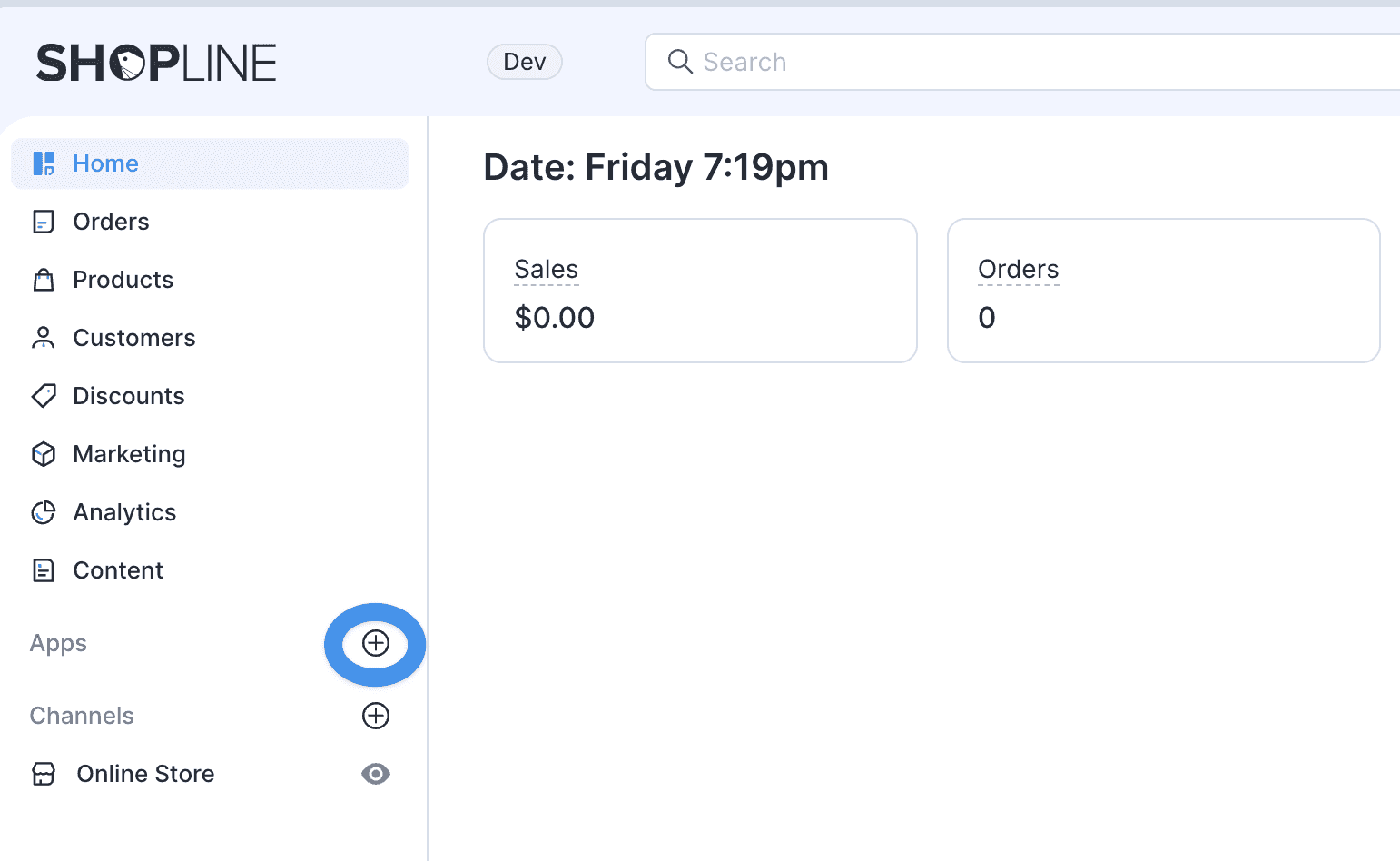
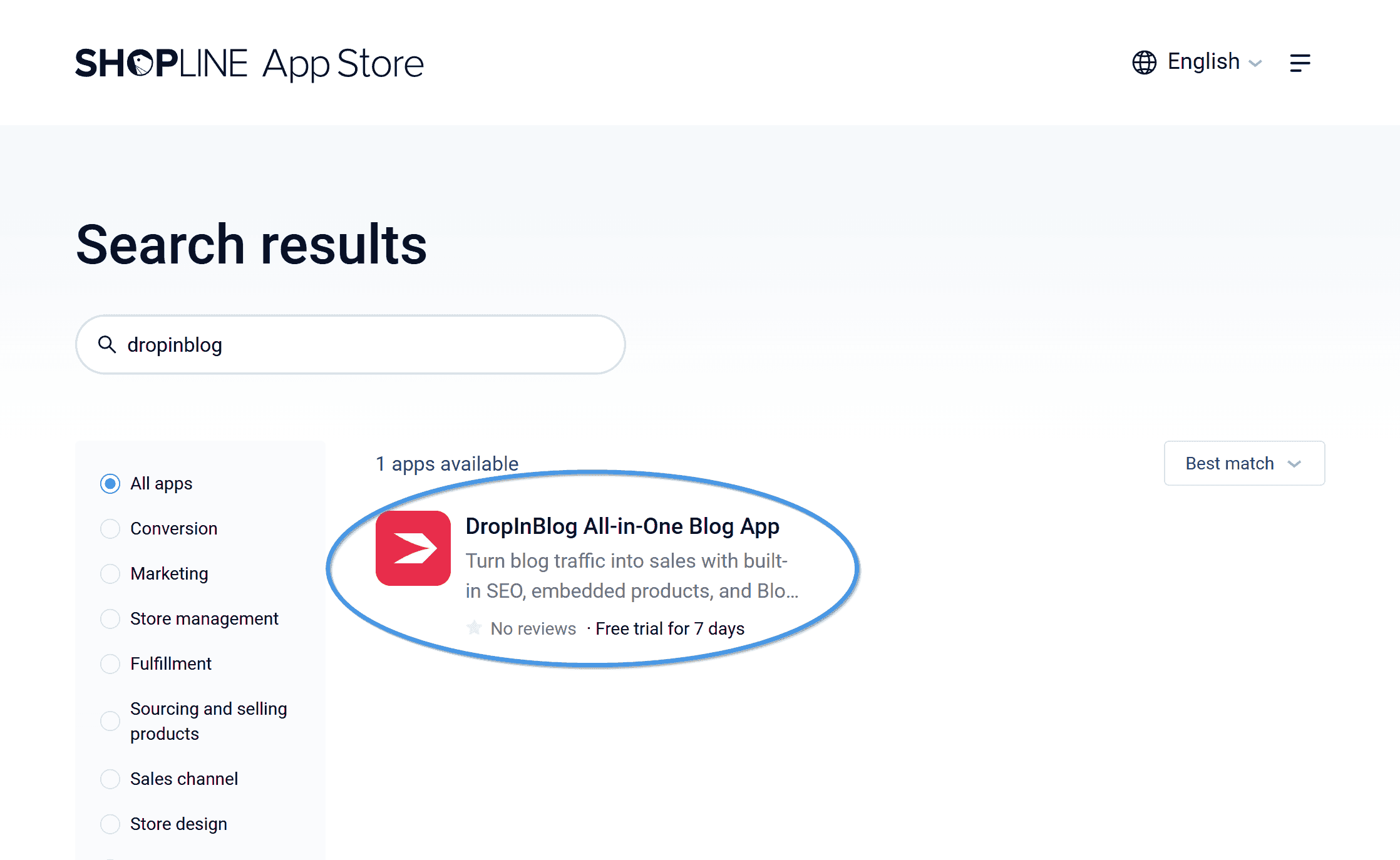
Type “DropInBlog” into the search bar, and on the following page, click on the DropInBlog app to start the installation process.
Step 2: Install the DropInBlog App
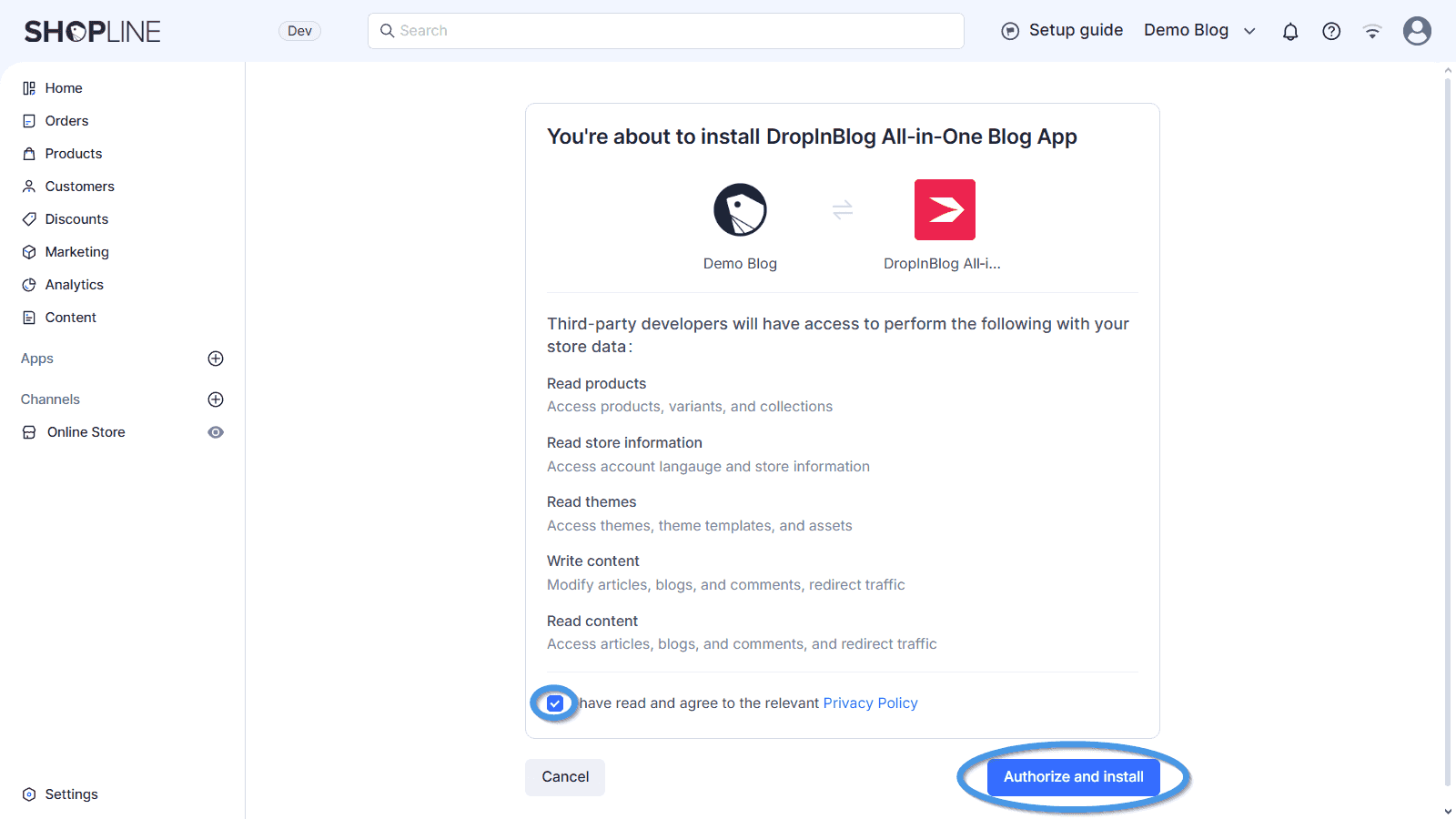
Click on the Install button, and in the new tab that opens, allow DropInBlog to access your Shopline store’s account. To do so, check the box next to Privacy Policy, then click on the Authorize and install button.
Step 3: Select a Subscription Plan for DropInBlog
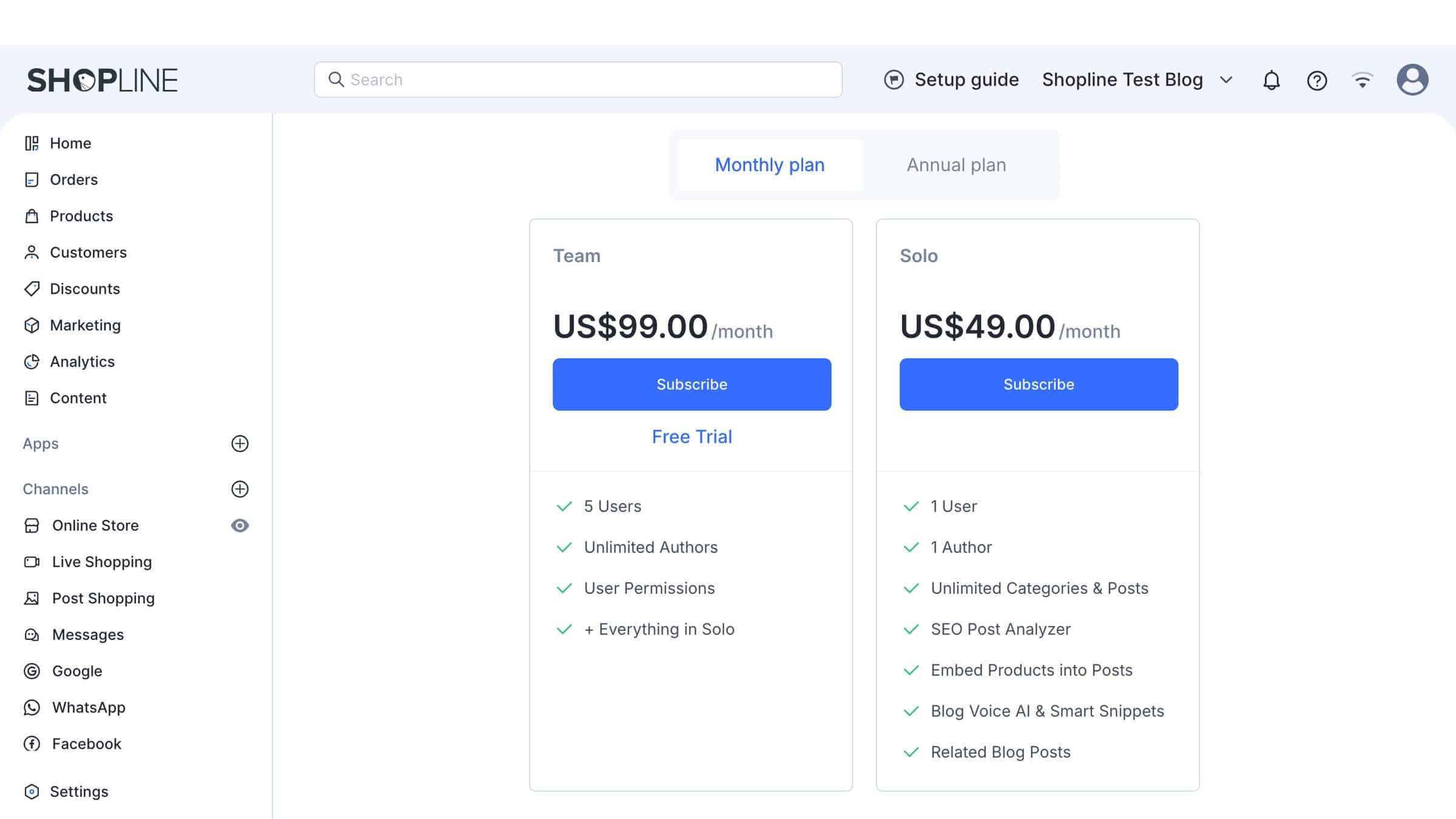
The next screen you’ll see is the app’s subscription page. Select a plan and a subscription duration, and click on the Free Trial link to activate the DropInBlog free trial.
Your new blog will be automatically created along with your DropInBlog account.
Step 4: Pin DropInBlog to Your Store’s Dashboard (Optional)
Before moving forward, we suggest you pin the DropInBlog app to your store’s admin dashboard so that you can easily access your blog content.
To do that, click on Apps, then select the pin icon next to DropInBlog.
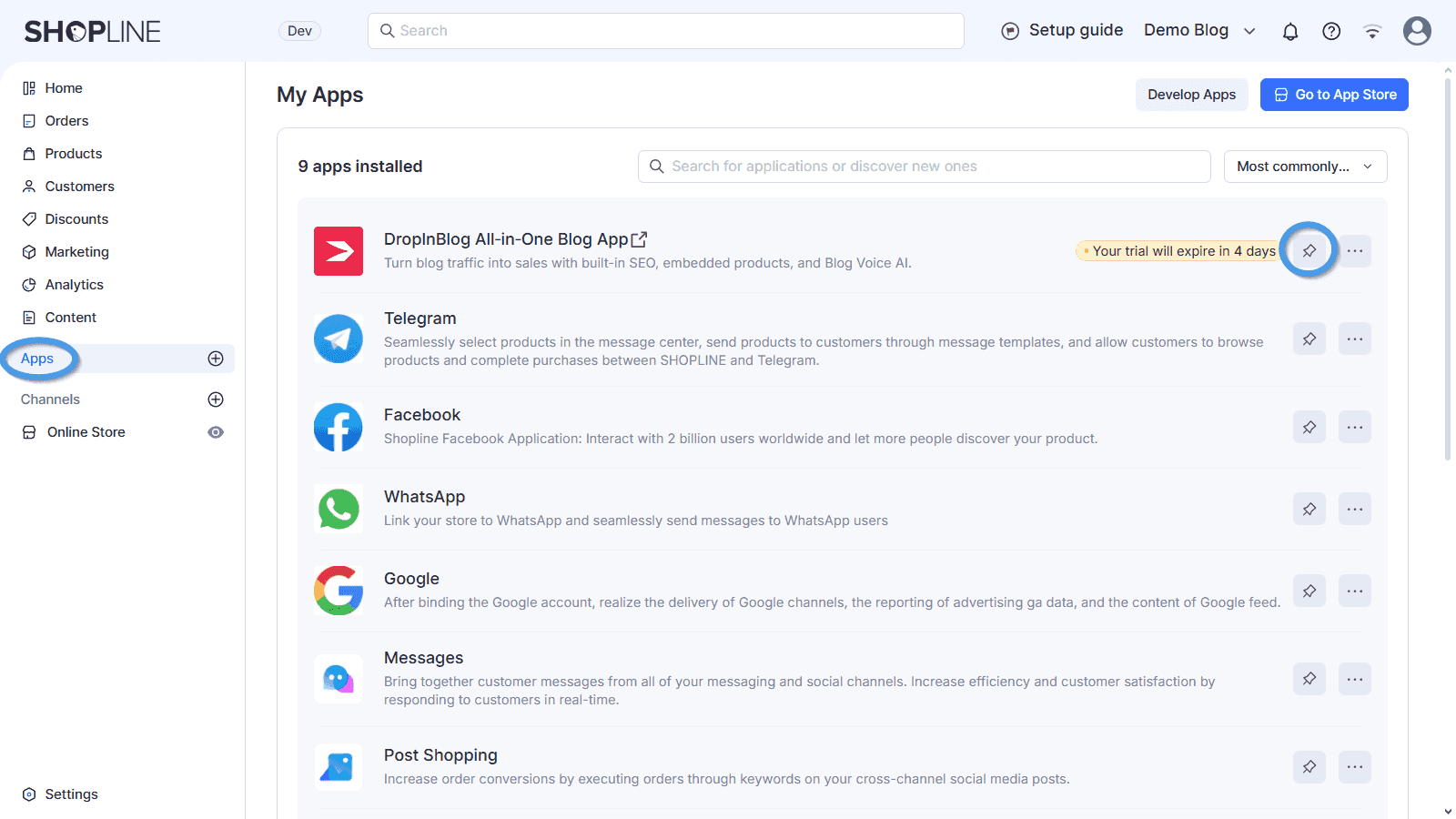
Now, you can open the DropInBlog app from your Shopline account with a single click.
When you click on DropInBlog, you’ll be taken to a new window and your account. From here, you’ll manage all your blog content.
Add a Blog Link to Your Shopline Store’s Menu
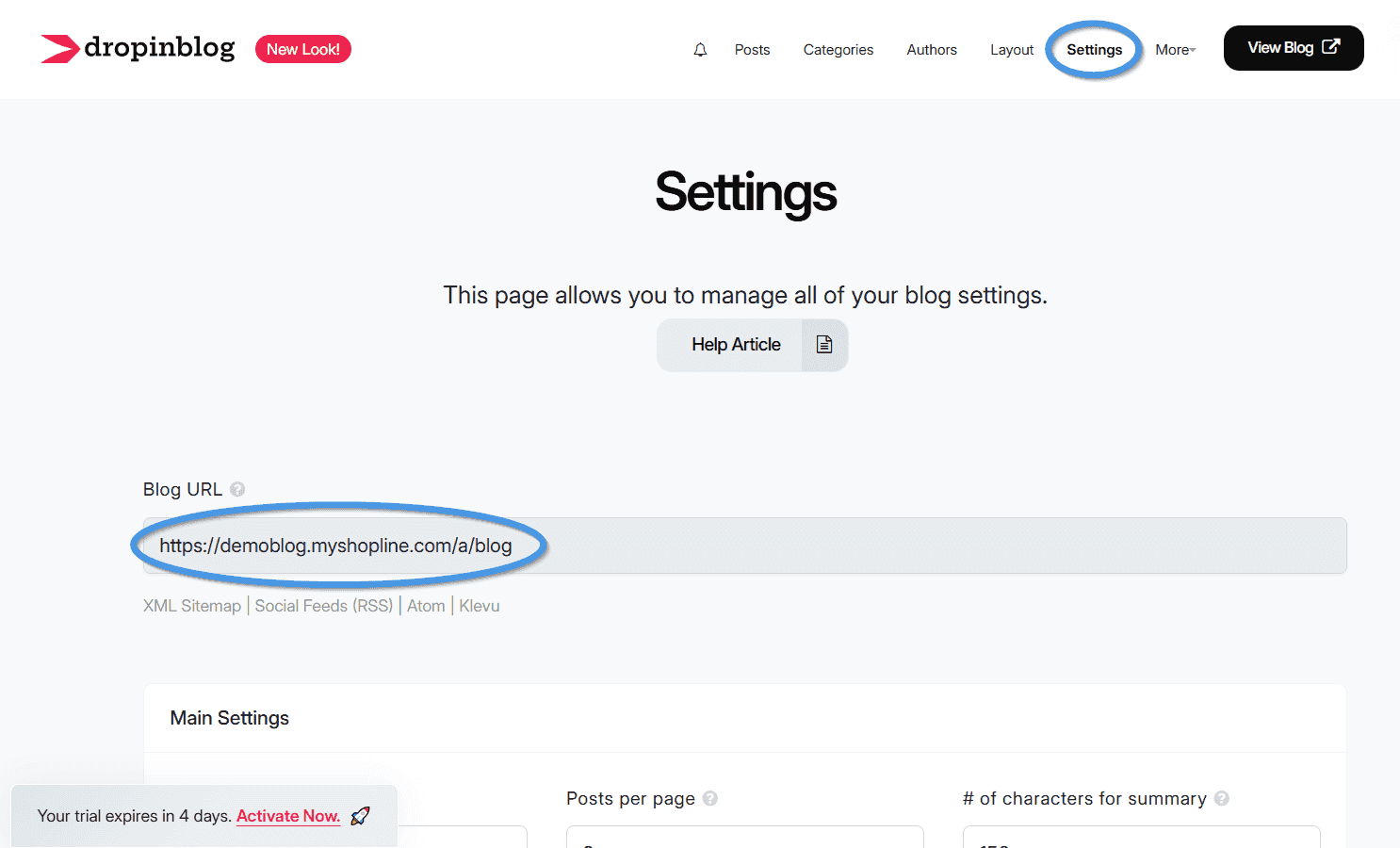
To do that, first go to your DropInBlog account and copy the link to your blog from the Settings page.
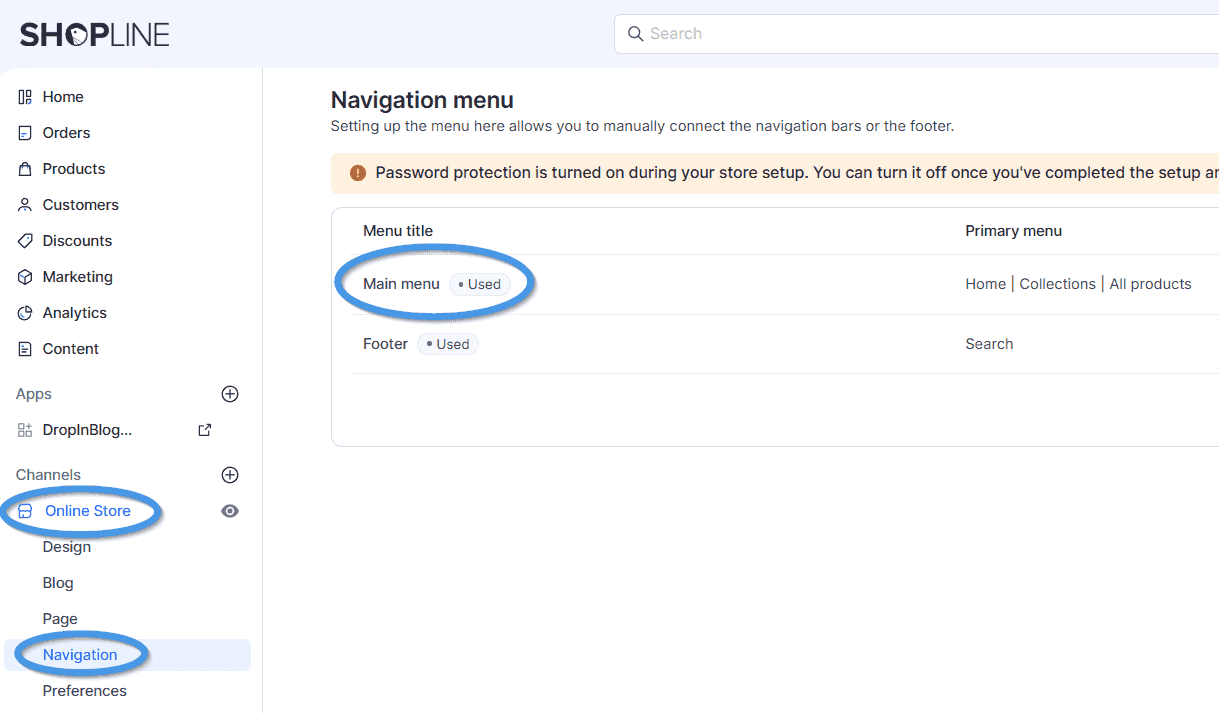
Then, return to Shopline, select Online Store from the menu on the left, and click on the Navigation tab.
In the window that opens, click on the menu where you want the link to your blog to appear. Doing so will open the menu editor.
Then, select the Add menu item option. In the pop-up window, type in the name of your blog under Menu item title and paste the blog link you copied under Referral URL.
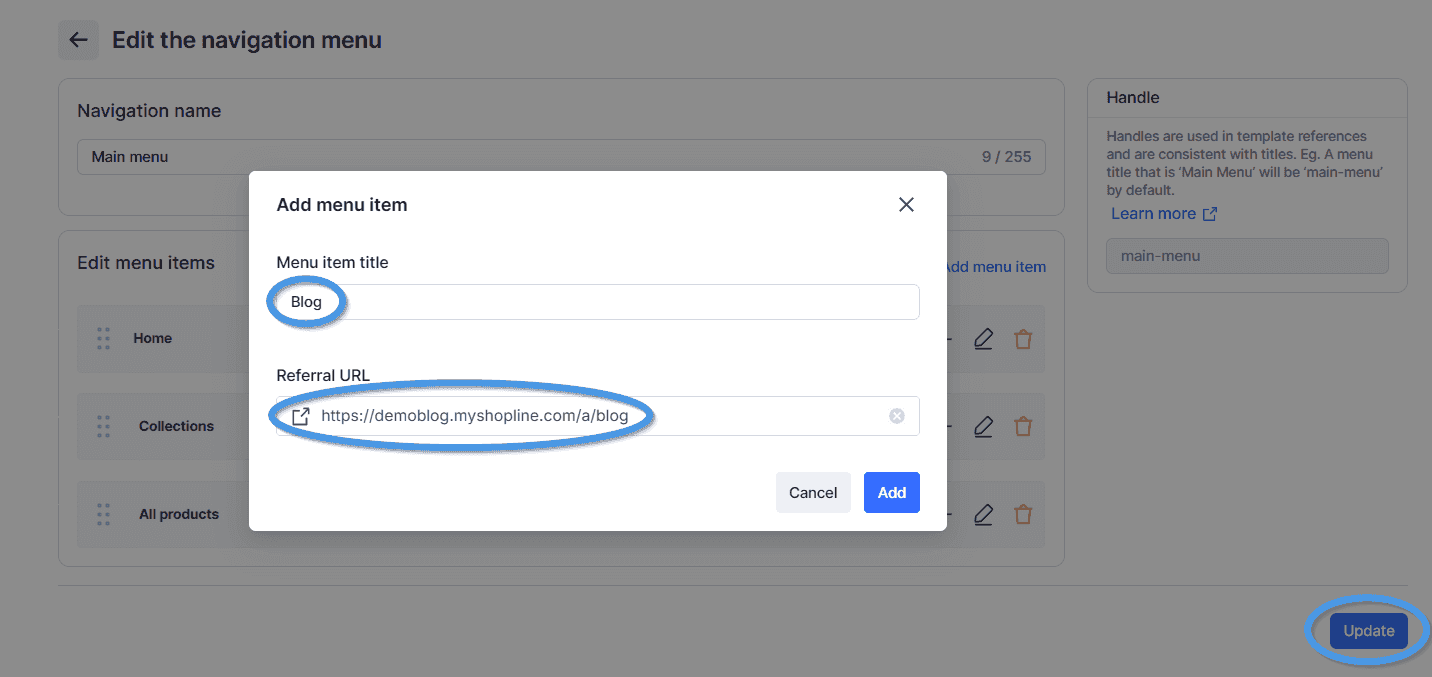
Save the changes you’ve made, and you’re all done!
When you select your blog link from your store’s navigation, you’ll see all your blog content.
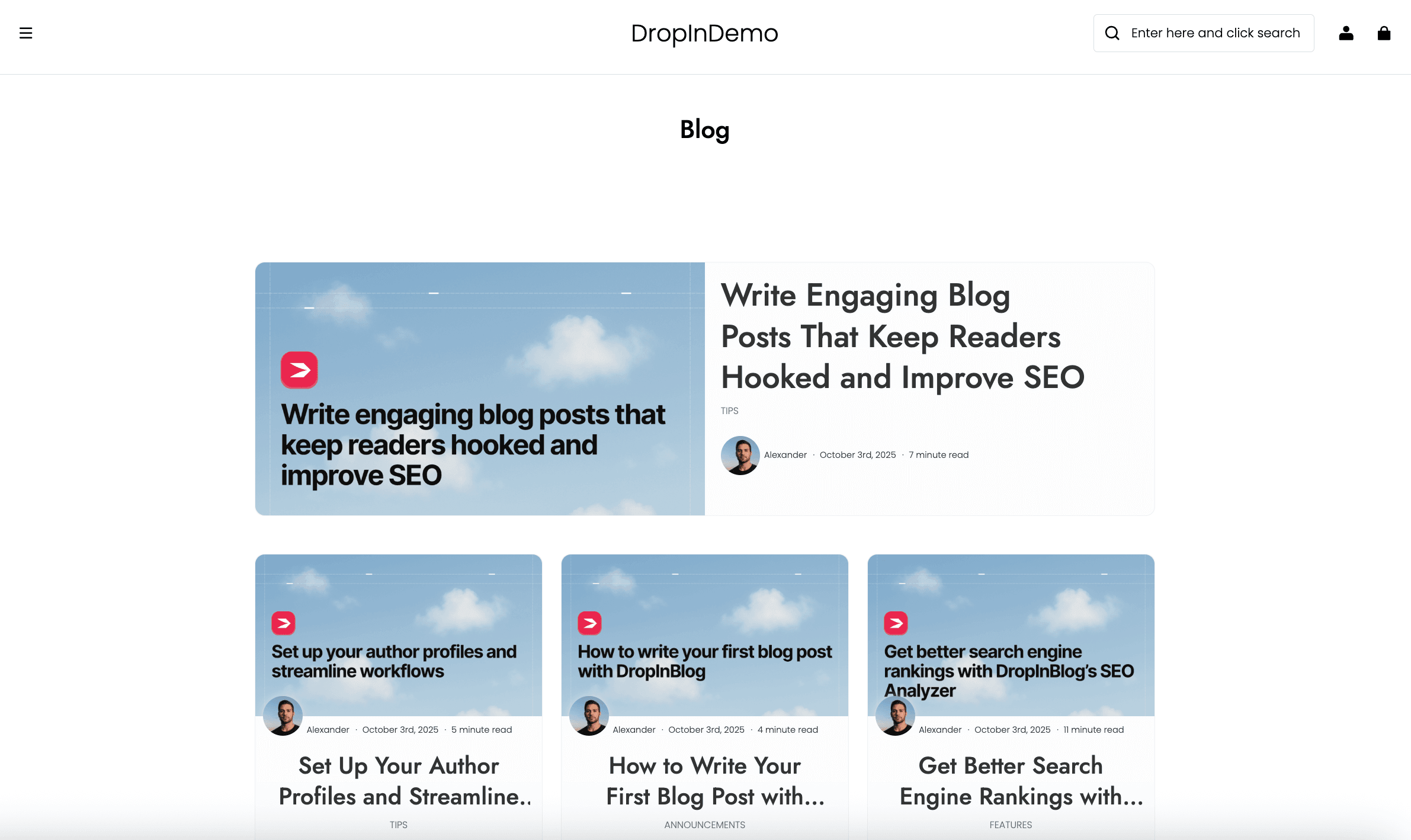
Remember: whenever you create new content from within your DropInBlog account, it will be automatically synced with your Shopline store – no need to go back and forth between the apps.
DropInBlog’s Notable Features
The DropInBlog blog app is designed to help you create beautiful, SEO-friendly blogs.
With DropInBlog, you get:
A blog that automatically matches your store’s design
An intuitive editor to structure and style your content: The editor supports everything from headers, tables, and lists to images, videos, and embeddable products.
Automatic ToCs and an FAQ builder: The blogging platform automatically generates ToCs from your posts’ headings and lets you manage your post FAQs with its built-in FAQ builder.
An SEO Analysis tool: The SEO Analyzer increases your content’s visibility in search and comes in handy if you’re doing your own SEO.
Collaboration features: If you aren’t running a blog by yourself but with your team, you can use DropInBlog’s role-based permissions to invite others to help you manage your content.
These are just some of the many supported features. To learn about others, read our comprehensive DropInBlog review.
Which Shopline Blog Integration Method Should You Choose?
If you’re just getting started and only need a basic blog, Shopline’s built-in blog feature can work. But if you want a professional-looking, SEO-optimized blog that helps grow your traffic and conversions, DropInBlog is the better choice.
FAQs
Does Shopline have a built-in blog?
Yes. Go to Online Store, then Blog, and click Create a blog. You get a rich text editor, categories, tags, an author field, SEO settings, and the option to attach related products. It's a real feature, not a placeholder.
Can I change my Shopline blog URL?
Only on the Enterprise plan, and only for stores with no existing content. Shopline made URL structure customization Enterprise-exclusive on March 31, 2026. Merchants who configured custom URLs before that date keep them but can't add or edit any more. On every other plan, posts stay at /blogs/blog-name/post.
Is DropInBlog an official Shopline app?
Yes, it's listed in Shopline's App Store and installs through Shopline's standard authorization flow. You approve the permissions inside your own admin.
Do I lose my existing posts if I switch to DropInBlog?
No, but they don't move by themselves either. Posts already published on Shopline's native blog stay at their current URLs unless you migrate them. If you do move them, set up redirects from the old /blogs/ paths so you keep the rankings they've earned.
Will the blog match my store's design?
With the native blog, it follows whichever theme template you've assigned to article pages. With DropInBlog, it inherits your storefront's fonts and colors automatically, and anything it doesn't pick up can be handled with CSS.
Create a Blog on Shopline Today
Both methods publish articles to your Shopline store. The difference is what happens after post ten, when you start caring about URL structure, internal linking, and whether search engines and AI assistants can parse what you've written.
Choose DropInBlog when you want to:
Make your content SEO-friendly with an SEO analysis tool
Remove the “/blogs” part from your blog’s URL
Easily inject products into your blog content
Add authors to your blog without staff accounts
Create ToCs and CTAs with a single click
Turn your content into audio with Blog Voice AI™
Ready to give your Shopline store a powerful SEO boost? Install DropInBlog today and start creating high-quality blog content in minutes. Need help? Our support team is just a click away.
Happy blogging!