
Key Takeaways
- The best way to add a blog to your HighLevel site is with DropInBlog!
- The free trial and quick setup let you test it in a few minutes.
- DropInBlog has different pricing plans for individuals and teams.
In this guide, we’ll examine GHL’s native blog and show you another way to add a blog to your HighLevel site using DropInBlog.
HighLevel’s native blog is constantly improving, but it still lacks some useful features, such as a built-in SEO analysis tool, reusable content blocks, and audio versions of your blog posts. DropInBlog supports all of these features. And you don’t have to leave the HighLevel ecosystem since the DropInBlog app is available on HighLevel’s Marketplace.
The fastest, most straightforward way to add a high-performing blog to your GoHighLevel site in 2026 is with DropInBlog.TL;DR: Blogging on HighLevel – HighLevel vs. DropInBlog
- GoHighLevel has a native blog feature, which is fine for basic posts, but it lacks a built-in SEO analyzer, reusable content blocks, and a text-to-speech feature.
- If you want to create content that’s optimized for traditional and AI search engines and scale it without hiccups, you’ll need DropInBlog.
- DropInBlog integrates seamlessly with HighLevel, inheriting your site’s design and taking only a few minutes to set up.
Table of Contents
- Key Takeaways
- TL;DR: Blogging on HighLevel – HighLevel vs. DropInBlog
- Does GoHighLevel Have a Built-In Blog?
- Why DropInBlog Is the Best Blogging Option for HighLevel
- How to Add a Blog to GHL with DropInBlog
- GHL Blog Setup Checklist
- Step 1: Install the DropInBlog App
- Step 2: Create a Blog Page in HighLevel
- Step 3: Add the DropInBlog Widget to Your HighLevel Blog Page
- Step 4: Verify the Blog Integration
- Step 5: Add Your Blog Page to Your HighLevel Site Menu
- How to Style Your New Blog to Match Your HighLevel Site
- Blogging for Agency Clients at Scale
- Best Practices for Blogging on HighLevel in 2026
- Manage Your Blog with DropInBlog
- FAQs
- Add a Blog to HighLevel Today
Does GoHighLevel Have a Built-In Blog?
Yes, GoHighLevel has a built-in blog. You can easily create a blog from the Sites page, and then create individual blog posts manually or with HighLevel’s built-in AI writing assistant. You can also import existing posts via CSV, organize posts with categories, and add authors.
That's genuinely useful for a basic setup, but if you need more advanced blogging features, you should consider DropInBlog.
HighLevel’s Built-In Blog Limitations
| HighLevel native blog | DropInBlog | |
|---|---|---|
| Meta titles, descriptions & custom slugs | Yes | Yes |
| XML sitemap | Yes | Yes |
| Categories & authors | Yes (basic) | Yes (advanced author profiles) |
| Blog schema | Yes | Yes |
| Built-in SEO analyzer & content scoring | No | Yes |
| AI search optimization (Mention Boost™) | No | Yes |
| Reusable content blocks (Smart Snippets™) | No | Yes |
| Text-to-speech (Blog Voice AI™) | No | Yes |
| Works across client sub-accounts at scale | Limited | Yes |
Why DropInBlog Is the Best Blogging Option for HighLevel
In contrast, DropInBlog offers a wealth of features that make it the preferred blog integration method for HighLevel sites:
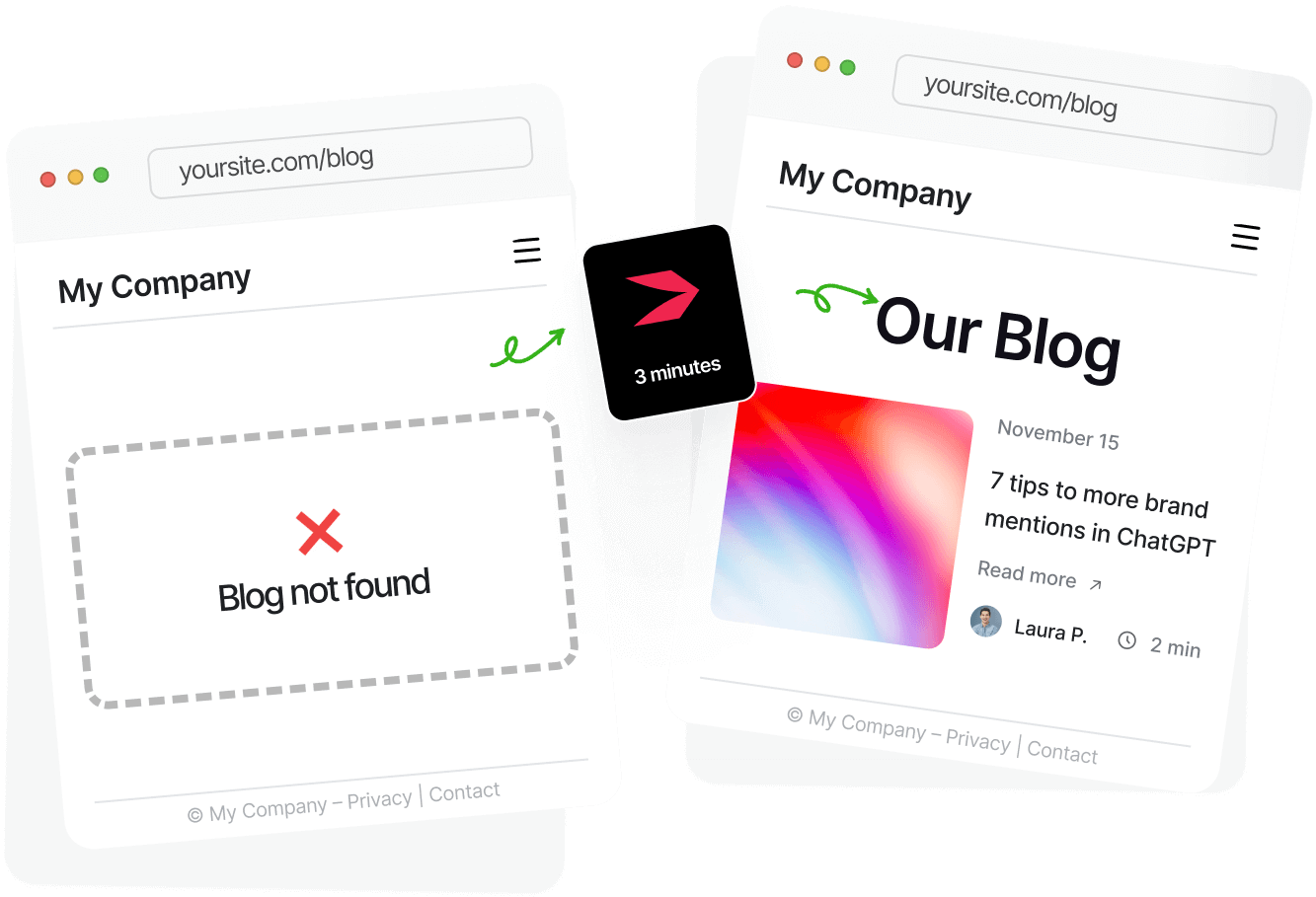
- Quick and simple setup: DropInBlog integrates into HighLevel with just a few clicks. You only need to install the app, create a new page where you’ll add the blog widget, and you’ll have a blog in a few minutes.
- AI-assisted content planning: Using Blog Pilot™, you can quickly find topics for your blog and generate outlines with writing tips.
- Fully SEO-optimized: With DropInBlog, you can create SEO-friendly content with the help of the built-in SEO analysis tool.
- Mention Boost™: You can structure your content to increase its chances of appearing in AI searches. Simply follow the suggestions from Mention Boost™.
- Blog Voice AI™: The blogging platform also has a text-to-speech engine, contributing to your blog’s accessibility and increasing user engagement.
- Smart Snippets™: With this feature, you can create an image, text block, or signup form in a single place and reuse it across your blog.
- No coding required: Creating a blog on HighLevel with DropInBlog is an intuitive process that doesn’t require any coding skills. Neither does managing your GHL blog.
- Designed for performance: Lazy loading and image compression are only some of the many ways DropInBlog blogs achieve fast loading times. And, as you know, search engines love fast sites (and blogs).
How to Add a Blog to GHL with DropInBlog
GHL Blog Setup Checklist
- Install the DropInBlog app.
- Create a new page.
- Add the DropInBlog widget to your new page.
- Verify the integration.
- Create a menu item for your new blog page.
Step 1: Install the DropInBlog App
Open the App Marketplace page from your HighLevel account and use the search bar to find the DropInBlog app.
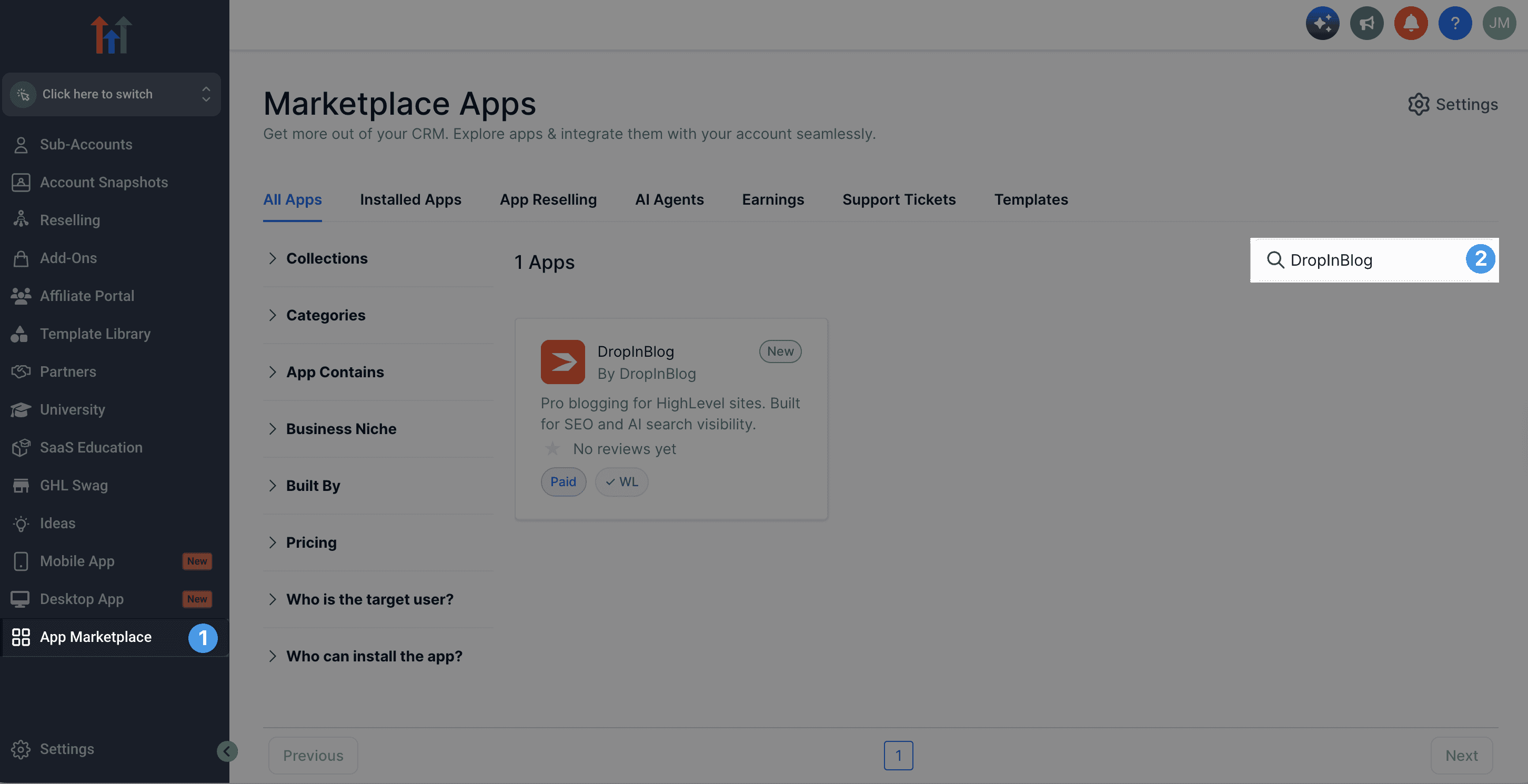 HighLevel dashboard: Finding the DropInBlog app on HighLevel's App Marketplace
Click the app’s preview card to open its dedicated page, then click the + Install button in the top right to start the installation process.
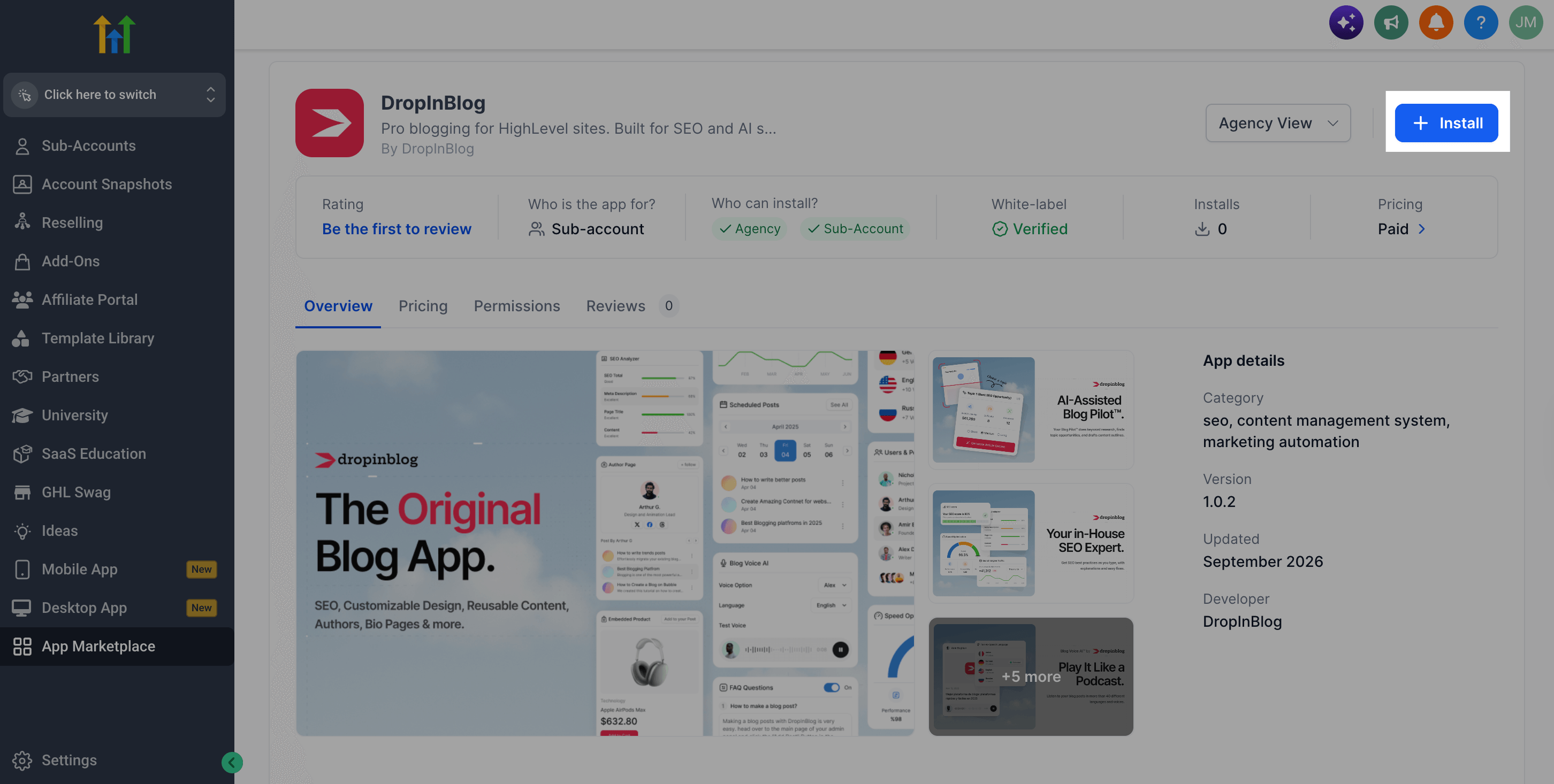 Installing the DropInBlog app in HighLevel
In the pop-up, select one or more sub-accounts to which you want to add a blog.
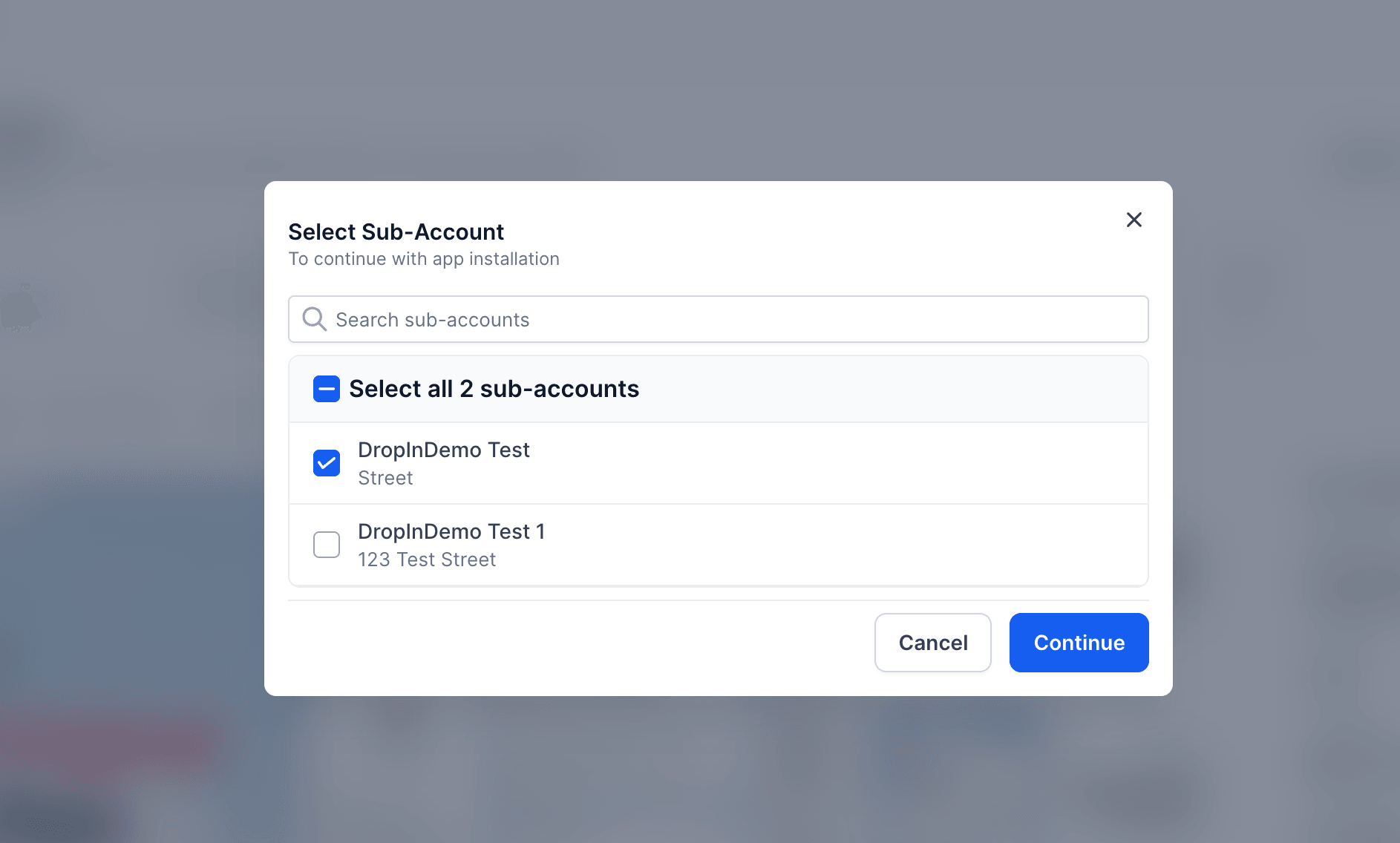
On the following page, you’ll see the permissions DropInBlog requires and the sub-accounts the app will be added to. Click the Allow & Install button in the bottom-right to proceed.
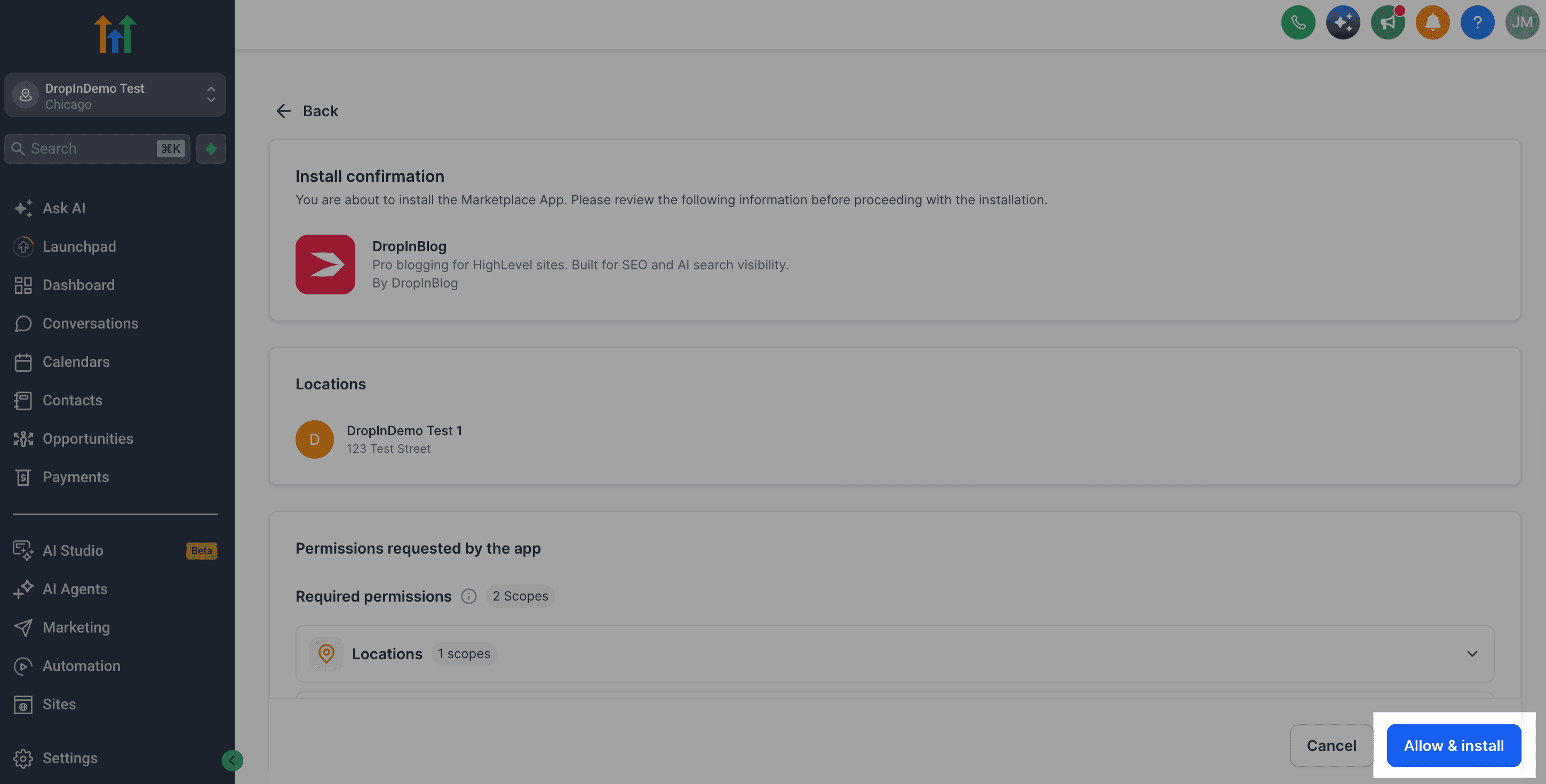 Installing the DropInBlog app on a HighLevel sub-account: Accept & Install
You’ll need to select the pricing plan and decide whether the sub-account where you installed DropInBlog or your agency will pay for the app. The next screen you’ll see is a confirmation message that DropInBlog was installed on the sub-account you selected. Click Return to HighLevel, and move on to the next step.
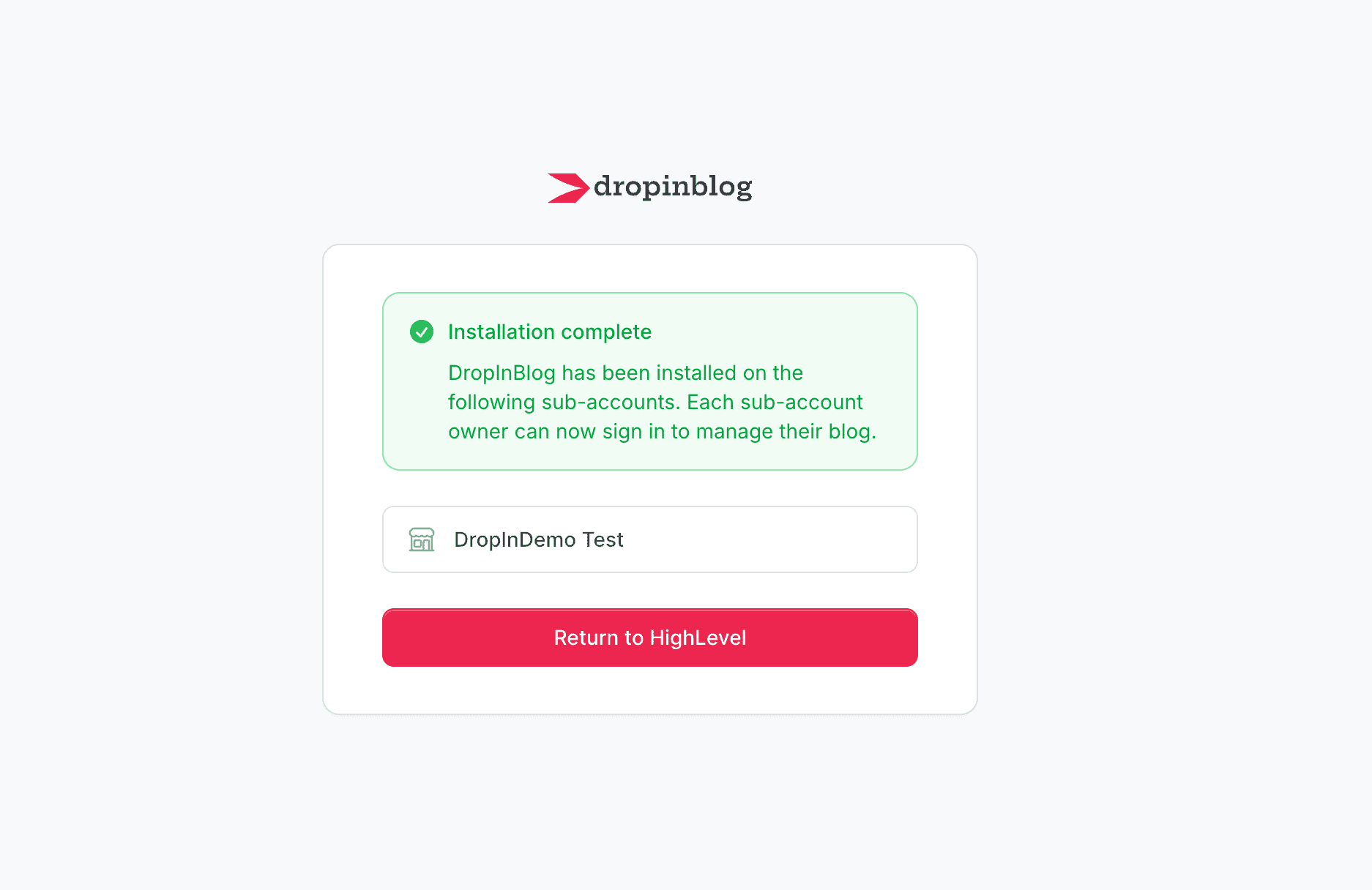 Installing DropInBlog: Installation complete message
Step 2: Create a Blog Page in HighLevel
When you install the DropInBlog app, a blog widget will be added to HighLevel’s page editor. You need to create a page where you’ll add that widget, which is what we’ll do in this step.
First, switch to the sub-account where the app was installed. Then, click the Sites tab in the menu on the left, and switch to the Websites tab in the menu at the top. You’ll see websites associated with the selected sub-account. Click the website’s name to launch the editor.
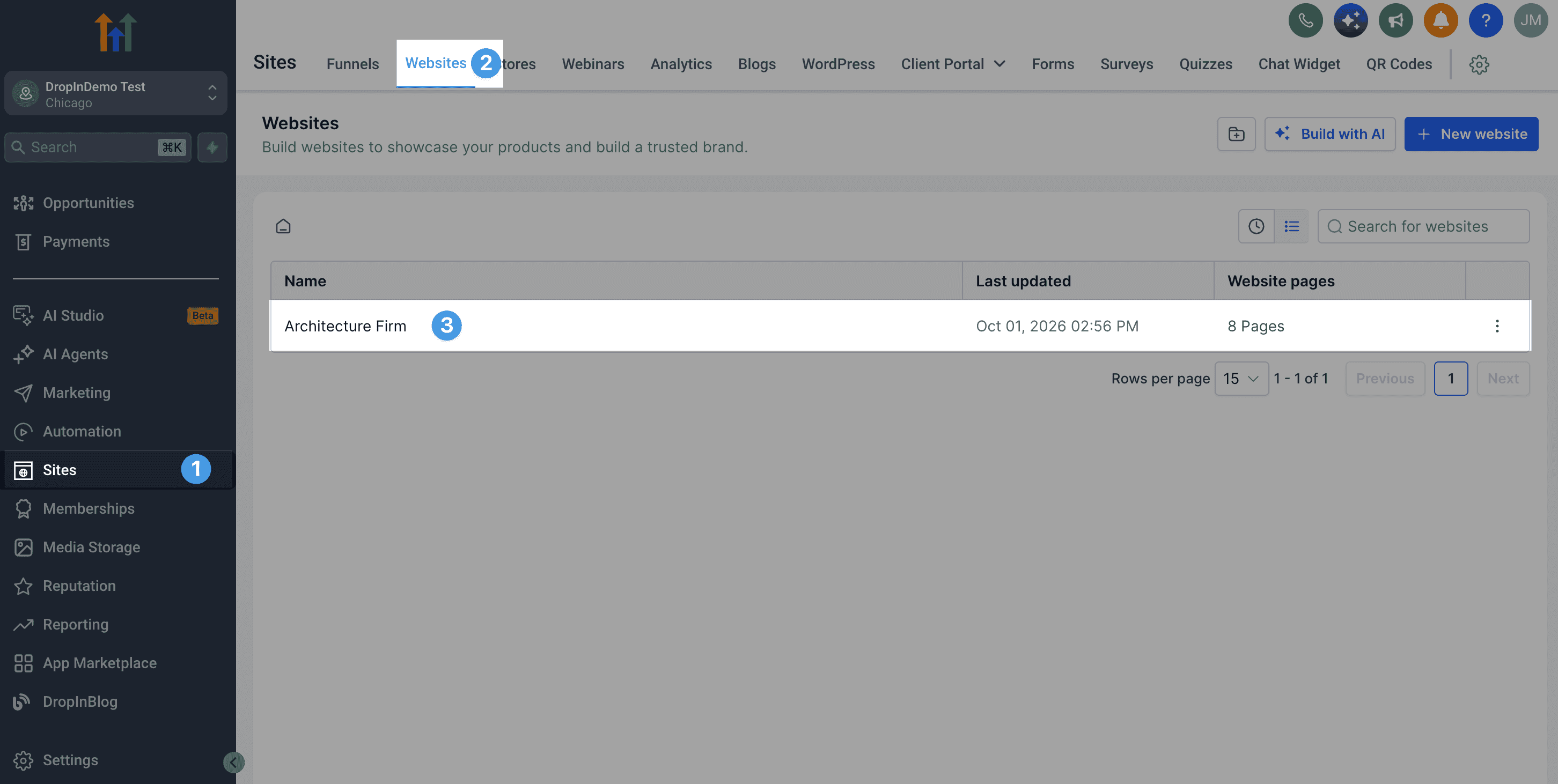 Editing an existing website in HighLevel
Within your website editing view, click Add new page on the right.
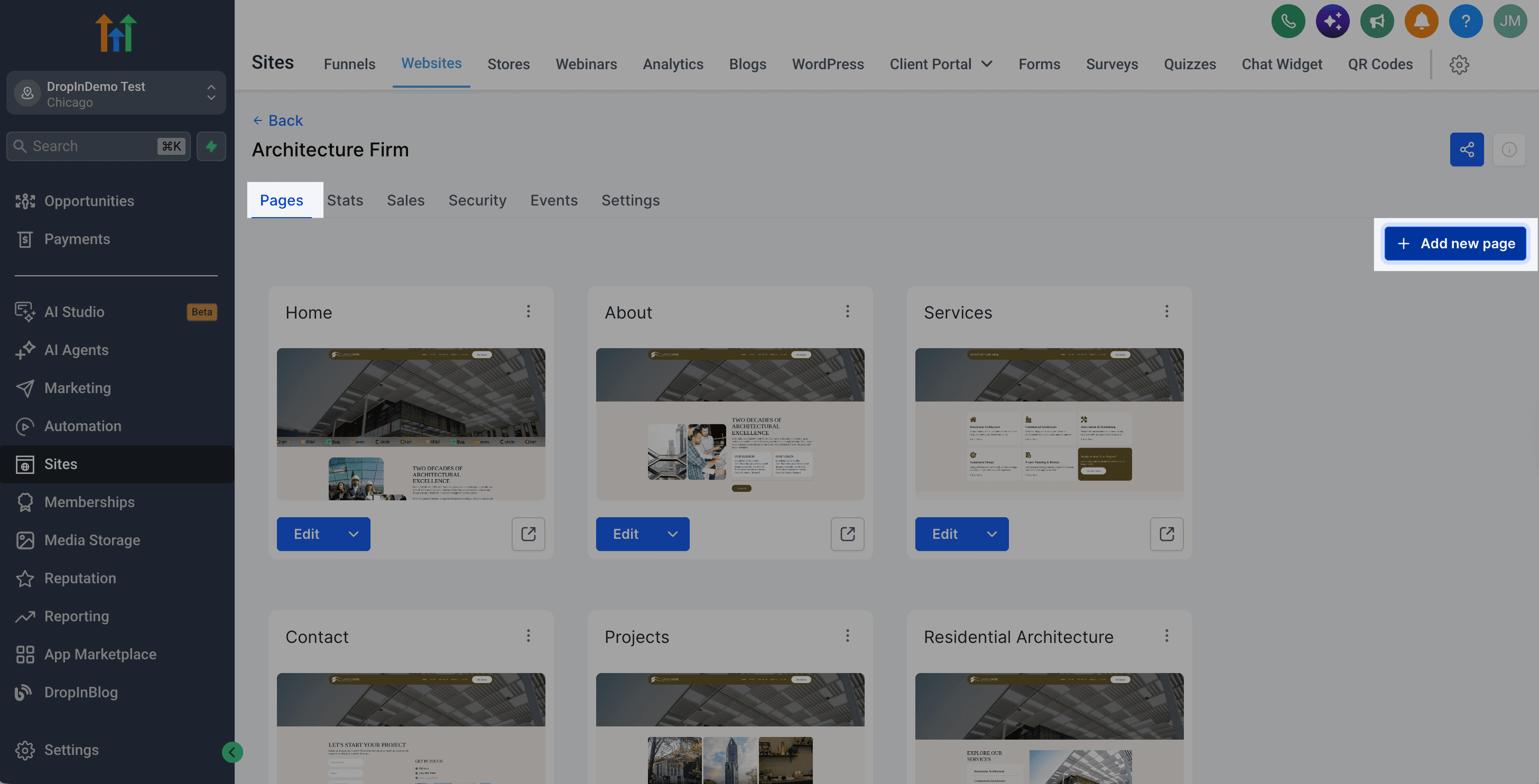 Adding a new blog page in HighLevel
On the following screen, enter the page name and path. We’ll use “Blog” for the page title and set the path, i.e., the URL slug, to “blog.”
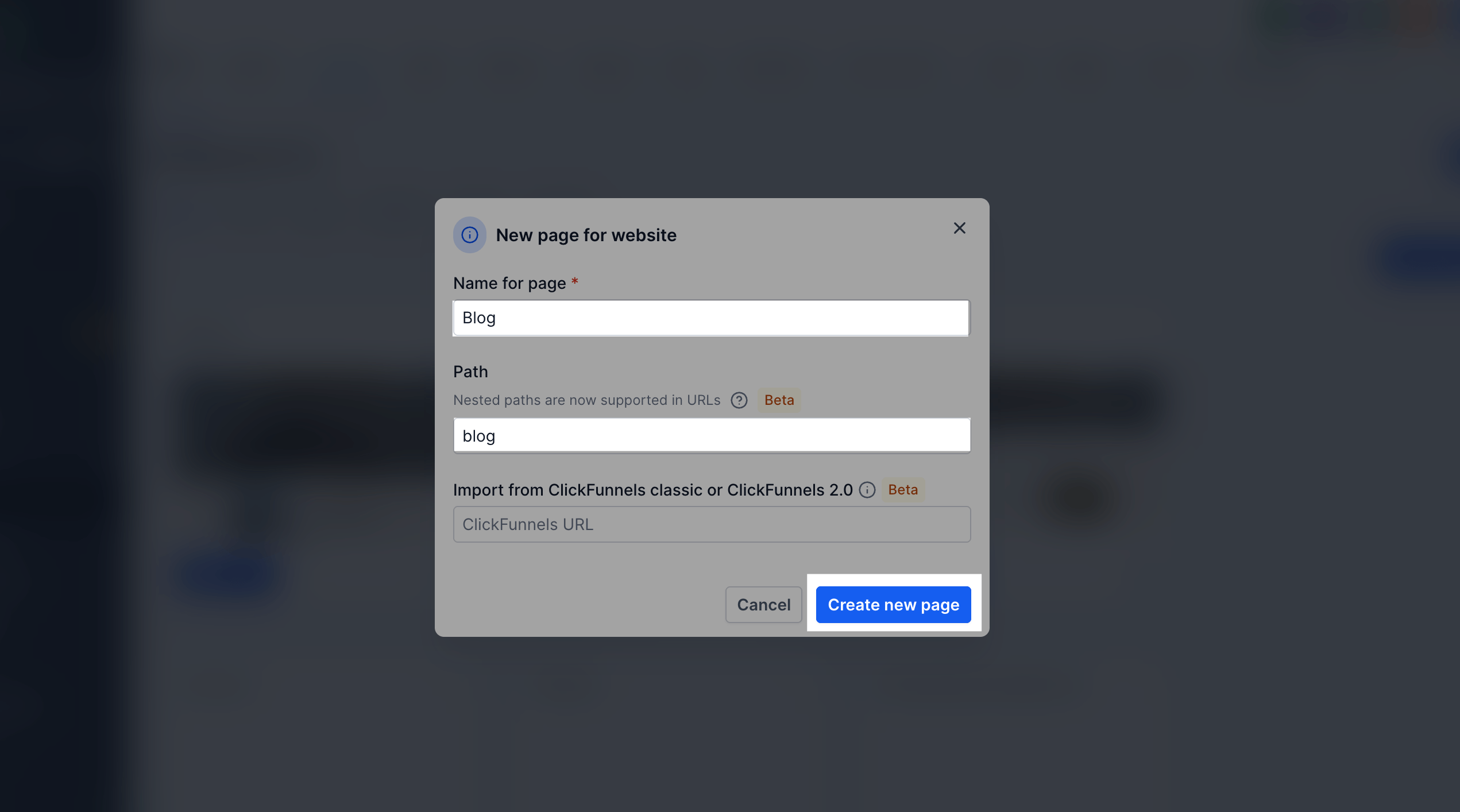 Creating a new website page in HighLevel: Page details
Click the Create new page button, and then you can choose whether you want to create a blank page or clone an existing one.
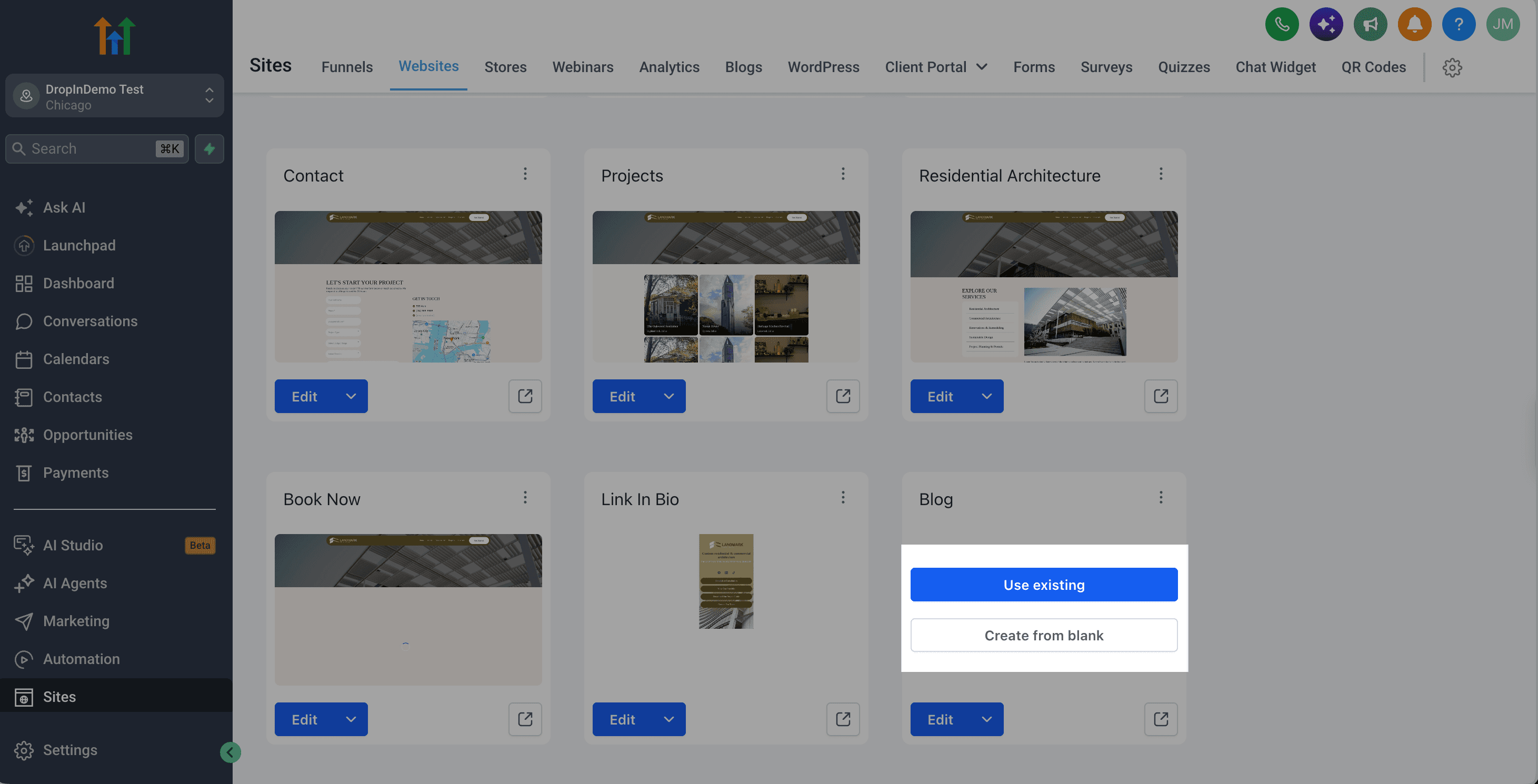 Creating a new blog page in HighLevel: Choose an existing page or create from blank
For this HighLevel blog tutorial, we selected the Create from blank option, which allows us to start with a clean page.
If you decide to use an existing page for your blog, delete all the unnecessary elements before proceeding to Step 3.
Step 3: Add the DropInBlog Widget to Your HighLevel Blog Page
At this point, you should be inside the page editor, and from here, you’ll add DropInBlog’s widget. To do that, click the plus sign in the top left, select Widget Marketplace, and in the Installed tab, you’ll see Posts by DropInBlog.
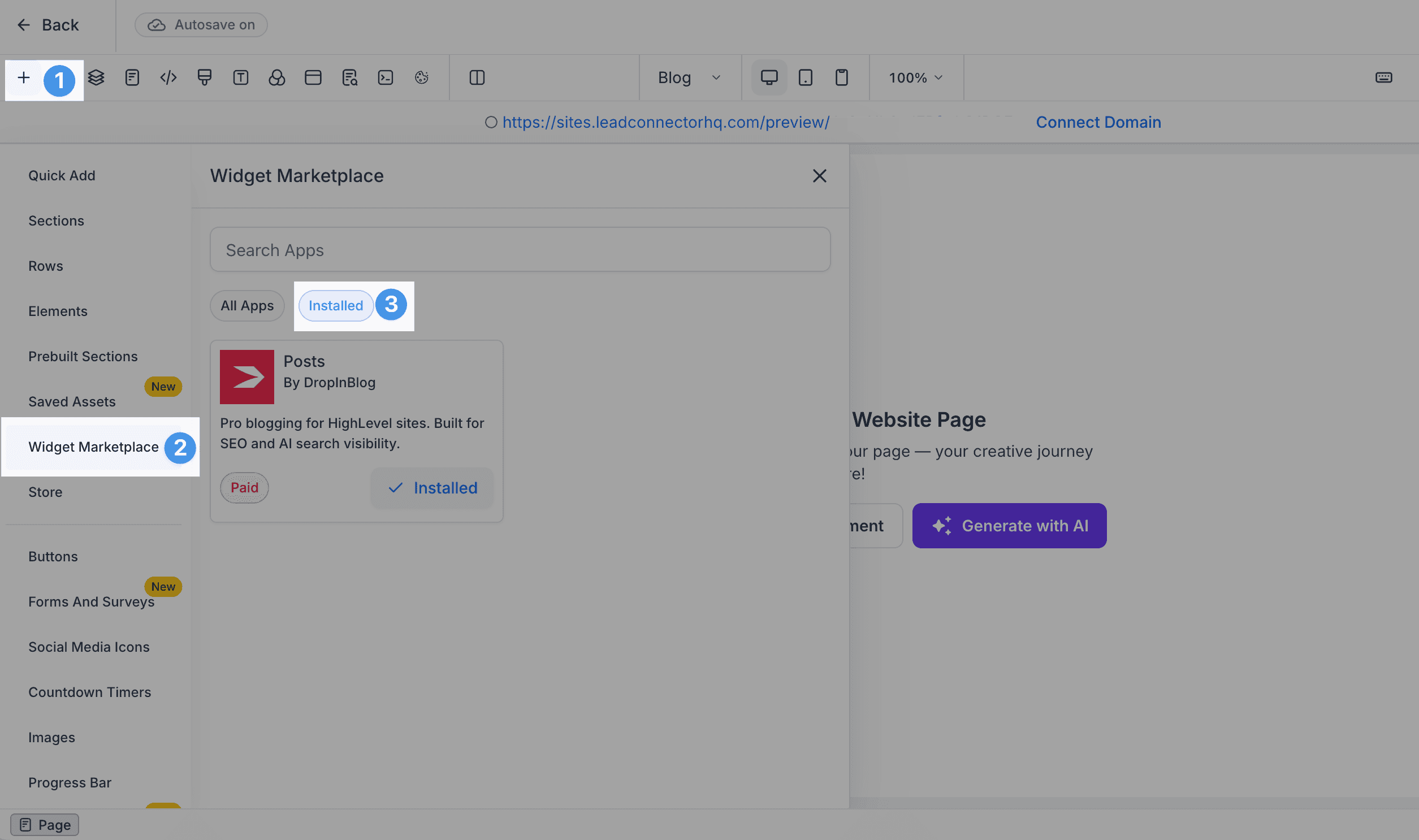 Accessing HighLevel's Widget Marketplace section: Installed apps
Drag and drop the widget onto the page. You’ll see a screen like the one below.
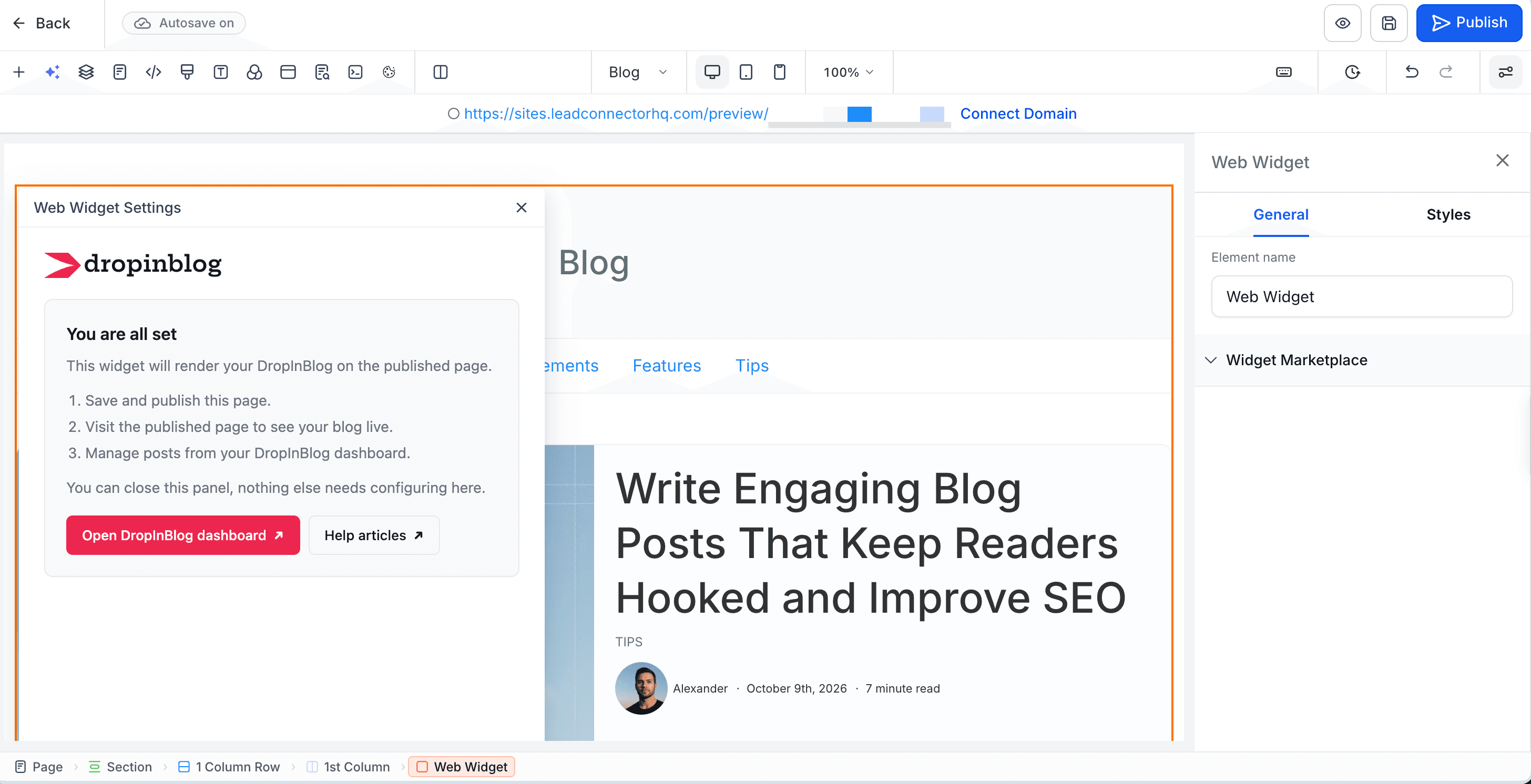 Adding the Posts widget to a HighLevel page
Feel free to close the Web Widget Settings screen, then publish your site to get your new blog page live.
Optionally, you can add a header menu to your blog page to help visitors easily switch between your blog and other pages on your site. Since HighLevel supports global sections, you can easily add a menu to any page, including this new one you created for your blog.
To add a menu at the top of the blog page, click the plus sign, and in the dropdown, select Saved Assets, then Global Sections. Here, you’ll find the sections your site already uses, including headers, footers, and testimonials. Drag and drop the section you want onto the page. Don’t forget to publish your site again to update the live version of your site’s menu.
Step 4: Verify the Blog Integration
After you publish your new blog page, you need to ensure the blog integration was successful. To do that, open the blog page you just created in HighLevel and copy the page link.
Then, use the left-hand side menu to access DropInBlog from your HighLevel admin, and open the Code & Layout page. You’ll see a collapsible Verify Integration menu. Click on it.
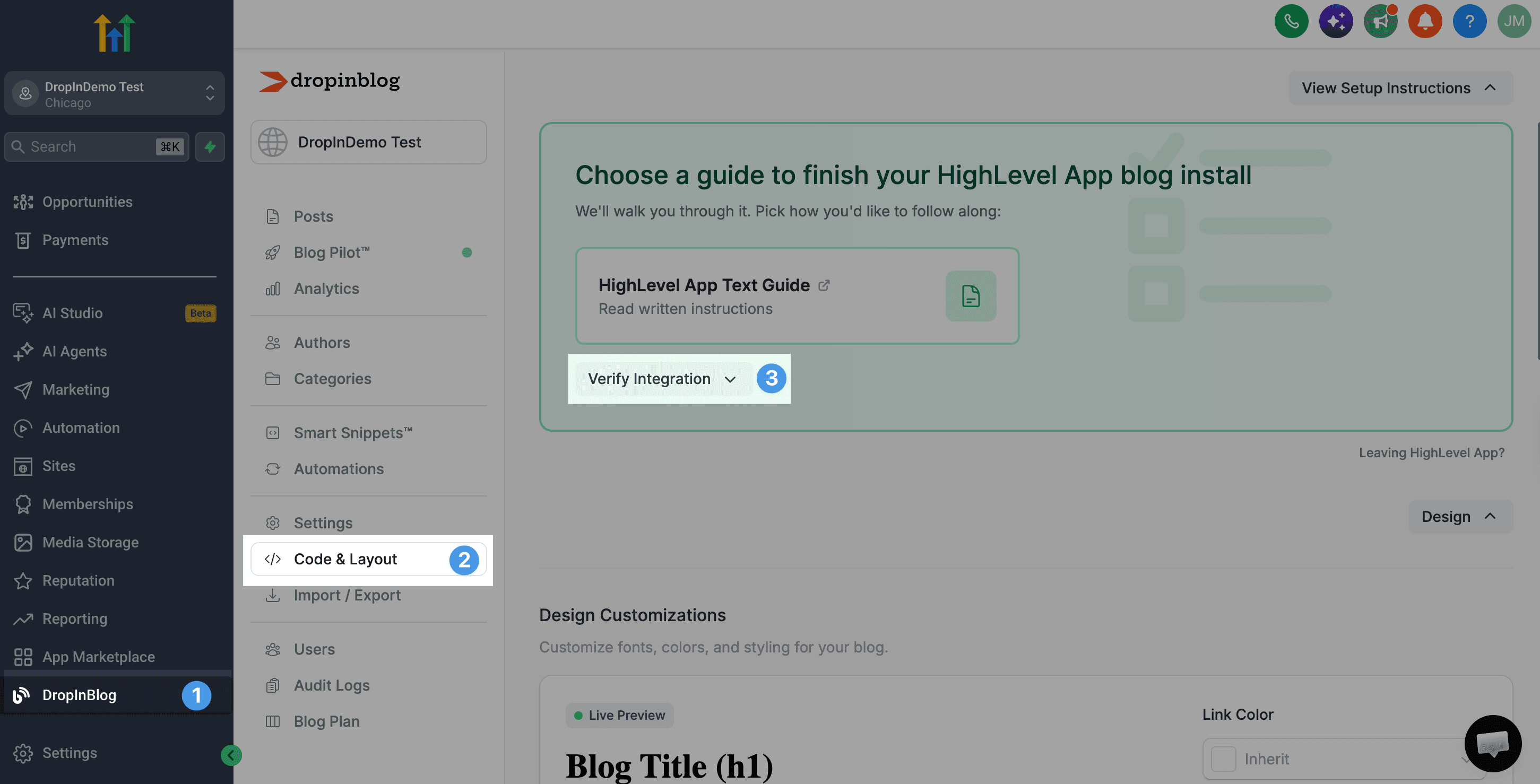 Verifying the DropInBlog integration: Code & Layout page
You may immediately see a message that your blog is live. If not, you’ll be asked to paste your blog’s URL. After that, you’ll see the message we just mentioned, informing you that your blog is live.
Step 5: Add Your Blog Page to Your HighLevel Site Menu
The final step of the integration is to make your blog accessible from your site’s menu. For that, you’ll need to open HighLevel’s page editor. Access your site from the Sites page, and click the Edit button next to any page that includes a menu. We’ll edit our blog page since the navigation menu is present on that page.
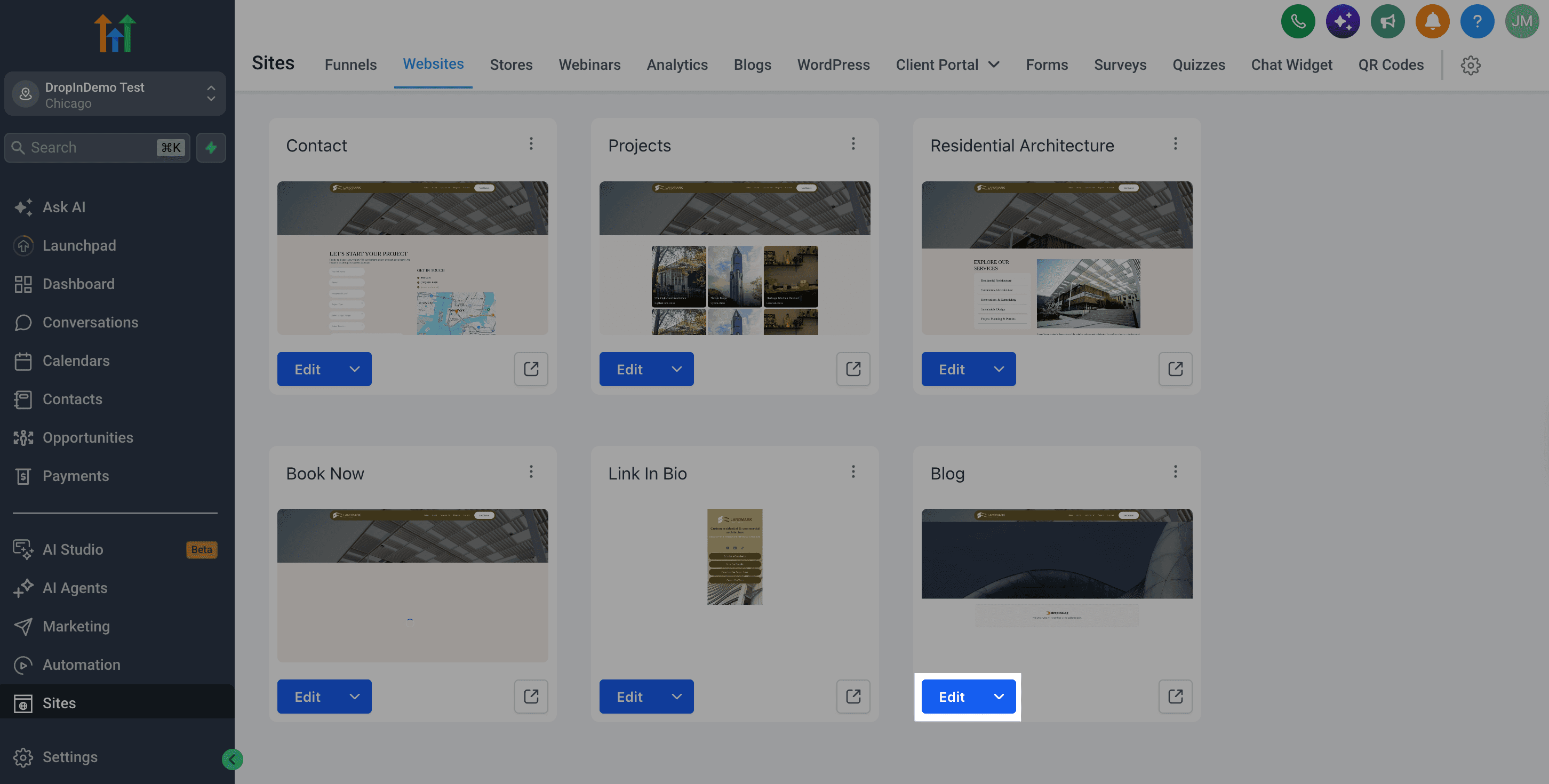 Edit a page in HighLevel
Once we’re inside the editor, we’ll select our navigation at the top of the page, and in the menu that opens on the right, we’ll click Add item, then New menu.
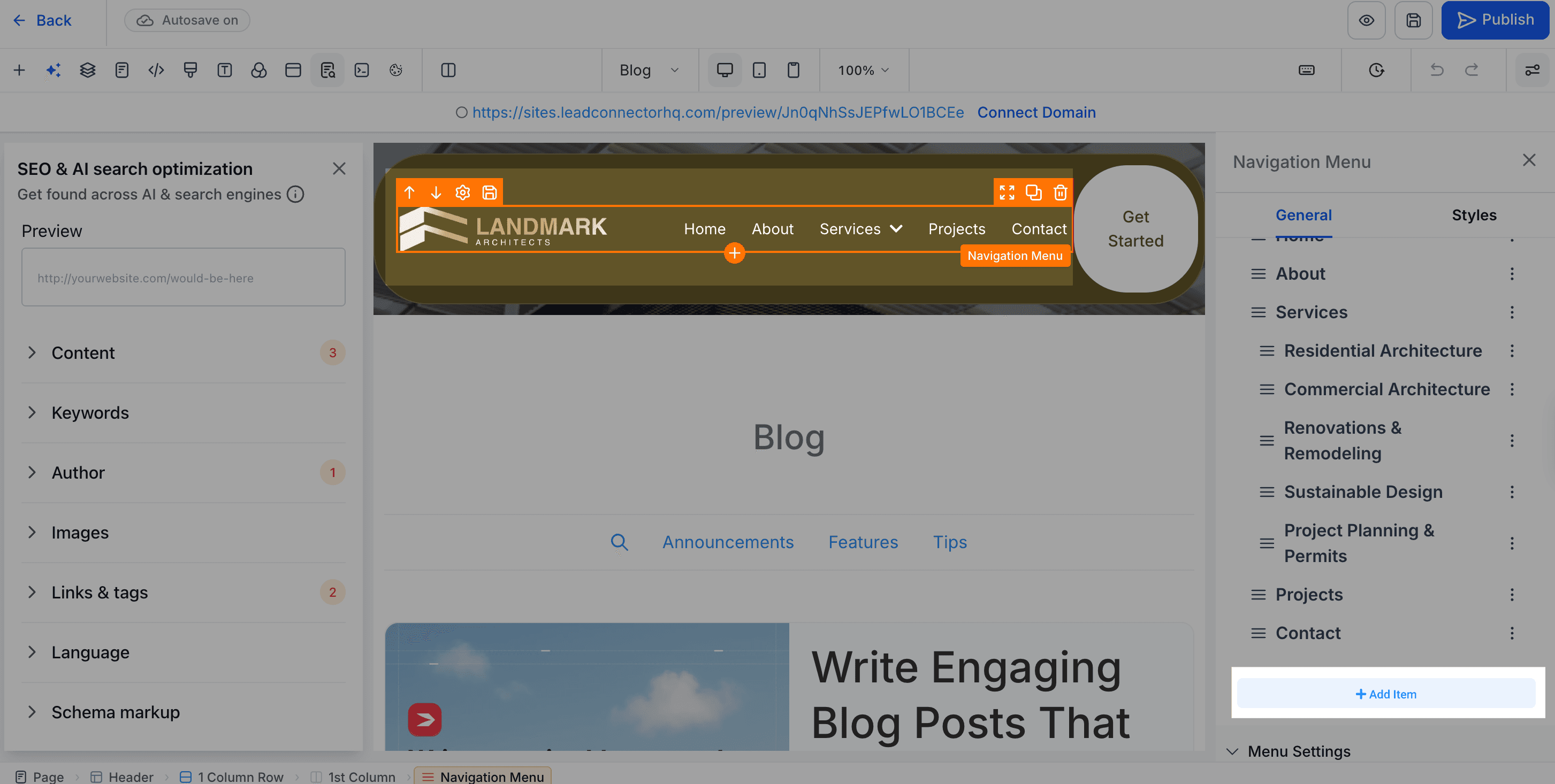 Adding a new menu item in HighLevel's page builder
In the popup, we’ll change the title to “Blog.” Then, we’ll select Go to Page from the Go To dropdown, choose our blog page from the Page dropdown, and click Submit to save our choices.
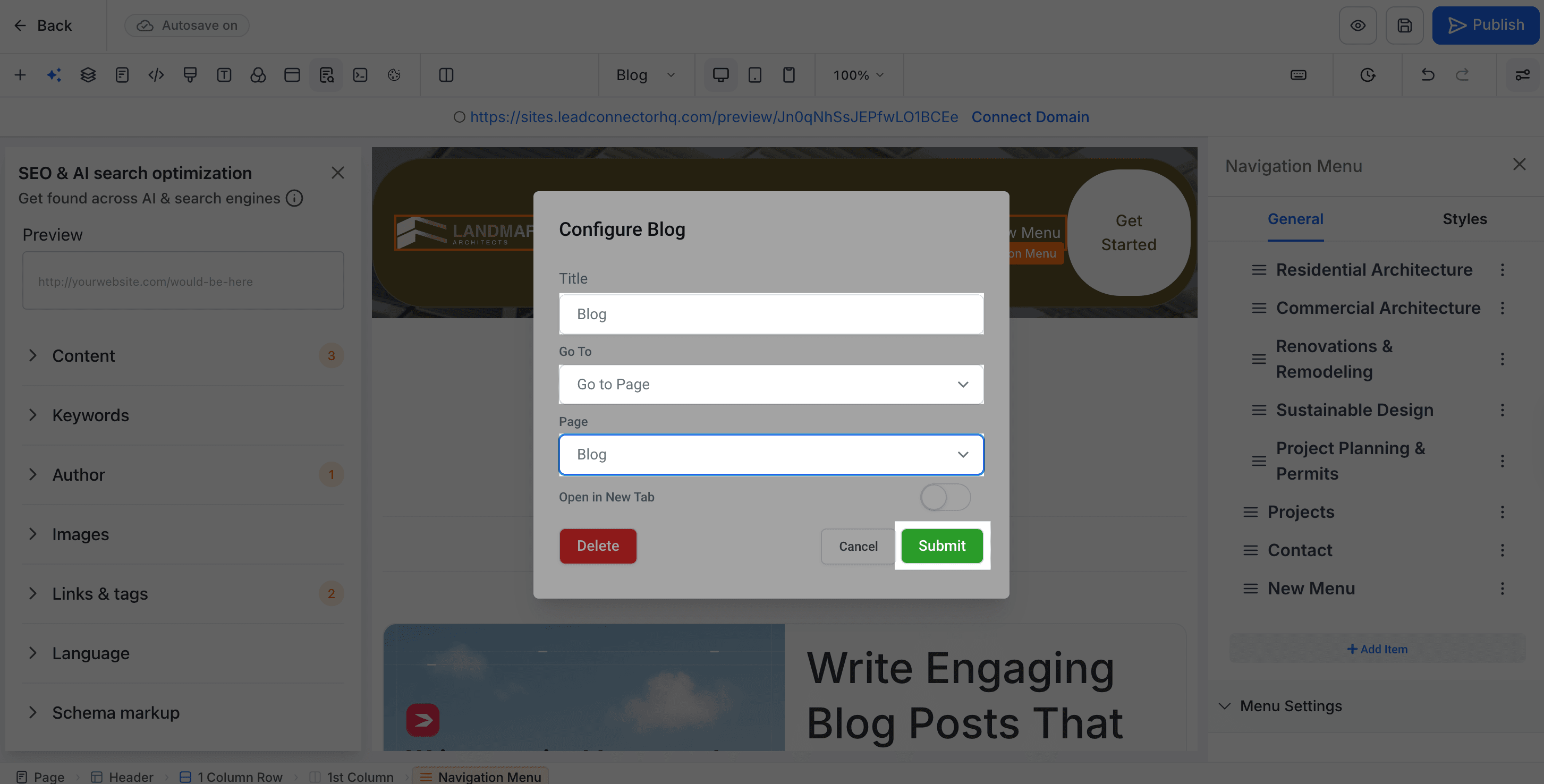 New menu item settings
And because the navigation menu is a global section, when we publish our page again, the blog link will update across all pages that contain this menu.
How to Style Your New Blog to Match Your HighLevel Site
While DropInBlog-powered blogs inherit styling from your website, you can also make some custom tweaks to your blog’s layout.
To do that, open the Code & Layout page in your DropInBlog account. For making smaller changes, go to Design Customizations in the Design section.
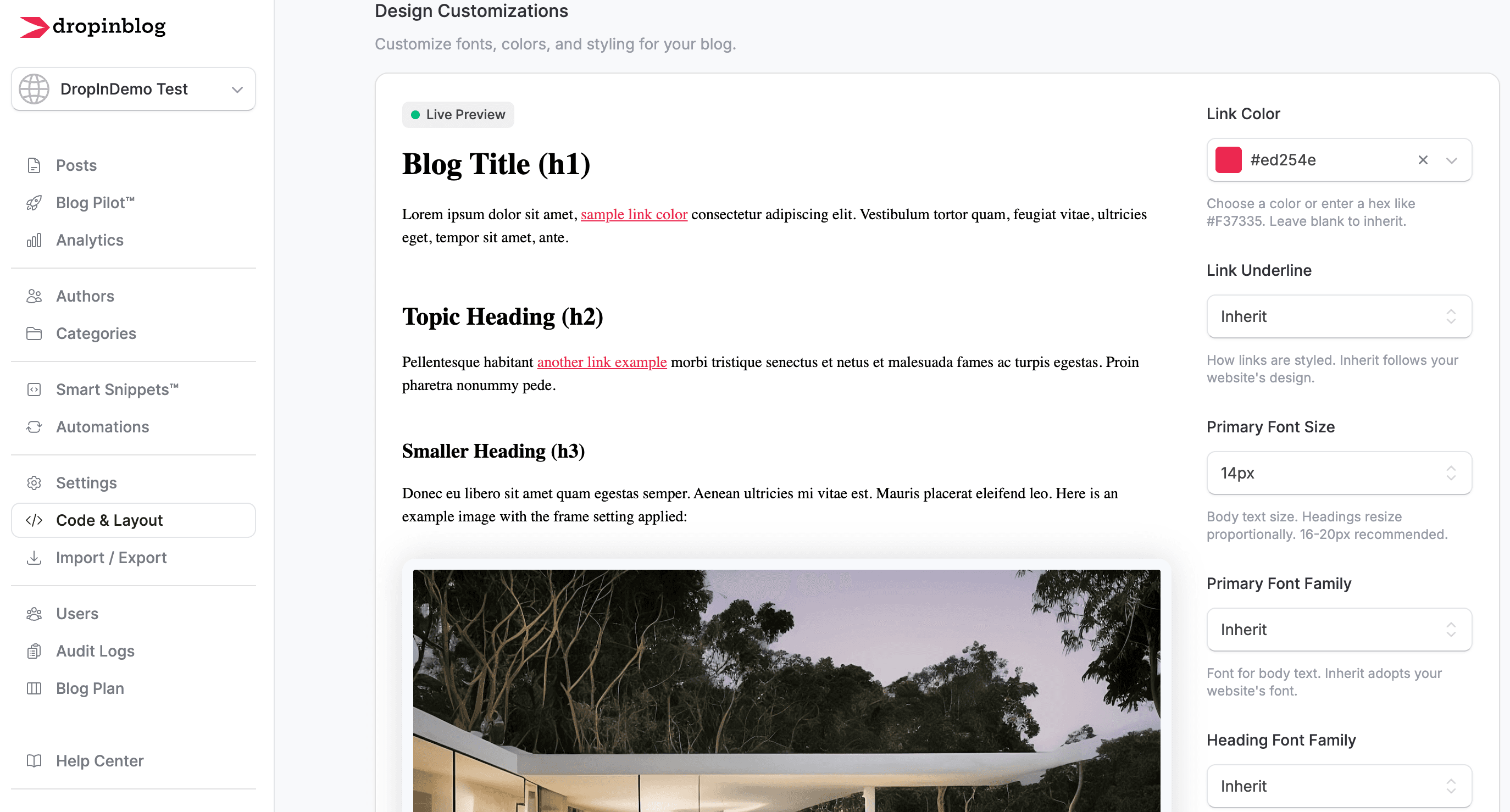 DropInBlog's Design Customizer
From here, you can change the link color and underline style, customize the background and text color of your call-to-action buttons, and change your blog’s font family and size.
To change the link color, click on the field under Link Color and select one of the offered colors or paste the hex code of the color you want to use.
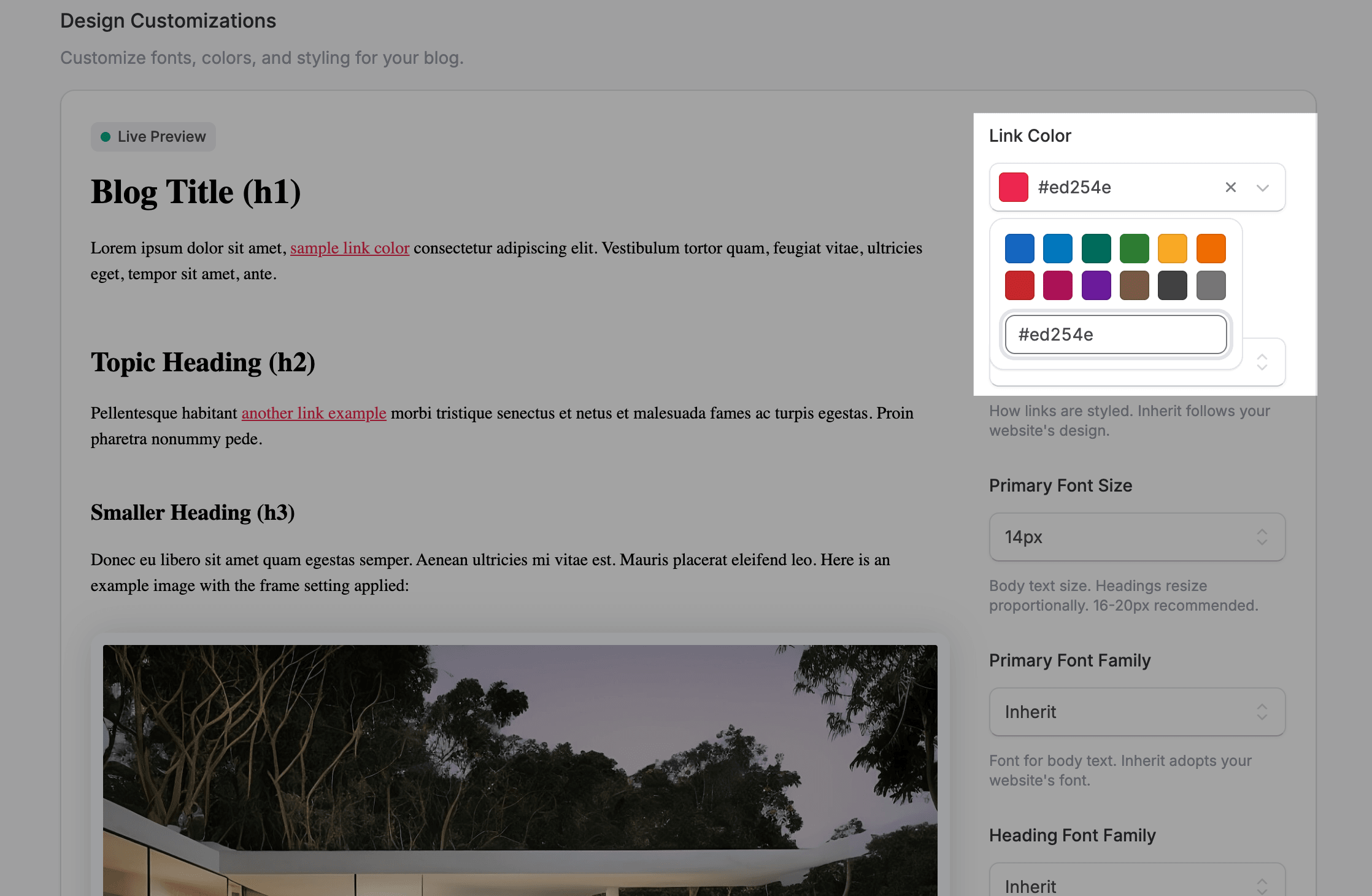 Changing link color in the DropInBlog Design Customizer
If you want to change your blog’s font family, click on the dropdown next to Primary Font Familyand select one.
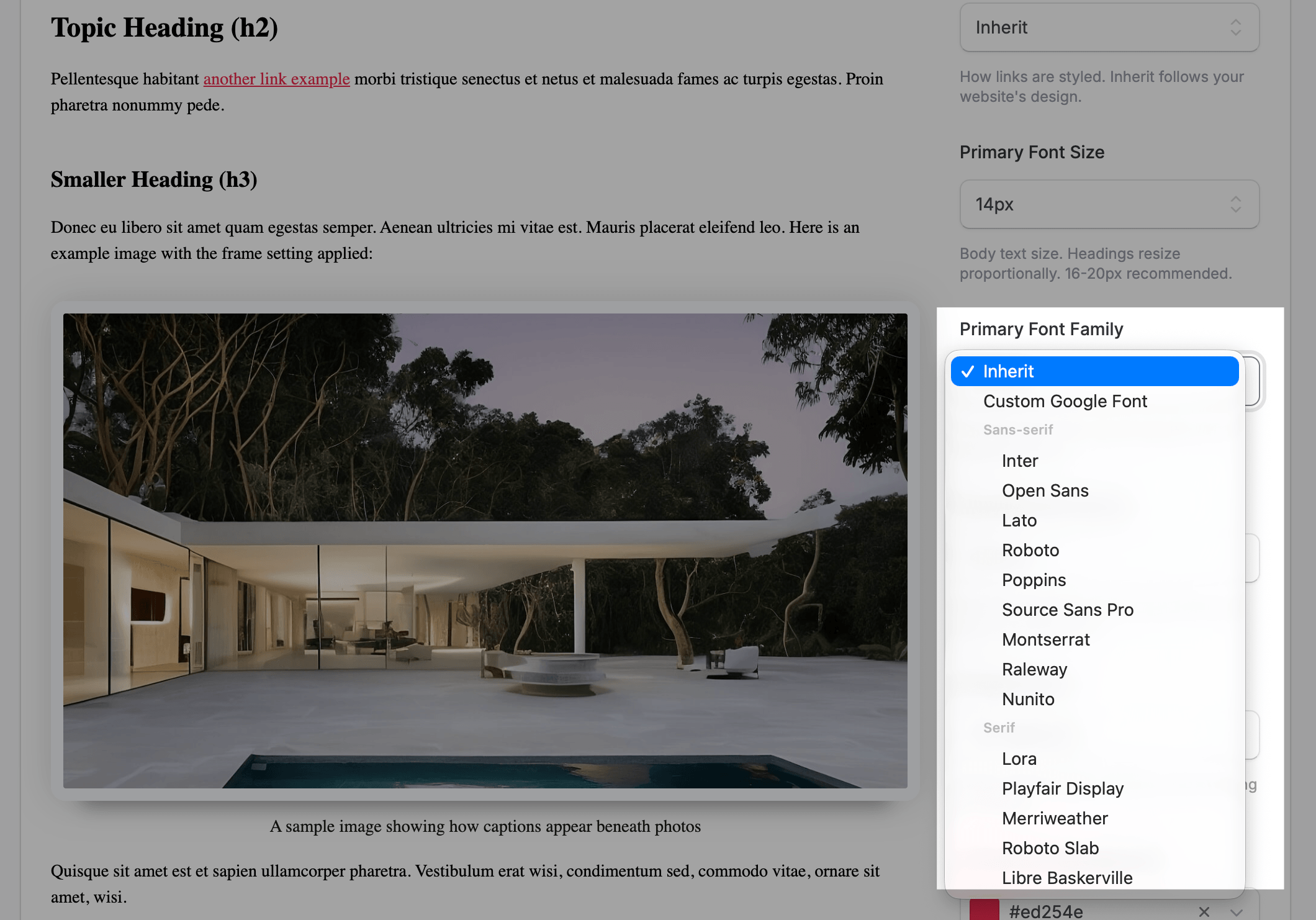 Changing primary font family in the DropInBlog Design Customizer
Under the Design Customizations, you’ll find an expandable Advanced Options section. Under Blog Layout, you can see your blog’s current layout and switch it if you want.
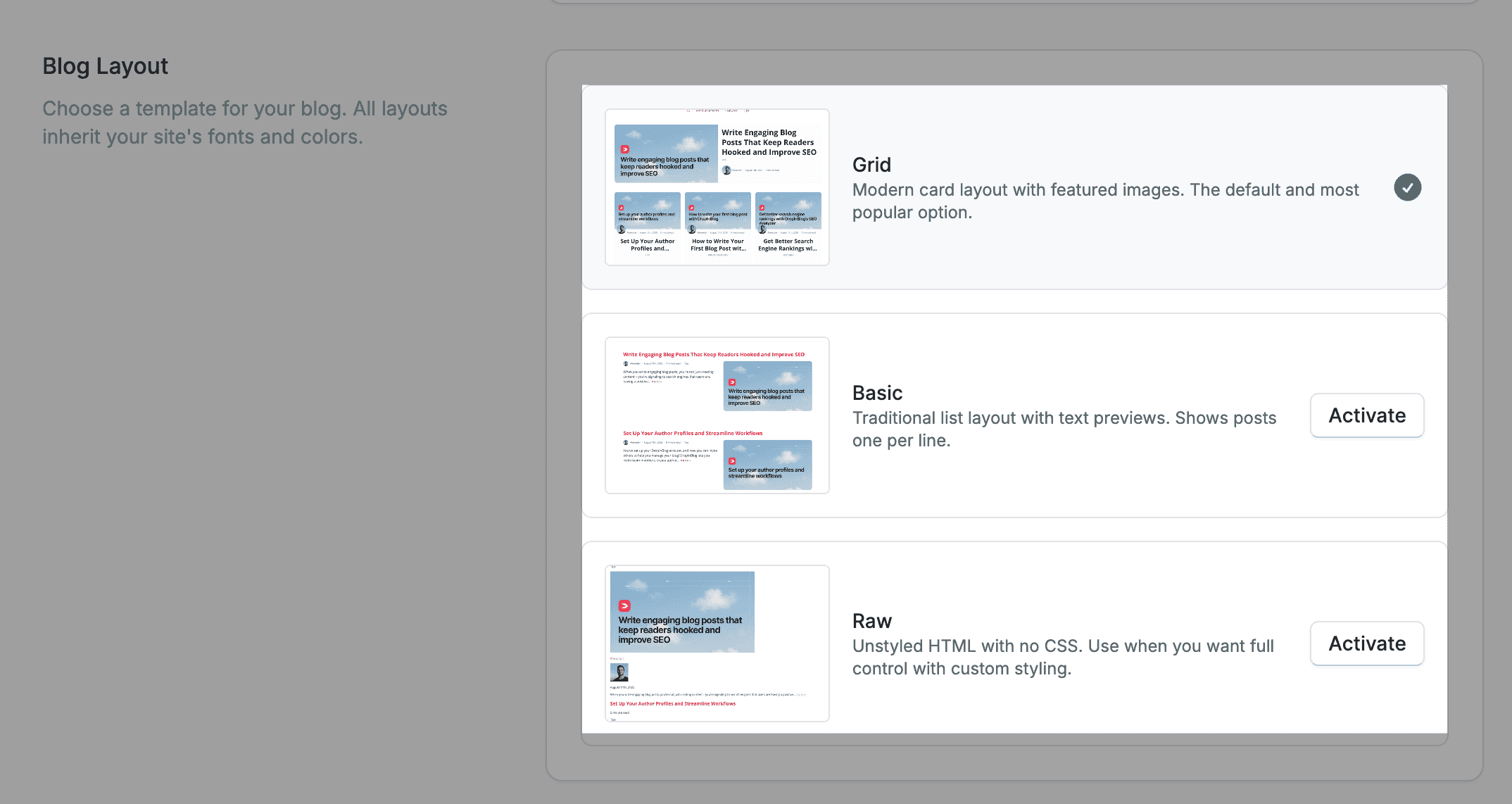 DropInBlog blog layouts
And if you want to make some more advanced changes to your blog and are familiar with CSS, find the Custom CSS section on the same page and add your code.
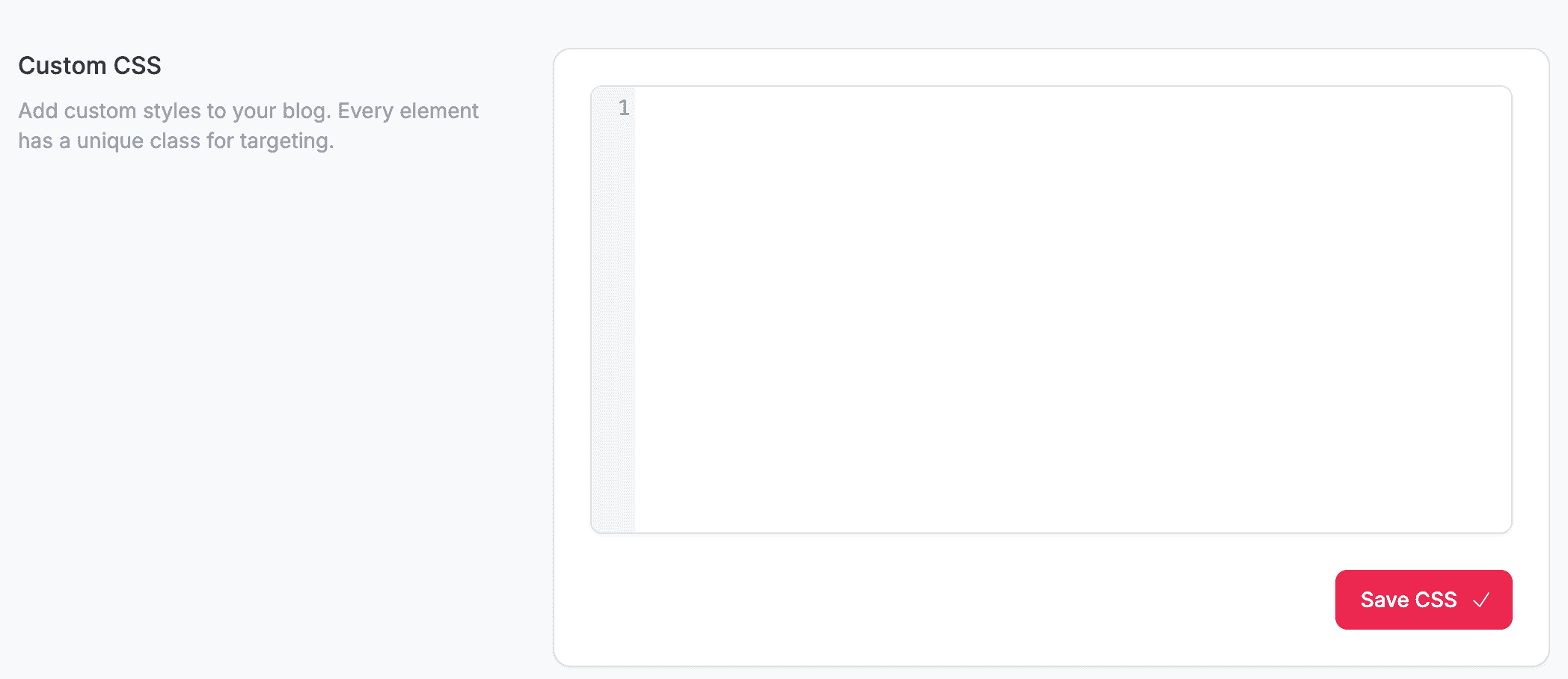 Custom CSS section in DropInBlog
Don’t worry – your blog will work even without adding custom CSS. It’s just one of the more technical ways to customize the look and feel of your blog.
Once you complete this step, you can add and manage your blog content from your DropInBlog account.
Below is a screenshot of one of the HighLevel sites that uses DropInBlog.

Here, you’ll notice that the blog page blends seamlessly with the rest of the pages, using the same fonts and styling for the above-the-fold content.
That means that when you add a blog to your HighLevel site, it will look as if it has always been there.
Blogging for Agency Clients at Scale
If you're running GHL as an agency, blogging isn't one blog; it's a blog per client. That's where the native feature gets painful: every sub-account needs its posts written, optimized, and maintained inside GHL's basic editor, with no content scoring and no way to reuse blocks across posts.
With DropInBlog, each client site gets its own blog that takes minutes to install and automatically inherits that site's design. A few things agencies specifically care about:
- Consistent design: your clients see a blog that looks native to their site.
- User roles: give writers, editors, and clients exactly the access they need – nobody touches the funnel builder by accident.
- Repeatable setup: the install is the same on every GHL site, so onboarding a new client blog is a checklist item, not a project.
- Zapier automations: connect pre-built DropInBlog + Zapier templates to auto-share new posts or sync content workflows.
The result: you can sell content/SEO retainers on top of every GHL site you manage, without the per-client maintenance tax.
Best Practices for Blogging on HighLevel in 2026
After adding a blog to GHL, you should implement these SEO best practices to improve your blog’s visibility in SERPs:
- Structure posts for SEO: Use the answer-first approach, offering clear, concise information right away. Make sure to use a proper heading structure, and add schema markup, FAQs, lists, images, videos – all of which DropInBlog supports out of the box.
- Optimize metadata using DropInBlog’s SEO Analyzer: The SEO analysis tool analyzes your target keyword and offers guidance on how to create good SEO titles, meta descriptions, and URLs.
- Add related posts for internal linking: By default, DropInBlog blogs have a related posts section, which improves your linking structure. Select related blog posts manually or leave automatic selection on.
- Enable author boxes: DropInBlog supports comprehensive author profiles. Assign authors to your posts to improve your blog’s credibility (and internal linking), and increase readers’ trust.
- Add a CTA block at the end of each post: You can easily create a CTA with DropInBlog. Add a link and text, and set the link rel attribute. Don’t forget to make your CTA click-worthy.
Promote Your HighLevel Blog
Once you complete the GHL blog setup, you should let others know about your new blog. Here are a few ways to do so:
- Add a blog to your site’s menu: As shown in Step 5 of the HighLevel blog integration tutorial, create a menu for your HighLevel blog so that your visitors can easily reach it.
- Add blog links in funnels: A common practice is to link your blog from your funnels, which is easy to do with HighLevel’s global sections. Add the blog link to your funnel in one place, and it will appear on all other funnel pages.
- Display your posts on any page: Using DropInBlog’s widget code, you can select the posts you want to display and add the code anywhere on your site, funnel, or store.
- Add posts to email sequences: You can add your posts to your marketing emails using HighLevel’s elements, like link preview or text and image to link to your blog.
- Index with Google Search Console: With DropInBlog, you can easily create a sitemap for your blog (the DropInBlog Settings page). Then, just go to your GSC account and add your sitemap to help Google find and index your blog content.
- Use social previews (OpenGraph): With DropInBlog, you don’t need to create them; they're automatically generated from your post’s title, description, and featured image.
Manage Your Blog with DropInBlog
To create a new blog post for your HighLevel blog, visit the Posts tab from your DropInBlog admin panel and click on the Add Blog Post button to launch the DropInBlog post editor.
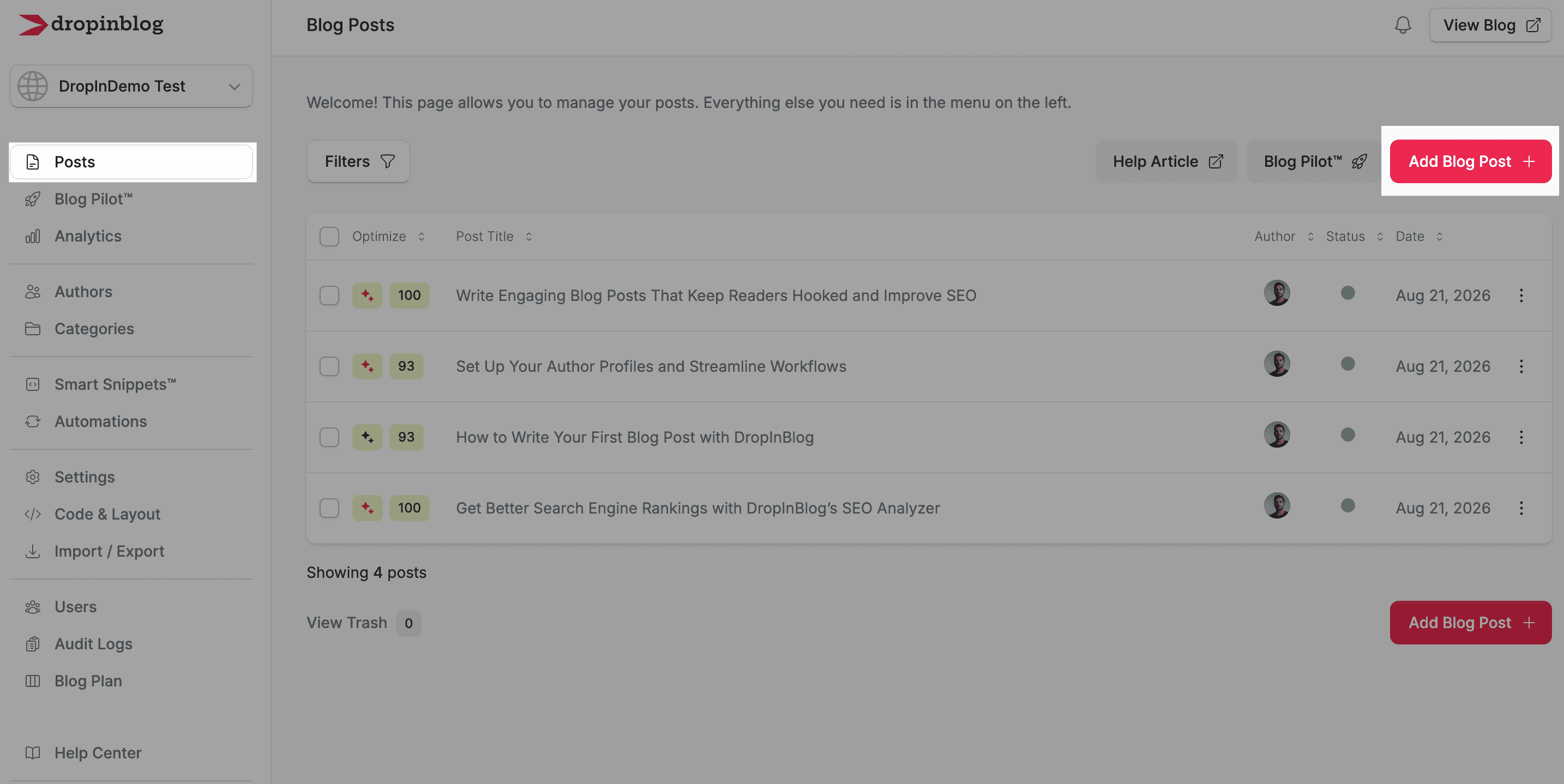 DropInBlog admin: Posts page
Once in the editor, you can add various elements to your content and optimize it for search engines, including images, tables, videos, CTAs, and FAQs.
Additionally, the blogging platform supports reusable content blocks, or Smart Snippets™, which you can use for displaying newsletter signup forms, products, and promotional banners across all your blog pages.
We already mentioned the SEO Analyzer, which is designed to boost your posts’ on-page SEO and improve their visibility in Google and other search engines. Additionally, the tool is easy to use – just follow the suggestions in the Content Score section.
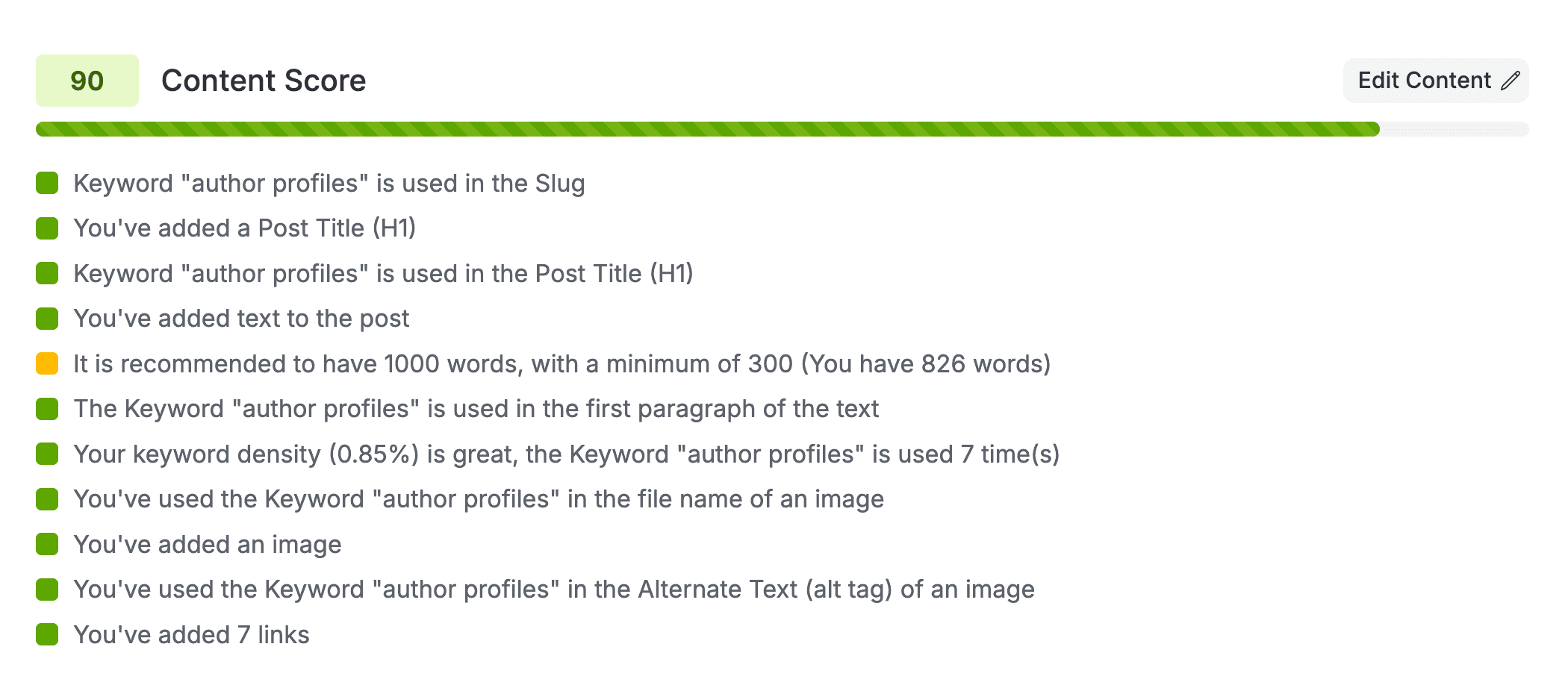 The DropInBlog SEO Analyzer: Content score
Right under the DropInBlog editor, you’ll find Mention Boost™, the platform’s native tool in charge of your content’s visibility in AI search engines. It will suggest adding specific elements and formatting options to make your content easier for AI tools to find and interpret.
Apart from these features, DropInBlog also includes a text-to-speech feature that turns your written content into audio. You can customize this feature from the Settings page of your DropInBlog account, where you’ll be able to adjust the language, locale, and tone of your blog’s AI voice:
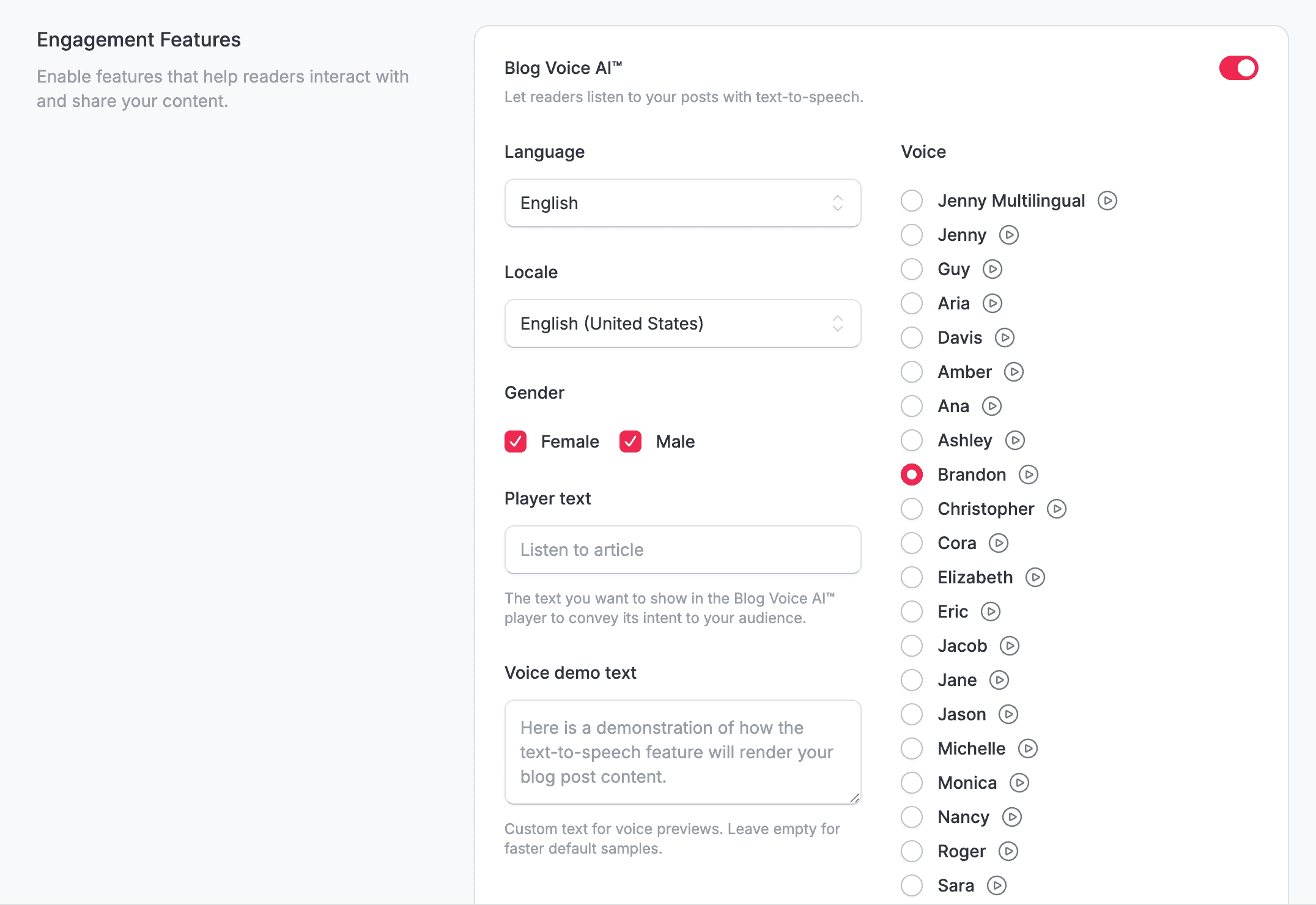 Blog Voice AI™ settings
Additional options that DropInBlog offers can help you manage and run your blog more easily, including:
- Post scheduling: Set the publish date for your post if you don’t want it to go live right away. When updating your content, use the Modified at field to inform users and search engines when the latest changes were made.
- User roles: Ensure that every member of your team has access to the parts of your DropInBlog account that you choose. Business and Business Plus users also have access to audit logs, which provide valuable insights into account activity.
- Authors and categories: Easily create and assign authors and categories to your blog posts to help your readers navigate your content more easily.
- Zapier automations: If you want to streamline some of the tasks on your blog, you can use pre-built DropInBlog+Zapier recipes.
- Google Analytics in your DropInBlog account: Once you connect Google Analytics to DropInBlog, you can view your GA4 metrics without leaving your DropInBlog account.
FAQs
Is it possible to add a blog on HighLevel?
Yes, in two ways. GHL's native blog feature (Sites → Blogs) handles basic publishing, or you can install the DropInBlog app for advanced SEO features, schema markup, and AI-search optimization. The latter gives you access to advanced blogging features – all while helping you increase your blog’s visibility in search engines. Setting it up shouldn’t take more than a few minutes, and it’s just as easy to use!
How to create a blog in HighLevel?
Open the Sites section in your HighLevel account, select Blogs, then click on Create a Blog to add a title and description to your blog and connect it to your domain. On the following page, you’ll see the New Post button in the top right, which will take you to the post editor and let you create your first blog post.
If you need a more advanced blogging tool, you can create a blog on HighLevel even more easily with DropInBlog. Simply install the DropInBlog app, create a new site page in GHL, and add the blog widget to it. That’s it! You can create your content, optimize it for searches, and fine-tune your blog’s design right away.
Is HighLevel good for SEO?
HighLevel covers the basics: metadata control, URL customization, redirects, and XML sitemaps. What it lacks is everything that helps content actually compete: an SEO analysis tool, automatic FAQ/video schema, and AI-search optimization. For a site where the blog is a real acquisition channel, pair GHL with a dedicated blogging tool like DropInBlog.
Can I customize the layout of my HighLevel blog?
You can customize your blog’s layout in HighLevel from the Blogs tab under Sites. Here, you can select one of the two blog layouts, i.e., standard and compact, and change its design using the Styles tab.
Does DropInBlog slow down HighLevel?
No, DropInBlog uses various technologies to offer fast-loading blogs, including client-side rendering, lazy loading, and image compression.
How much does DropInBlog cost for HighLevel users?
DropInBlog has several pricing plans. For more information, visit DropInBlog’s pricing page.
Add a Blog to HighLevel Today
Adding a blog to HighLevel with DropInBlog is as simple as installing an app, creating a new page, and adding the blog widget to that page. After that, you can focus on your content marketing strategy and create content that both looks and ranks well.
Are you ready to attract more traffic to your HighLevel site? Start your free DropInBlog trial today! If you still need some assistance with getting set up, please do get in touch, and we’ll be more than happy to help out.
Happy blogging!