
Table of Contents
Key Takeaways
- Google Preferred Sources lets readers choose the sites they want to see more.
- Those sites get a "Preferred" label in AI Overviews, AI Mode, and Top Stories.
- Most sites are already eligible. Just add a simple script to your site or link your audience to the opt-in page on Google.
With Google Preferred Sources, people can tell Google directly that they want to see more of your site, and your content can be highlighted with a "preferred" badge in AI Overviews, AI Mode, and Top Stories.
When someone searches for "what are some good groomsmen gifts" and gets an AI Overview, which sites get the spotlight? Google now lets your readers help decide.
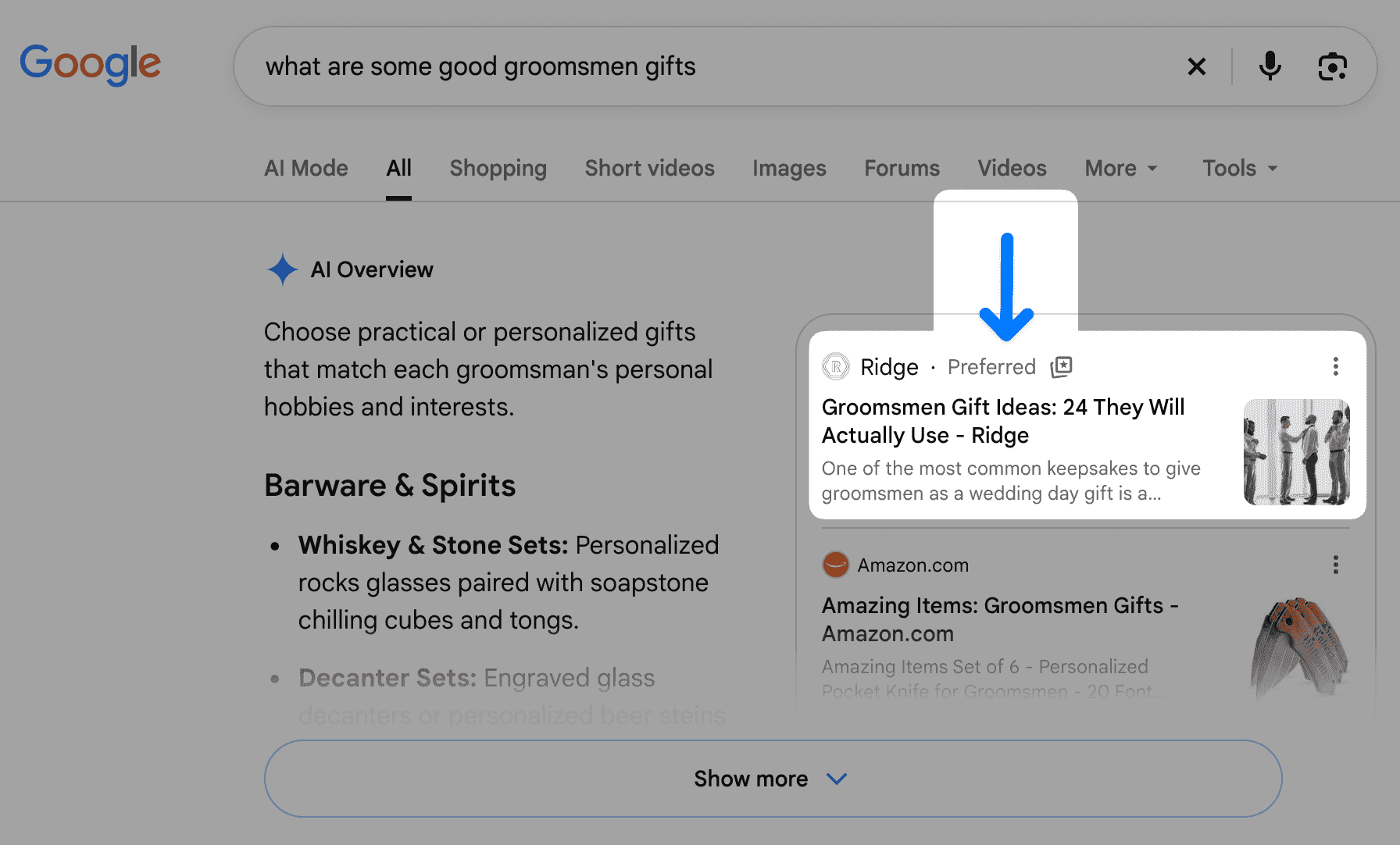
As of August 20, 2026, Google also offers an official button you can add to your own pages, so readers can pick you in one click without ever leaving your blog.
Try It: Add DropInBlog as a Preferred Source
Want to see how it works before adding it to your own blog? Click the button below. Google will ask you to confirm, then bring you right back to this post.
That's exactly what your readers will see once you add the button to your blog.
What Are Google Preferred Sources?
Preferred Sources is a Google Search setting where people pick the sites they trust and want to see more often. When a reader adds your site as a preferred source:
- AI Overviews and AI Mode: Your content can be highlighted with a "preferred" badge when Google cites it in an AI answer.
- Top Stories: Your content is more likely to appear for that reader, with the same badge.
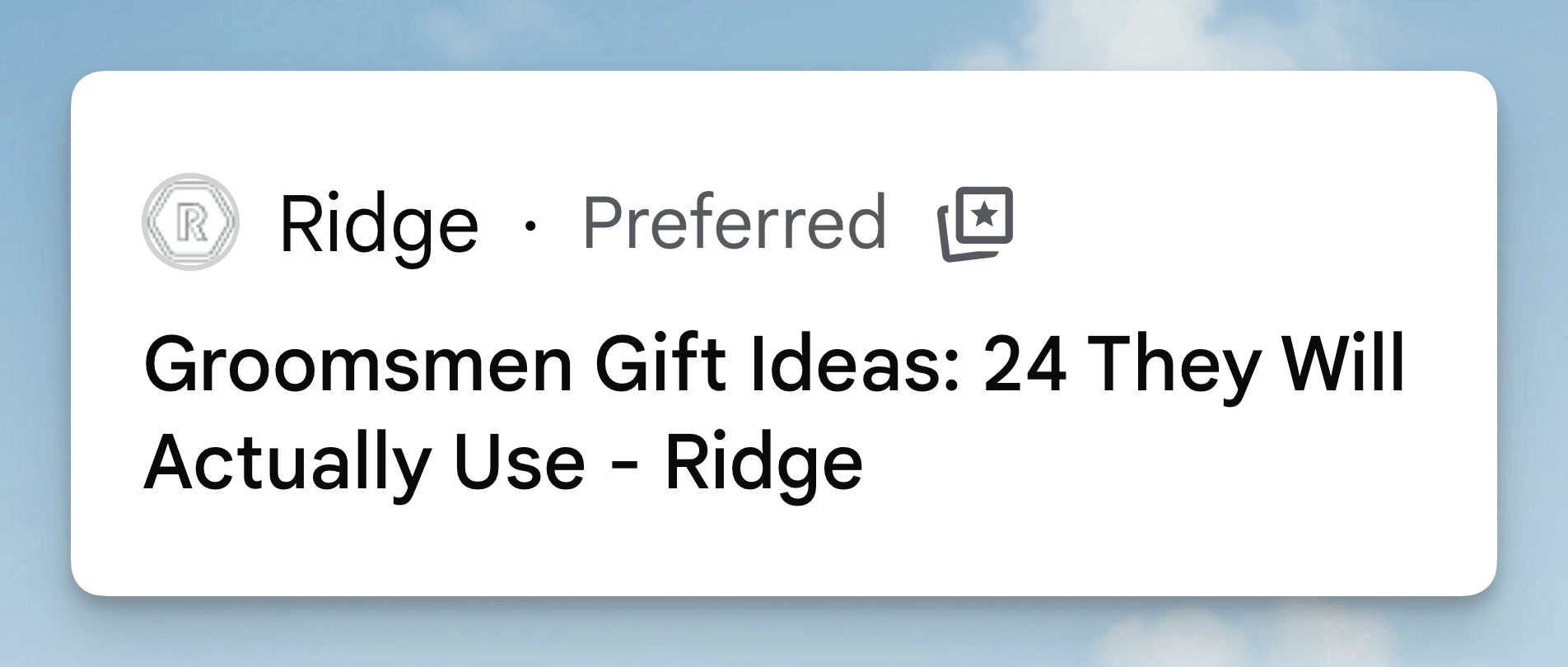
Above, someone searching for groomsmen gifts sees Ridge's gift guide in the AI Overview, labeled "Preferred." For online stores, this is where it matters most. Shoppers are increasingly asking Google things like "best running shoes for flat feet" or "gift ideas for coffee lovers" and reading the AI Overview first. If your buying guides and gift lists are already in the running, a loyal customer who picked you as a preferred source is more likely to notice (and click) your site in those answers.
Is Your Site Eligible?
Probably. But if you'd like to double-check:
- Look up your site in Google's source preferences tool. Go to google.com/preferences/source and search for your domain. If it shows up, you're good to go.
- Make sure your site is included in AI features. For AI Overviews and AI Mode, your site needs to be set to "Include" in Google Search Console under Settings > Search generative AI. Include is the default, so unless someone changed it, you're all set.
Use your main domain only (for example, yourstore.com), not the URL of your blog folder. Your main domain covers your whole site, including your blog and every other page.
Who Should Add the Preferred Sources Button?
Any blog with loyal readers can benefit from it. It's especially useful for:
- Shopify and e-commerce stores publishing buying guides, gift guides, and product roundups
- SaaS and B2B blogs that want to stay visible as AI Overviews take more clicks
- Agencies managing blogs for multiple clients
- Publishers and news-style blogs that already show up in Top Stories
More than 600,000 unique sites have already been selected as preferred sources.
How to Add the Preferred Sources Button with Smart Snippets™
Google's recommended option is the interactive button you just tried. It's styled by Google, automatically translated into the reader's language, and returns readers to the post they were reading.
With Smart Snippets™, you only need to add it once, and it will appear across your blog.
Step 1: Create a New Smart Snippet
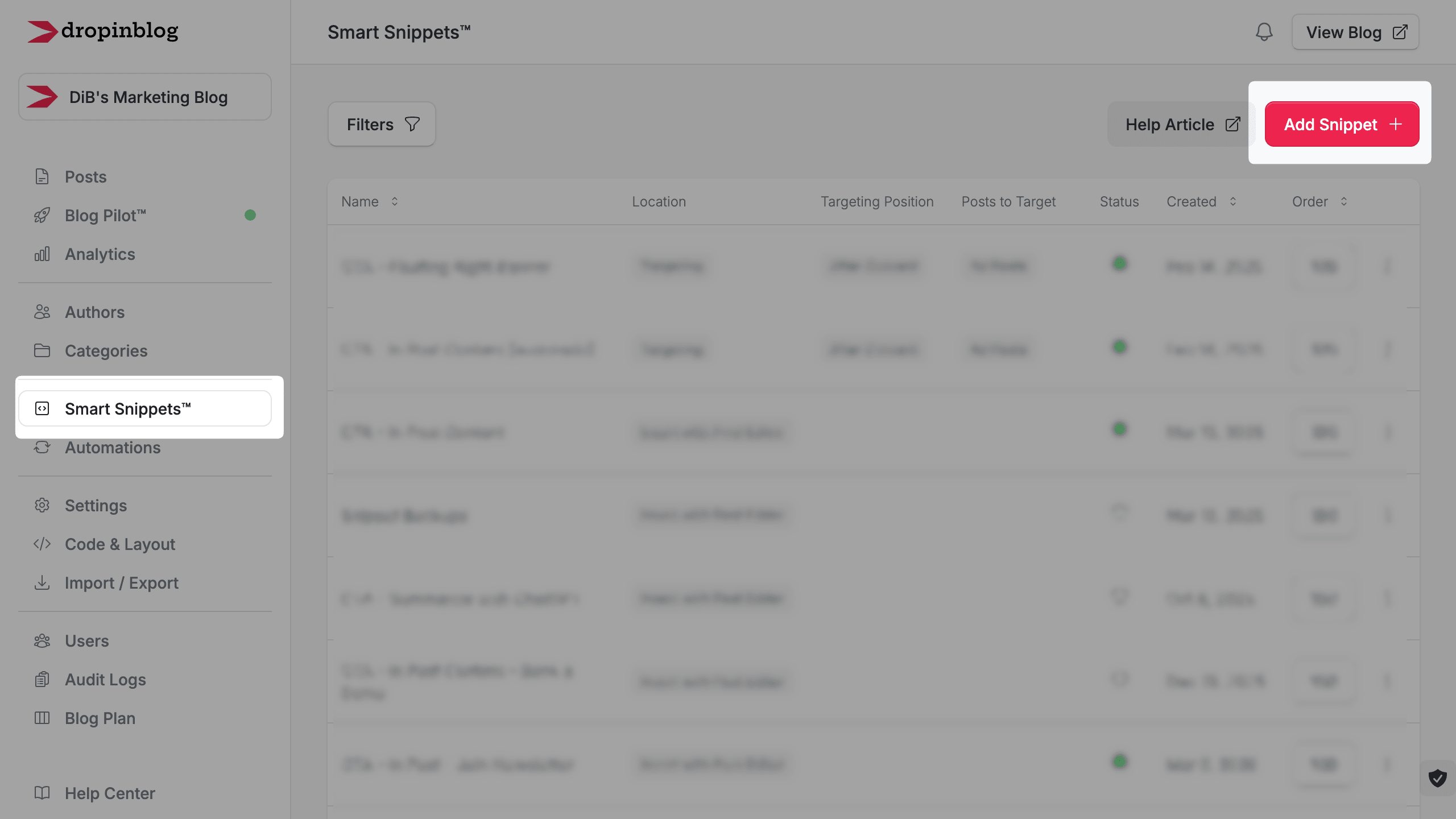
From your DropInBlog dashboard, click on the Smart Snippets™ tab in the left menu. Then add a new snippet.
Step 2: Paste the Code
Confirm you are on Code View and paste in the following code:
<p>Enjoy our articles? Add us as a preferred source on Google:</p>
<script async src="https://news.google.com/swg/js/v1/publisher.js"></script>
<div google-add-preferred-source-btn></div><br/>
The first line is optional. Feel free to change it to match your brand's voice.
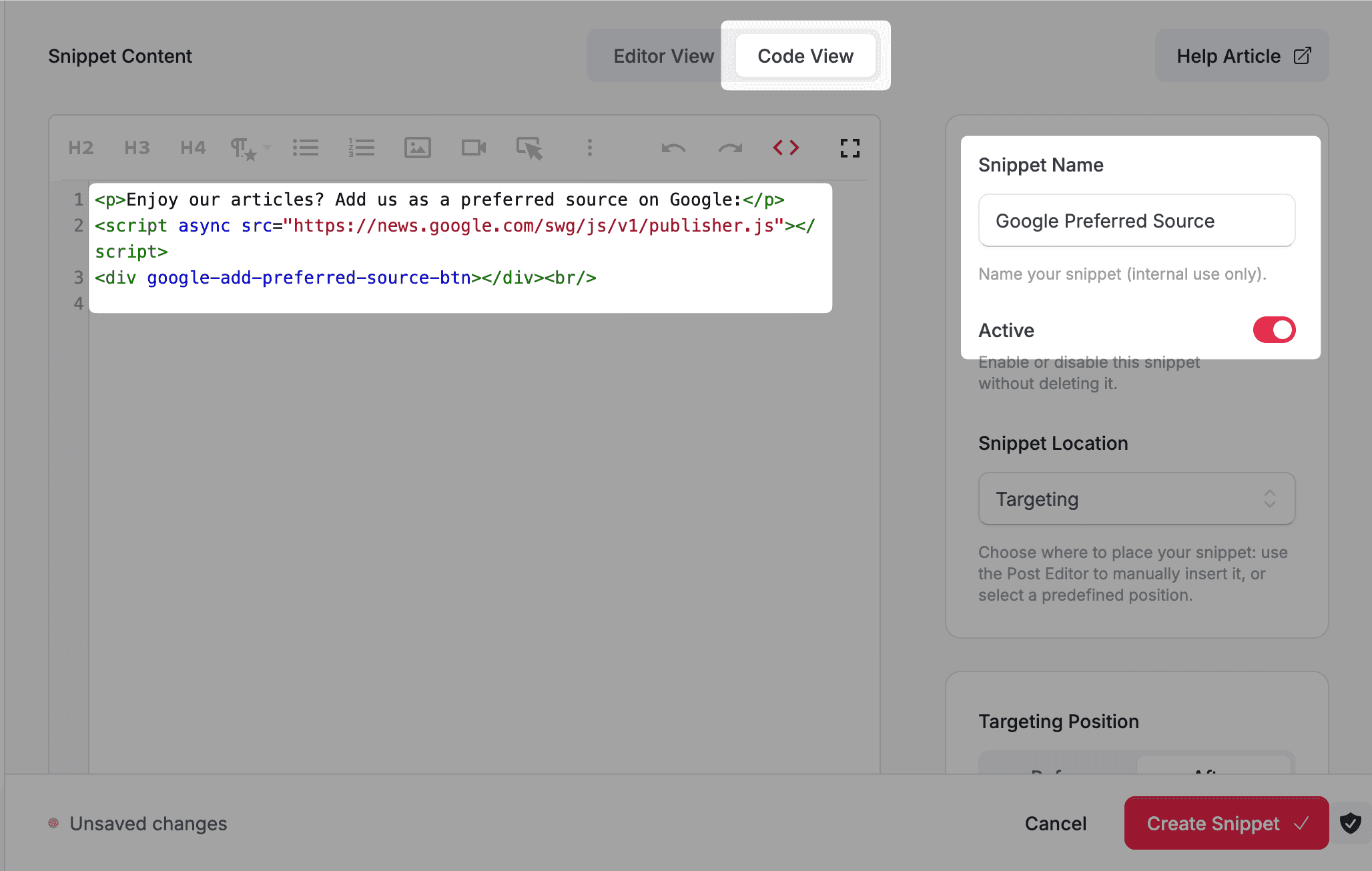
Step 3: Name and Activate Your Snippet
Add a name for your snippet on the right side of the screen, something like "Google Preferred Source Button." Then toggle the switch below the name to activate it.
Step 4: Choose Where the Button Appears
From the location drop-down menu, select Targeting, then choose your preferences. A suggestion would be: Targeting Position: After, Target Element: Content, Posts to Target: All Posts. That way, the button shows up right when readers finish an article, which is when they're likely to click.
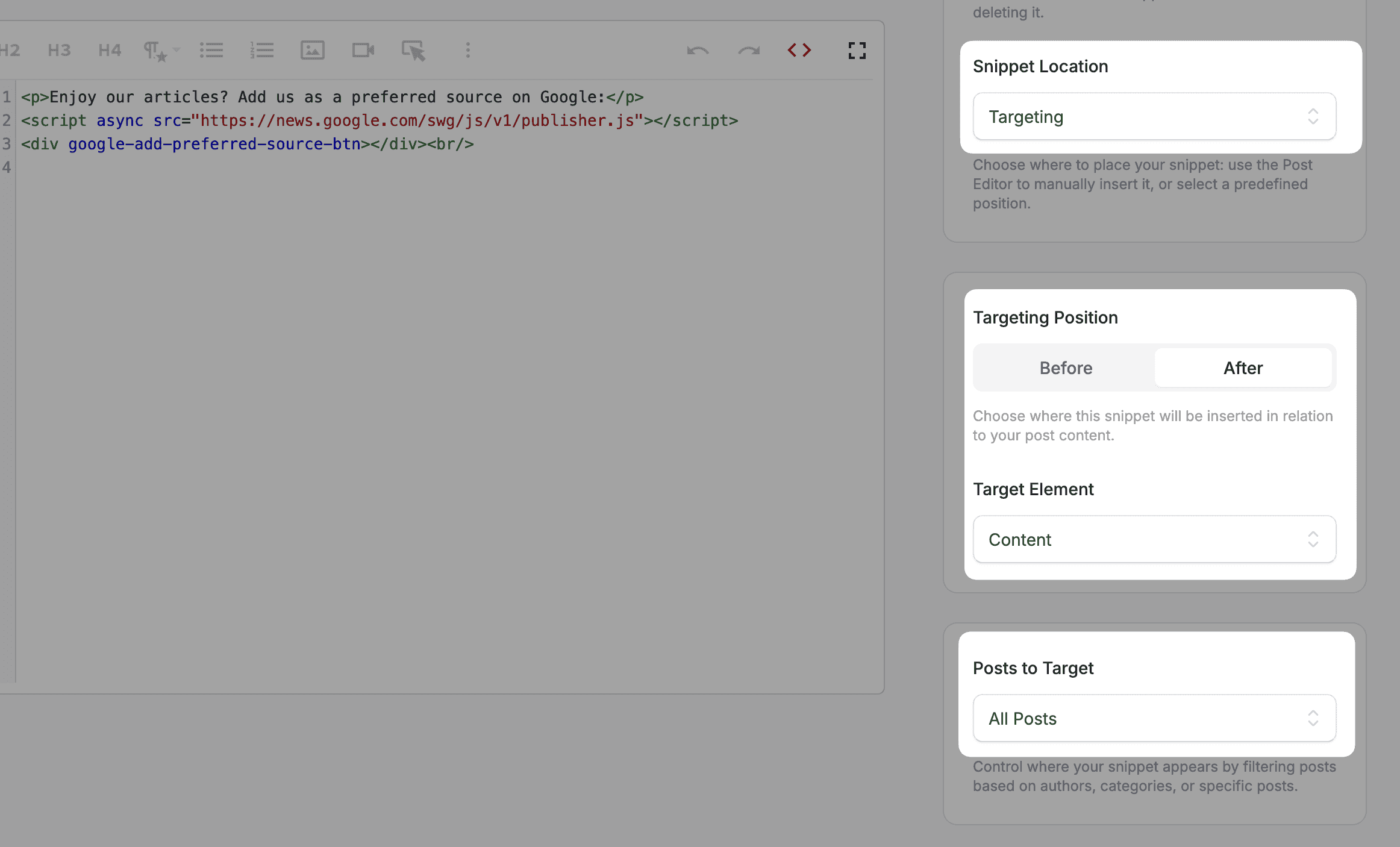
Want the button only on your gift guides or in certain categories? With Smart Snippets™ you can easily target specific categories, authors, or posts.
Step 5: Save and Check Your Blog
Click the Create Snippet button in the bar at the bottom of the page. Then open any post on your blog and scroll to the end. You should see Google's "Add to preferred sources" button.
Optional Button Settings
If your site has a dark design, you can switch to the dark theme:
<div google-add-preferred-source-btn data-theme="dark"></div>By default, the button uses the reader's browser language. To set a specific language instead:
<div google-add-preferred-source-btn data-lang="en"></div>Prefer a Simple Link? Use This Instead
If you'd rather use a text link or your own button image, newsletter, or social post, Google also provides a direct link. Just replace example.com with your main domain:
https://www.google.com/preferences/source?q=example.comThat same link works great in your email newsletter, order confirmation emails, social media posts, and author pages. Your customers and subscribers are already your biggest fans, so they're the easiest people to win over.
💡 Pro Tip: Ask your existing audience to add you as a Google Preferred Source.
Readers are twice as likely to click through to a site they've marked as a preferred source.
FAQs
Is Google Preferred Sources a ranking factor?
Should I use my blog URL or my main domain?
Where should I share Google Preferred Sources besides my blog?
https://www.google.com/preferences/source?q=yourdomain.comCan I show the Google Preferred Sources button on only some of my posts?
Let Your Readers Vote for You
Preferred Sources is one of the rare SEO opportunities where you don't have to guess what Google wants. Your readers tell Google directly. Add the button once with Smart Snippets™, and every post on your blog starts asking for you.
Add the Preferred Sources button to your blog now.
If you need any help, reach out to us anytime. We're here to help.
Happy blogging!
Sources
- Google Search Central on helping readers find your site through preferred sources: https://developers.google.com/search/docs/appearance/preferred-sources
- Google on personalizing what you see on Search, Discover, and News: https://blog.google/products-and-platforms/products/search/personalize-search-discover-news/
- TechCrunch on how Google gives publishers a new way to fight AI-driven traffic losses: https://techcrunch.com/2026/08/20/google-gives-publishers-a-new-way-to-fight-ai-driven-traffic-losses/
- Search Console Help on the Search generative AI control: https://support.google.com/webmasters/answer/16908024