
When your visitors land on a regular video review or a blog post about a product, they can’t buy it directly from that page. They have to visit your store, find the product, and add it to their shopping cart. With shoppable content, you can remove a couple of extra steps and help your visitors reach the “add to cart” button faster.
TL;DR
- Shoppable content is any content that contains product links, tags, or buy buttons, allowing visitors to purchase right from what they’re reading or watching.
- There are five main types of shoppable content: social posts, videos and livestreams, user-generated content, ads, and blog posts.
- Of the five, shoppable blog posts give you the most control, since social posts and ads depend on a platform’s rules or your ad budget.
Table of Contents
What Is Shoppable Content?
Shoppable content is any post, image, video, article, or ad that includes a product tag, link, or button so that people can reach the product page or checkout in one or two clicks. It shows the product and its price right in the content, so visitors don’t have to search your store for it. And because a lot of shoppable content is visual, people also call it shoppable media, but the two terms mean the same thing.
The difference between shoppable content and a regular product link is where the product information lives. A regular link sends visitors to the product page to see the price and details. Shoppable content shows the product image, price, and a buy button right in the content, so when visitors are ready to buy, they can do that in a click or two.
Types of Shoppable Content (With Examples)
There are five main types of shoppable content:
- Shoppable social posts
- Shoppable videos and livestreams
- Shoppable user-generated content
- Shoppable ads
- Shoppable blog posts and buying guides
The difference between these types of shoppable content, beyond format, lies in whether the content lives on a social platform, an ad network, or your own website.
Shoppable Social Posts
Shoppable social posts are posts on platforms such as Instagram, TikTok, and Pinterest. They look like regular posts, but have product tags, a shopping bag icon, or the price shown in the post. When you click these elements, you see product details. On Instagram and Pinterest, you’re directed to the brand’s website where you can buy the product, while on TikTok, you can purchase a product without leaving the app.
Example of a shoppable social post:
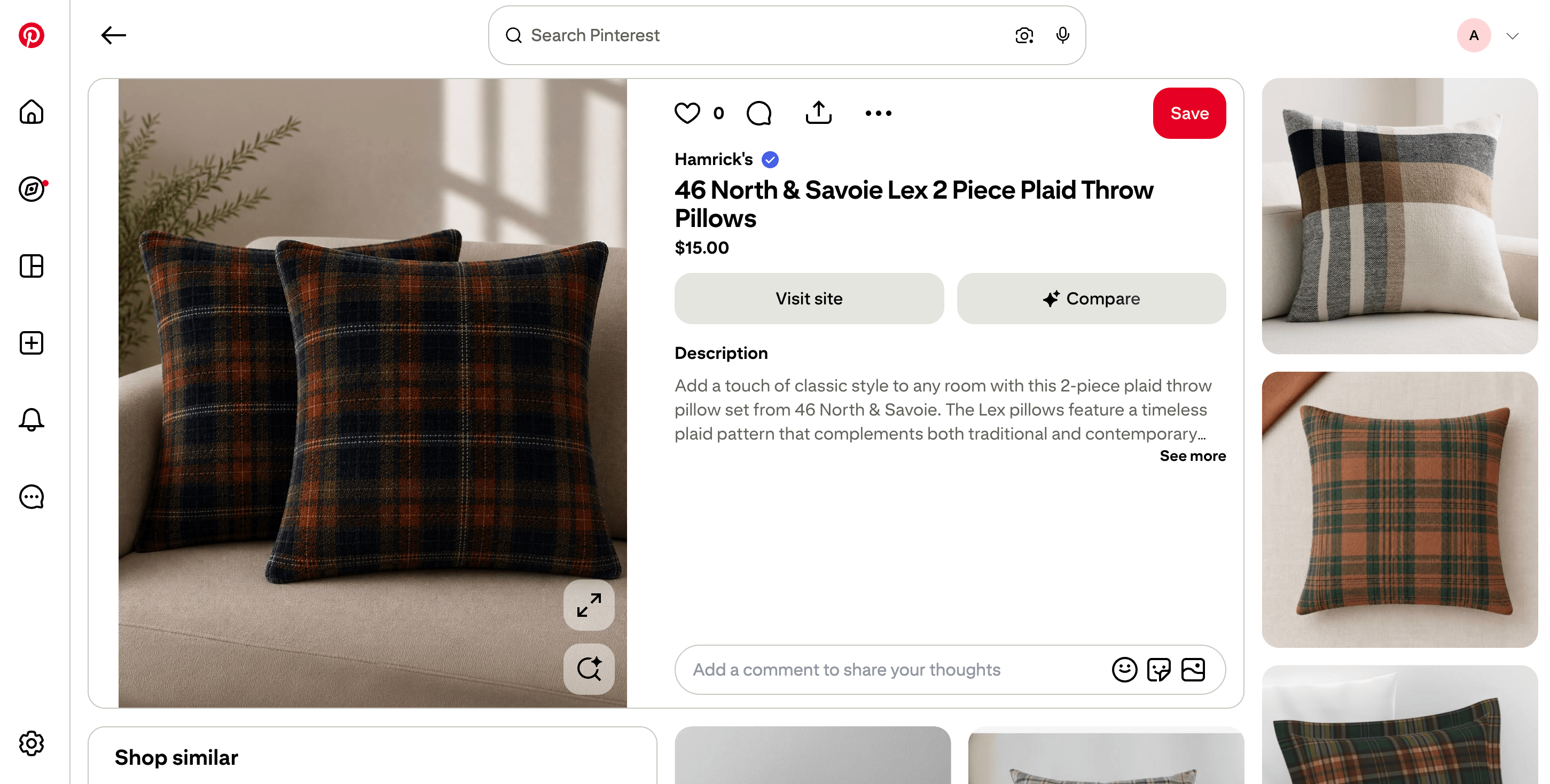
A Product Pin on Pinterest shows the price right on the Pin, with a “Visit site” button that takes shoppers to the store.
Best for: Brands with an active following on Instagram, TikTok, or Pinterest.
Shoppable Videos and Livestreams
Shoppable video content showcases products and features a buy button. It can be used on social media platforms like TikTok, as well as Amazon and a brand’s official website. Livestreams work the same way but happen in real time, so viewers can ask questions and buy while the host demos the product.
Example of a shoppable livestream:
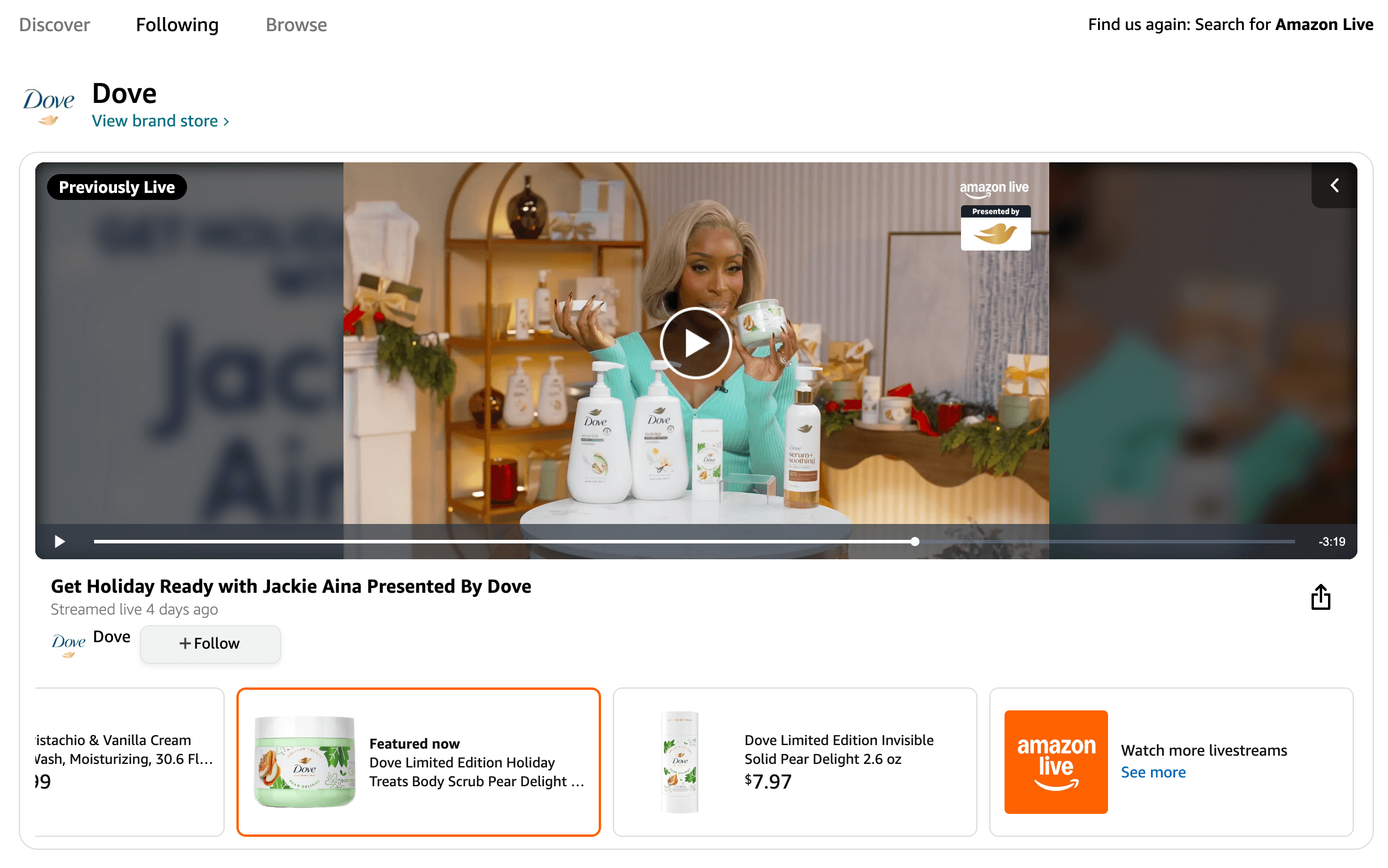
Dove’s holiday stream with Jackie Aina on Amazon Live stays shoppable after it ends, with the featured products listed right below the replay.
Best for: Products that need to be seen in use, like fashion or gadgets.
Shoppable User-Generated Content
As the name suggests, user-generated content (UGC) comes from your customers. It usually includes photos and videos of products they bought, and brands add this content to their site and link it to the matching product page.
Example of shoppable user-generated content:
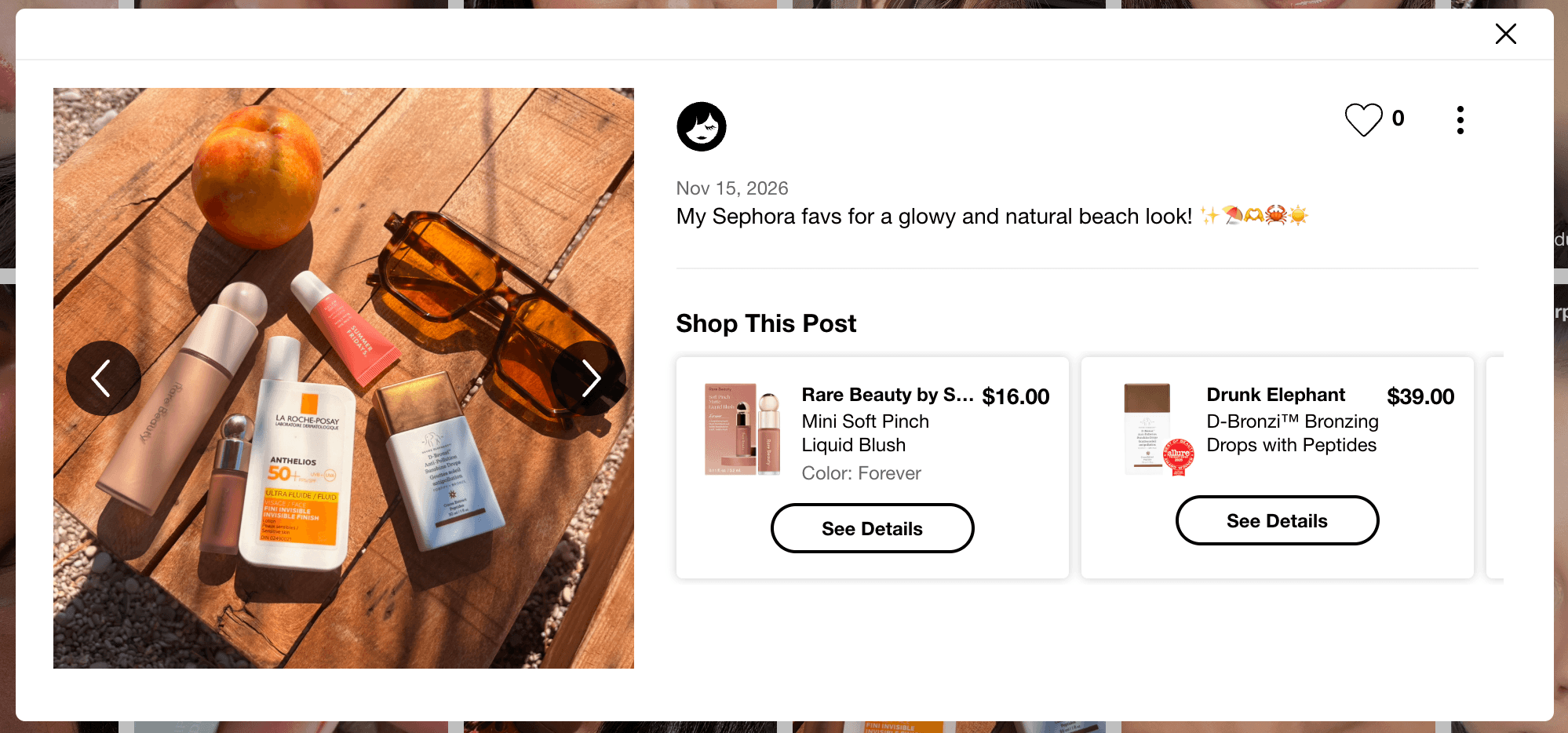
A customer’s post in Sephora’s Community Gallery. Customers upload photos and tag the products they used so that other shoppers can buy them straight from the post.
Best for: Fashion, beauty, and home brands whose customers already share photos.
Shoppable Ads
You’ll see shoppable ads on video platforms like YouTube, social media networks like TikTok and Instagram, and search engines like Google. Like other types of shoppable content, these ads show the product, price, and a link, so shoppers can go straight from the ad to buying it.
Example of a shoppable ad:
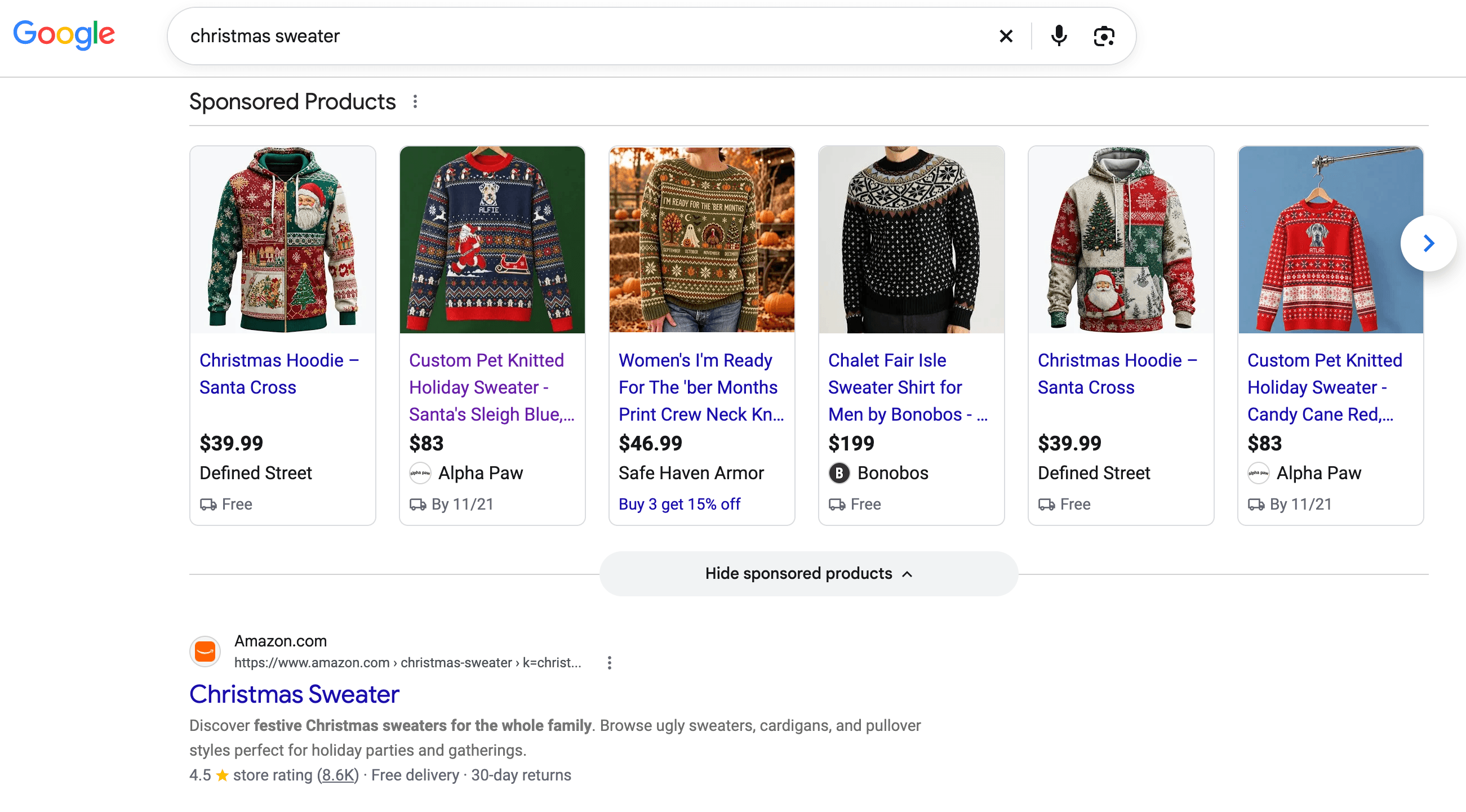
Google Shopping ads for “Christmas sweater.” Each sponsored product shows a photo, price, and store, and clicking it takes shoppers to the store’s product page.
Best for: Reaching new shoppers who are already searching for products like yours.
Shoppable Blog Posts and Buying Guides
Shoppable blog posts are articles that include a product’s image, price, and a link to the product page or checkout. You’ll see these shoppable articles on stores built with e-commerce platforms like Shopify and BigCommerce. Since this is the format you have the most control over, we’ll explore it in more detail below.
Example of a shoppable blog post:
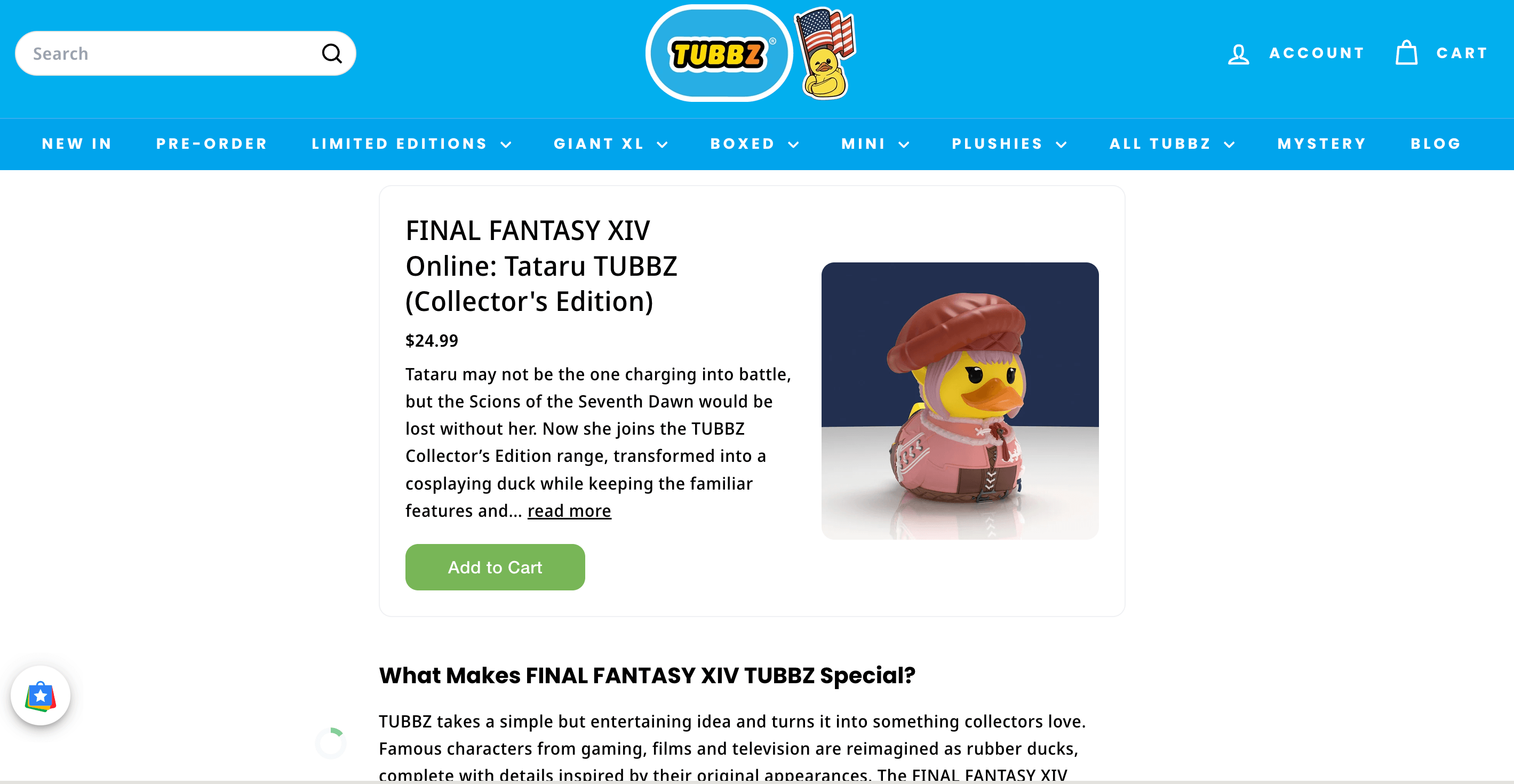
On the TUBBZ blog, products appear right in the post, with a photo, price, and an “Add to Cart” button.
Best for: Stores that already have a blog and publish guides, how-tos, or gift guides.
Why Shoppable Blog Posts Are Worth the Effort
Shoppable blog posts work differently from social posts and ads, and that’s what makes them worth your time. Here’s why.
You own the page. Your blog lives on your own site, so you decide which products you want to add to your content and where. You also decide when and for how long the post is available to your visitors. A social post, on the other hand, depends on the platform. If the platform changes its feed, introduces a new rule about links, or removes a feature (like Instagram’s in-app checkout in 2025), it changes how many people see your products and how they buy them.
It keeps working. A blog post that ranks in Google can keep bringing in shoppers months after you publish it. A social post drops out of the feed quickly. A shoppable blog post doesn’t have an expiration date, and every new visitor who finds it through search sees the products you added.
Your readers are already researching. People who land on a buying guide or a how-to are usually close to a decision. Someone reading “best running shoes for beginners” already knows they want running shoes. When the product, price, and an Add to Cart button sit right in the post, they can buy while the decision is still fresh.
It makes your existing posts earn more. You don’t have to write anything new to get started. Go back to posts that already get traffic, like guides, tutorials, or product roundups and comparisons, and add the products they mention. That way, the same posts that answer your readers’ questions also help you make sales.
If you have a store but not a blog, take a look at our picks for the best blog platforms for e-commerce stores. In the post’s comparison table, you’ll also see how each platform handles product embeds.
How to Create a Shoppable Blog Post
Creating shoppable blog posts is simple, especially if your blogging tool takes product data straight from your store. Here’s how to do it in five steps.
Step 1: Pick the Right Post
Start with posts that attract visitors who are ready to make a purchase decision. These posts come from the following categories:
- Buying guides: Your readers are trying to decide which product to get. With the product embedded next to each recommendation, they can buy it as soon as they decide.
- How-to posts: If your post shows readers how to use a product, embedding it in the post makes it easy for them to buy it once they see how it works.
- Gift guides: People reading gift guides usually have a person and a budget in mind. A product in the post that shows the price helps them pick a gift and order it in the same visit.
- Comparisons: By the time readers get to a comparison, they probably have two or three options in mind. Placing a product next to each option lets them act on their choice right away.
Step 2: Place Each Product Where It Helps
Add each product right after the paragraph that explains the problem it solves. If a section of your how-to explains why a ceramic pan is easier to clean, the pan goes right below that section. A block of products at the end of the post is easy to miss, and readers who stop halfway never see it.
Step 3: Embed the Product
Some blogging tools for online stores have a product embed that pulls the product image, name, and price from your store, so you don’t have to copy them by hand.
DropInBlog is one of those blogging tools, and it allows you to embed a product into a blog post in a couple of clicks. The product embed feature is available for Shopify, BigCommerce, and Big Cartel stores. If your site isn’t created with one of these e-commerce platforms, you’ll have to use regular product links or insert the product’s embed code with Smart Snippets™.
Here’s how product embeds work:
- Open your post in the editor and place your cursor where you want the product to appear.
- Click the shopping bag icon in the editor toolbar.
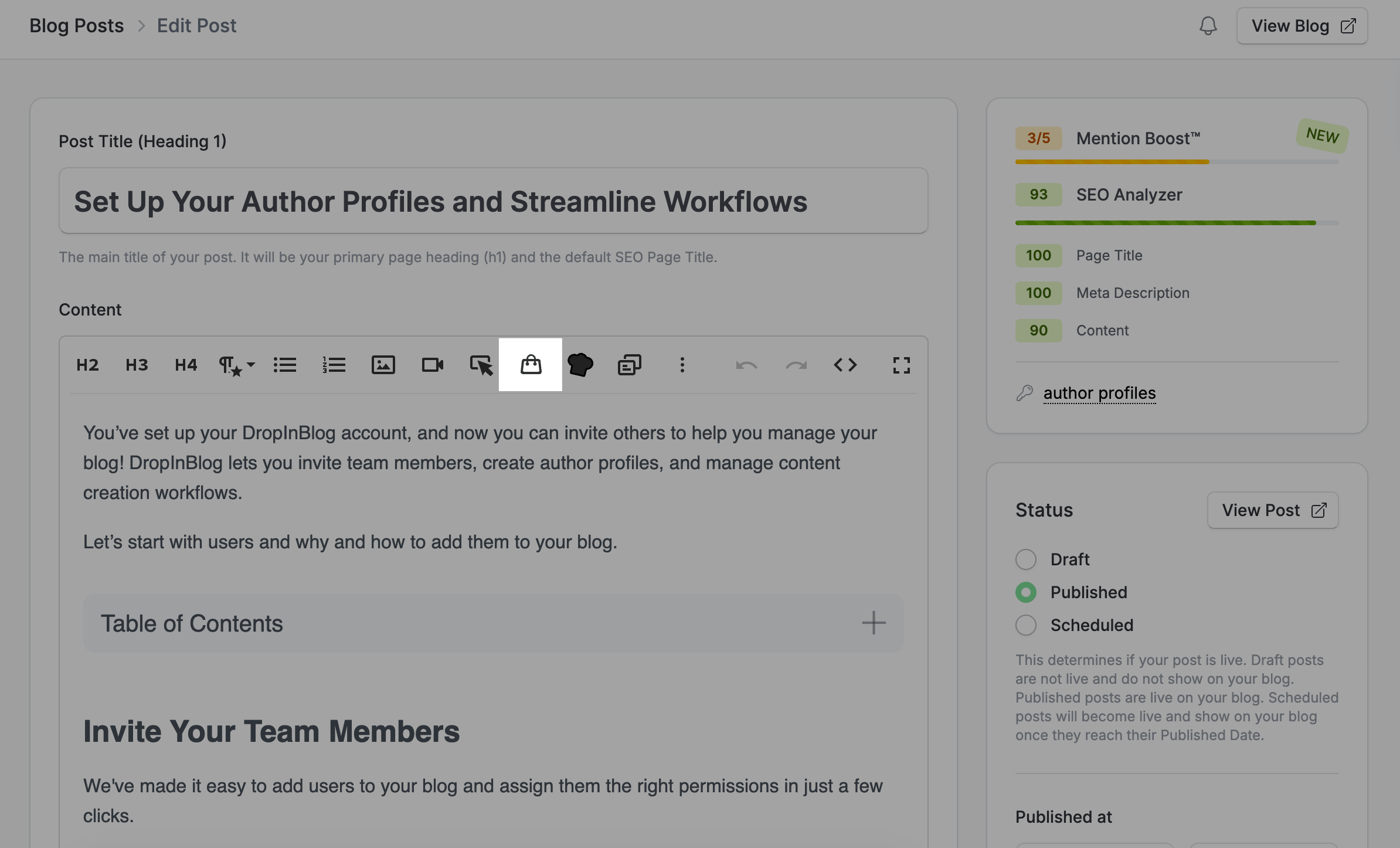
- Find the product in the window that opens, and click Insert.
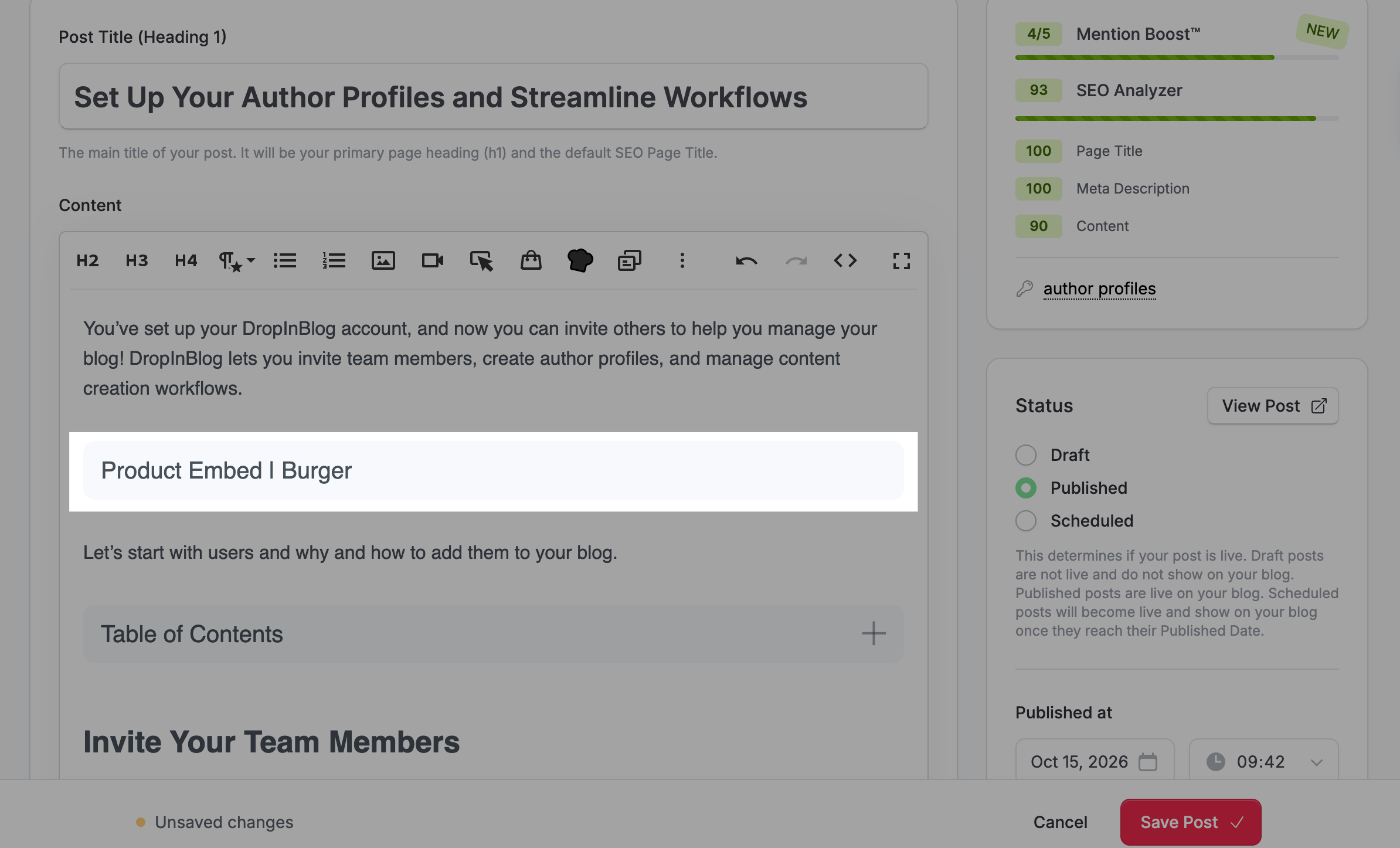
- Save the post and preview it to see the product card.
In the editor, the product shows as text in the following format: “Product Embed | [Name of the product].” That’s expected, and the full product card will appear in the preview and on your live blog.
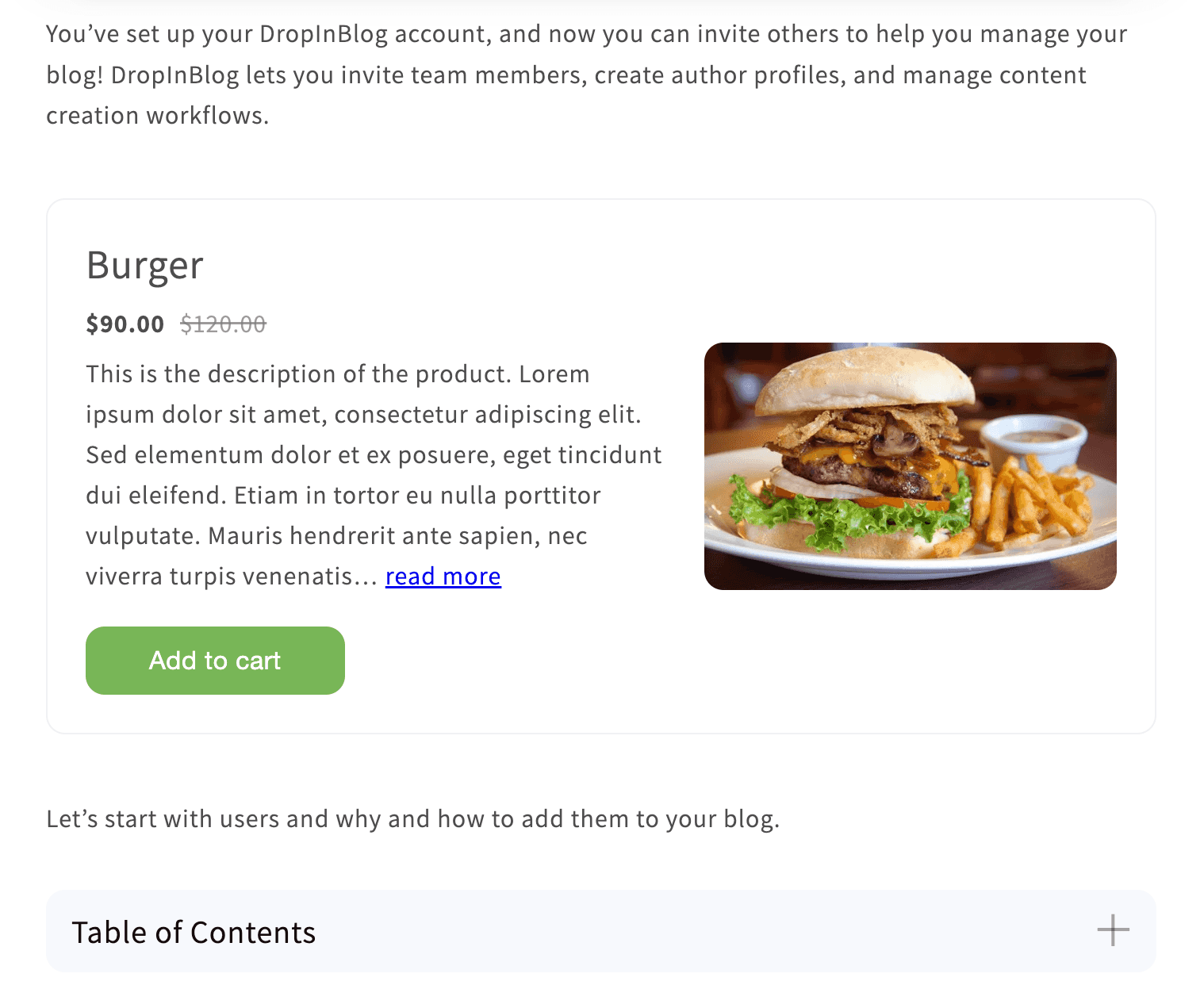
DropInBlog also supports product variants so that visitors can pick a size or color inside the shoppable post, and the price will update to match the selected option. Speaking of updates, DropInBlog’s product embeds are dynamic, which means that they display live data from your store. So, if you change a product price, you don’t have to embed the product again. It will automatically show the new price.
For more information about how product embeds in DropInBlog work, read a step-by-step guide on how to embed products into your blog posts. If you’re looking for platform-specific guides, see our Shopify guide or watch our BigCommerce video to see product embeds in action.
Step 4: Choose What the Button Does
Decide where the button sends shoppers. In DropInBlog, open the Settings page and expand the Advanced Options menu. In the Messages & Labels section, you’ll see three actions under Product button action.
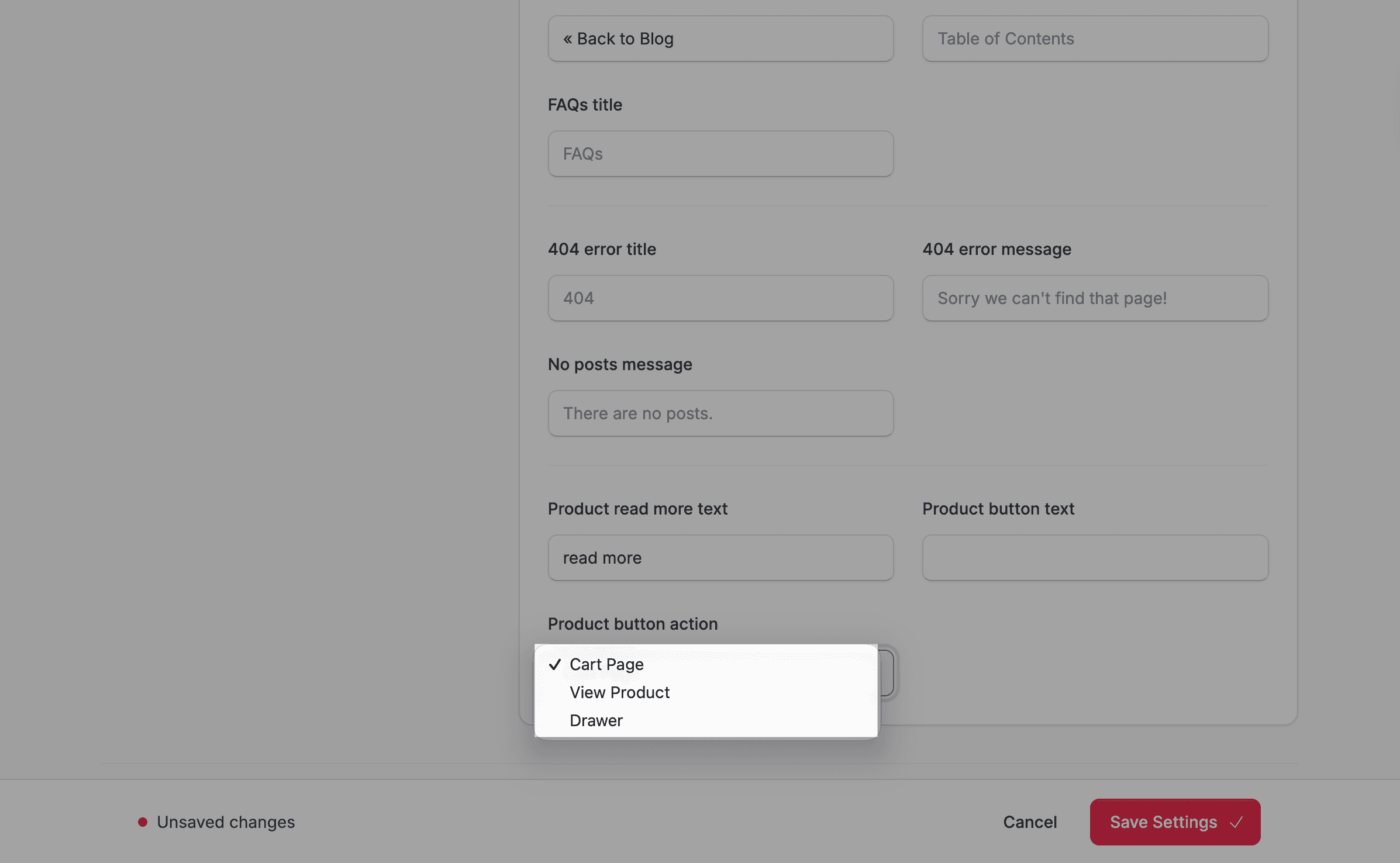
- Cart Page: Setting this action will add the product to the shopper’s cart and take them to your store’s cart page. Use it for products readers already understand, like refills, accessories, or bestsellers.
- View Product: This action takes readers to the product page. Use it when shoppers need more details first, such as specs or reviews.
- Drawer: This action will add the product to the shopper’s cart and open a cart drawer on the blog post, so they can keep reading and check out when they’re ready. This option is available only for Shopify stores whose theme uses a cart drawer.
In the same section, you can change the button text, for example, to “Buy Now.”
Step 5: Keep the Post Useful
When it comes to the number of products you should add to your blog post, we recommend two or three. Adding more than that can easily make the post look like a catalog page. The post still has to answer the question that brought readers there, so write the guide first, then add products where they fit.
FAQs
What is shoppable content?
Shoppable content is a post, image, video, article, or ad that includes a link, tag, or button that shows the product price and takes visitors to the product page or checkout.
What does “shoppable” mean?
When content is shoppable, the products that are shown in it are linked, so you can click a product to see its price and buy it instead of searching for it yourself. For example, a blog post with an “Add to Cart” button next to a product is shoppable, while a post that only mentions the product by name isn’t.
What is shoppable media?
Shoppable media is the same as shoppable content: photos, videos, and posts that include linked products, so people can see the price and buy in a click or two. Media is the term that’s often used on social and video platforms like Instagram, TikTok, and YouTube, where the content is mostly images and video.
How do I create shoppable posts on Instagram?
To create shoppable posts on Instagram, you need a business or qualified public account and an eligible product catalog in Meta’s Commerce Manager. When you create a post, tap “More options,” then “Tag products,” and pick the products shown in your photo or video. You can tag up to 20 products per post, in countries where Instagram shopping is available. For the full steps, see Instagram’s help article on adding shopping tags.
What are the best tools for creating shoppable content?
The best tool depends on where your content lives. Instagram, TikTok, and Pinterest each have their own product tagging tools. UGC platforms like Yotpo or Foursixty make customer photos shoppable, and a blogging platform with dynamic product embeds, like DropInBlog, makes your blog posts shoppable.
Ready to Create Shoppable Content?
Shoppable content shortens the path from reading about a product or viewing it to buying it, because the product is right there in the post. Your blog is the best place to start, since you own it and the posts keep bringing in shoppers long after you publish them.
Start your free trial on DropInBlog and add your first product to a blog post today.